
AI Image Tools Every Workflow
Generate, edit, upscale, reframe — one canvas, clear credit pools, no tab juggling.
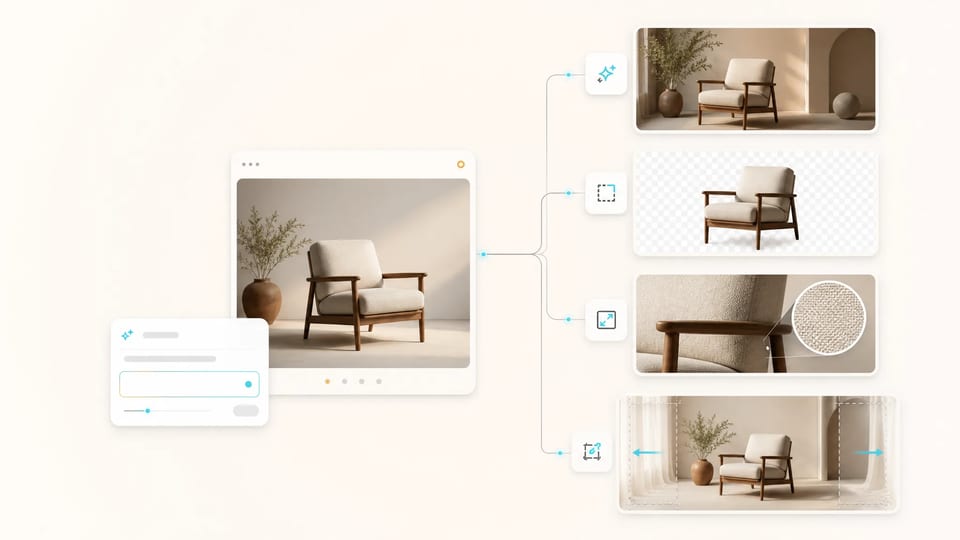
Switch AI image tools on SupaImagine without ever leaving the page. The picker carries your prompt and reference image across tools so the output of one becomes the input of the next — no download-upload cycle between steps.
- Tool picker — switch in place, no tab juggle
- Background remover, upscaler, extender ready
- Clear credit pools by access
- Failed runs refund credits automatically
What These AI Image Tools Cover, and Why One Workspace
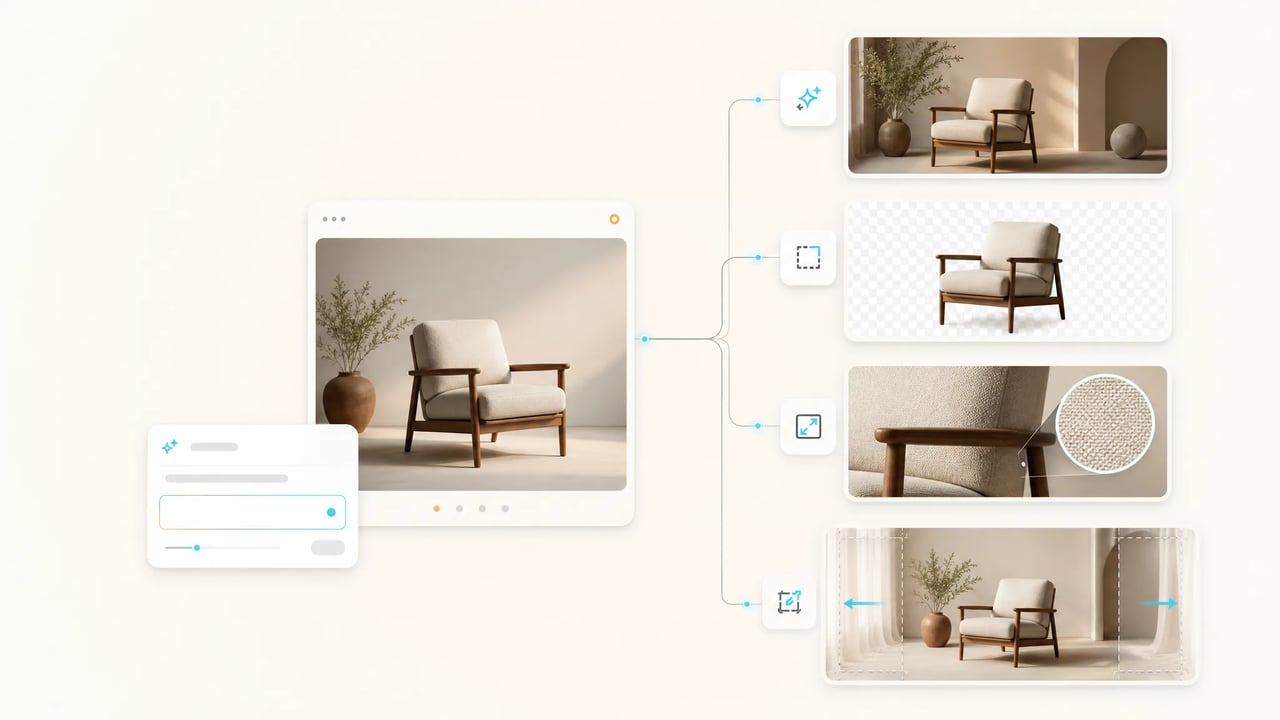
AI image tools today are scattered — one site for generation, another for background removal, a third for upscaling, a fourth for reframing. Each charges a separate subscription, makes you re-upload the same file, and locks you to one model per job. SupaImagine pulls every common AI image tool into one workspace. Switch tools in the picker; the previous run's image carries over so the output of one AI image tool becomes the input of the next without a download-upload cycle.
How it works
Run Any AI Image Tool in Three Steps
The same flow works for the generator, the background remover, the upscaler, the extender — every AI image tool on SupaImagine shares this loop.
- 1
Pick an AI image tool from the picker
The dropdown lists every AI image tool SupaImagine ships with — each entry carries a credit badge and a one-line description. Switching tools is one click; uploads, prompts, and last-run output stay loaded so you never re-upload.
- 2
Drop a reference or write a prompt
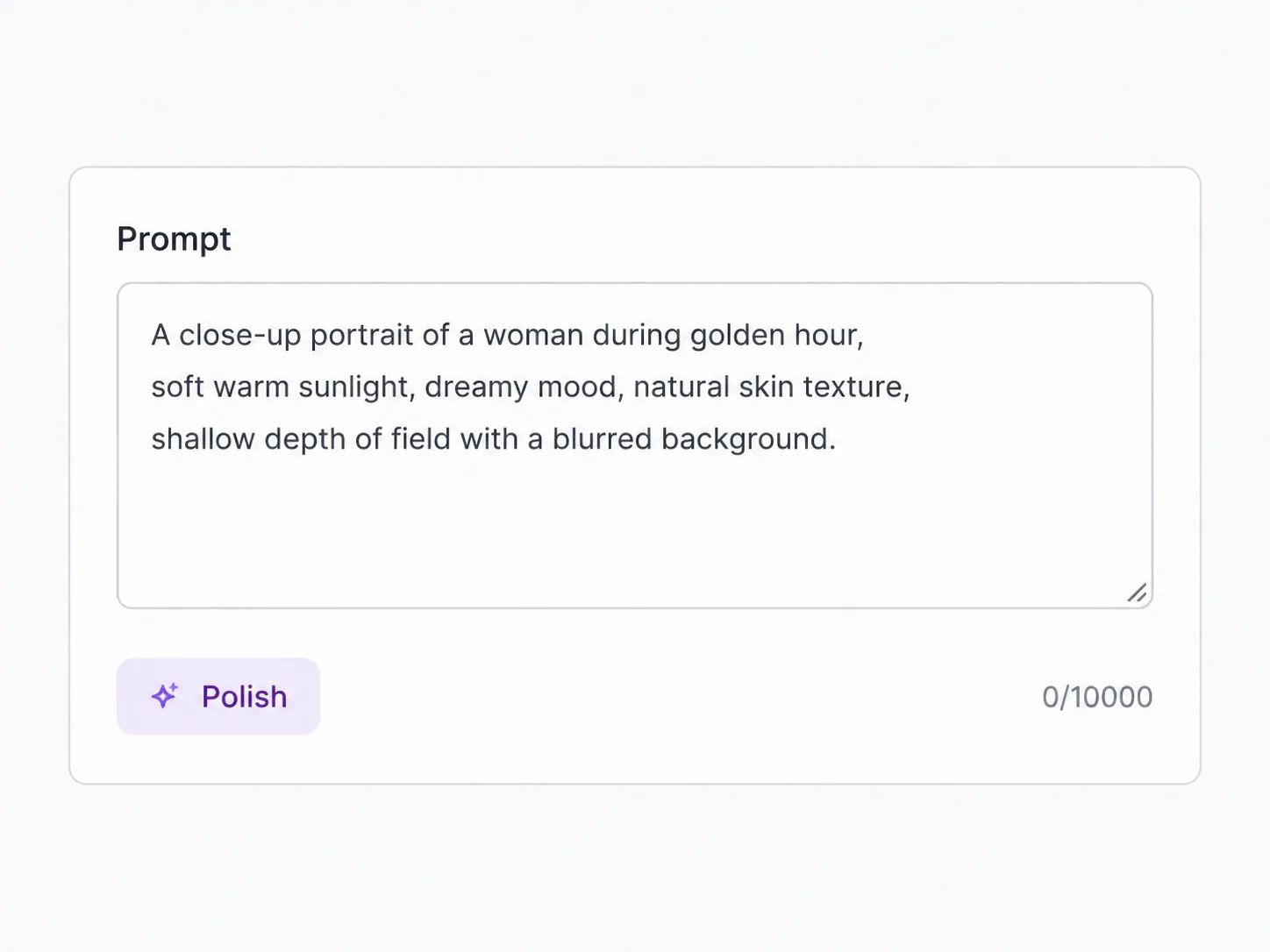
Most AI image tools take a reference photo (JPG, PNG, WEBP up to 10 MB). The generator also accepts a text prompt. Locked params like background-removal precision are pre-set so the AI image tool runs without configuration.
- 3
Run, compare, chain
Hit generate and watch the AI image tool render in seconds. Pipe the output into the next AI image tool from the picker — extend a cutout into an upscaled hero, or reframe a generated image without leaving the workspace.
Who Uses These AI Image Tools
Different briefs reach for different AI image tools — SupaImagine lets each user pick the right one without leaving the page.
-
E-commerce Operators
Product teams cut out studio backgrounds with the AI image tool that handles fine hair edges, then upscale the cutout for a hero banner — all in the same workspace. Cataloging 200 SKUs becomes one prompt and three clicks per SKU instead of three tabs.
-
Social Creators
Creators generate thumbnail concepts with one AI image tool, then reframe each to portrait / landscape for Stories vs feed. The previous output stays loaded so reframing is one click, not a new upload.
-
Marketers
Marketers chain three AI image tools — generate a product mockup, cut its background, upscale it for billboard — without re-uploading between steps. The savings show up as a faster turnaround on every campaign deliverable.
-
Designers
Designers reach for the AI image tool that fits each step — generator for the concept, extender to fit aspect ratio, upscaler for print. One workspace covers the brief end-to-end; no asset-shuffling between separate sites.
The toolbelt
What's in the AI Image Tools Picker
-
AI Image Generator
The AI image tool that creates from scratch — type a prompt, pick a model, get an image in seconds. Every leading model under one workspace.
-
AI Background Remover
The AI image tool that cuts the subject out of any photo. One-click, no prompt, transparent PNG output suitable for product catalogs and thumbnails.
-
AI Image Upscaler
The AI image tool that enlarges any photo up to 8x with no quality loss. Studio prints, hero banners, billboard mockups — all from a single source.
-
AI Image Extender
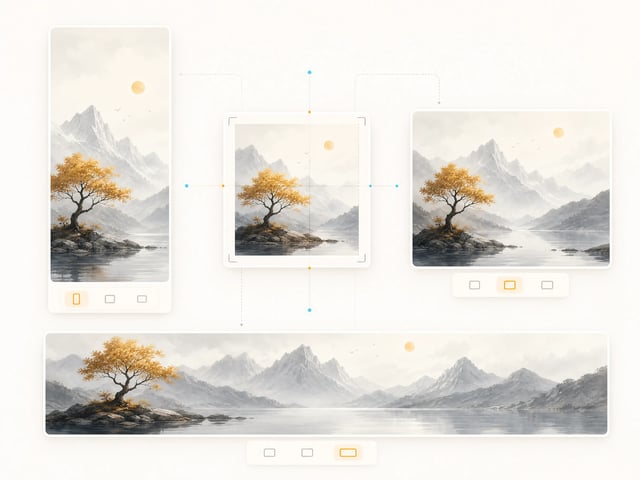
The AI image tool that changes aspect ratio without cropping. The model extends the scene to fit — square, portrait, landscape, billboard. One source, every channel.
-
Shared run history
Every AI image tool's outputs land in the same run history sidebar. Re-open any past run, regenerate with tweaks, or pipe it into the next AI image tool without re-uploading.
-
Clear credit pools
Each AI image tool draws from account credits. Free credits cover standard tools; Premium tools use subscription or purchased credits.
Why one workspace
Chain AI Image Tools Without Re-Uploading
The output of every AI image tool stays loaded as the input of the next. No download-upload cycle between steps.
Generate, then refine
Generate an image with the generator AI image tool, then cut its background in the same workspace. The freshly generated image is the input for the background remover — no save-and-re-upload.
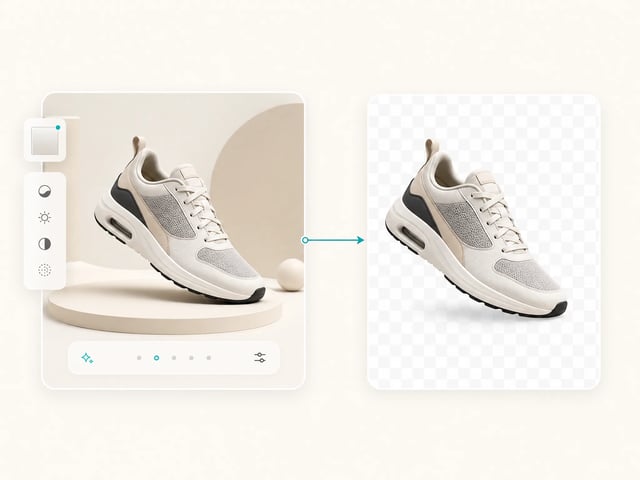
Cut out, then upscale
Cut a product out of its background, then upscale the cutout for a print-quality hero banner. Both AI image tools see the same image; the picker handoff is one click.
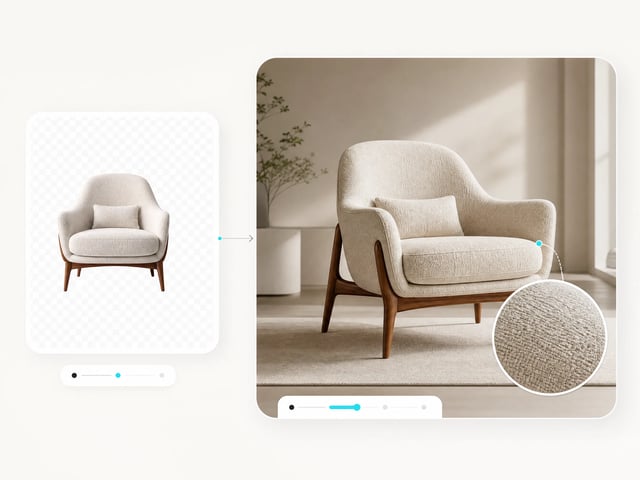
Generate, then reframe
Generate a 1:1 concept, then reframe to landscape for a YouTube thumbnail and to portrait for Stories. It extends the scene to fit; you don't lose composition.
Frequently Asked Questions About AI Image Tools
What AI image tools are included on this workspace?
Every AI image tool a creator typically needs: an AI Image Generator (text-to-image and image-to-image across every leading model), an AI Background Remover (one-click subject cutout), an AI Image Upscaler (up to 8x), and an AI Image Extender (aspect-ratio change without cropping). New tools land in the picker as they ship — no separate sign-ups.
Are these AI image tools free?
Yes — every AI image tool on this workspace is free to try. New accounts get free credits for standard tools, refreshable via daily check-in and referral. Premium tools use subscription or purchased credits; paid plans add more volume and commercial-use licensing.
Which AI image tool should I pick first?
It depends on what you have. Need an image from a prompt? Open the AI Image Generator. Need to clean up an existing photo? Start with the AI Background Remover. Need a bigger version? The AI Image Upscaler. Need a different aspect ratio? The AI Image Extender. The picker shows badges and descriptions so you can decide without leaving the workspace.
Can I chain these AI image tools end-to-end?
Yes — every AI image tool's output stays loaded as the next tool's input. Generate a product shot, cut out its background, upscale the cutout, and reframe it for billboard — all without a download / re-upload cycle. The picker handoff is one click.
Can I use the AI image tool outputs commercially?
Yes — outputs from every AI image tool ship with a commercial-use license on paid plans. The legal page lists exact terms.
What happens when an AI image tool run fails?
Runs that fail mid-execution (server error, content filter, model timeout) refund credits automatically — you only pay for outputs you receive. Long runs are queued so the workspace stays responsive while the AI image tool finishes in the background.
Can I share a link to a specific AI image tool?
Yes — every AI image tool in the picker has a stable URL parameter. Copy a URL like supaimagine.ai/image/tools?tool=image-upscaler and the recipient lands directly on the upscaler workspace. No login required to view; sign-up is only needed to run.
Open the AI Image Tools Workspace
Free credits on signup, every AI image tool in one picker, commercial-use outputs on paid plans.