
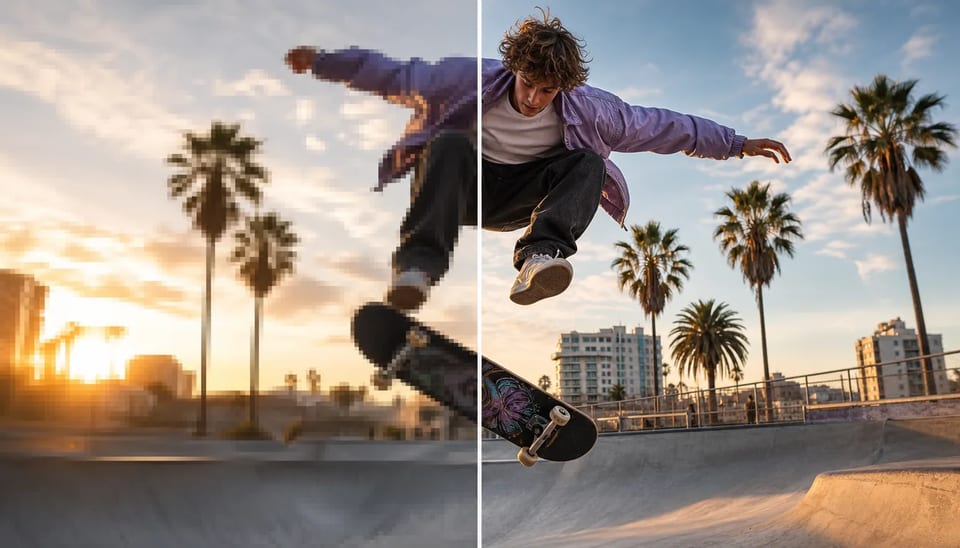
Upscale Video to 4K From a smaller source clip
Keep the edit, grow the resolution for larger screens and tighter crops
Use the AI video upscaler when the shot, timing, and movement already work but the file is too small. Upload one existing clip and upscale video to 4K, 2K, or 1080p so edges and texture hold up on larger players — without rebuilding the edit.
- Upload one existing clip
- Choose 1080p, 2K, or 4K
- Improve visible edges and texture
- Preserve the original shot and timing
- Helpful before a tighter crop
- Commercial use on paid plans
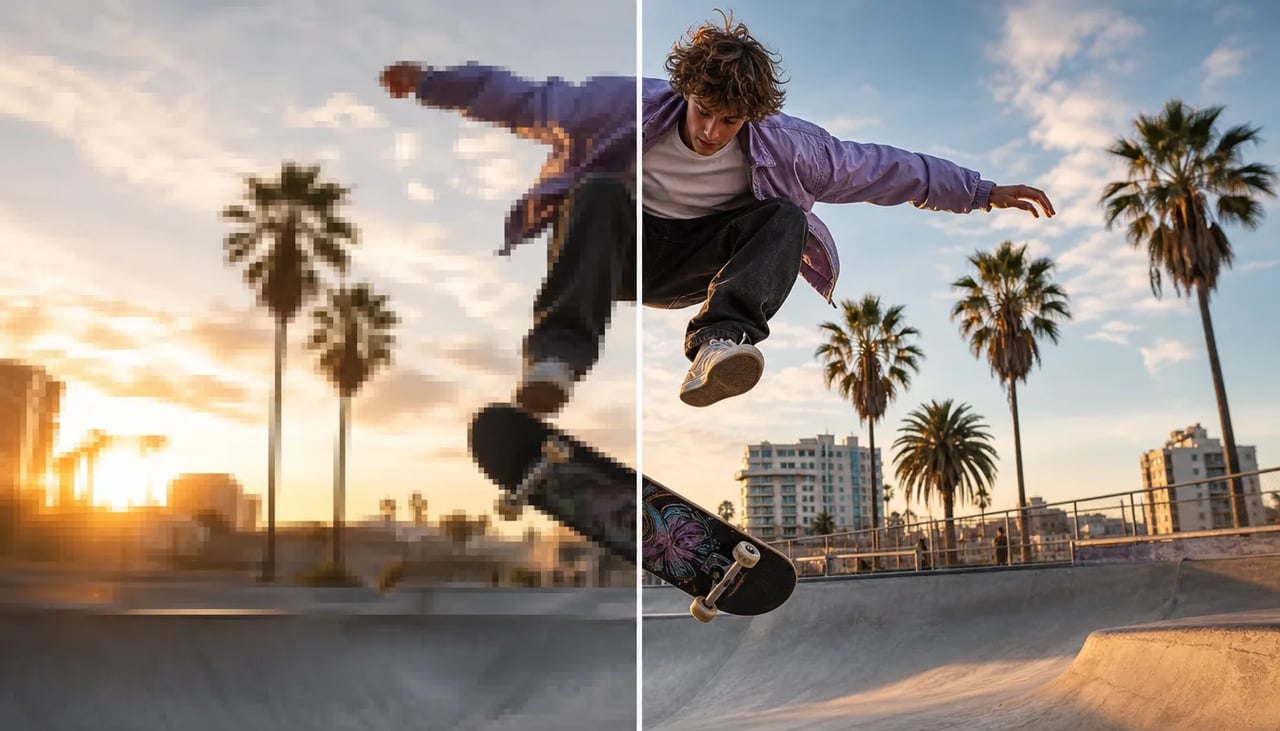
Use the AI video upscaler when the edit works but the file is too small
Keep the approved motion. Grow the pixels for the screen it has to fill.
A phone export or compressed social download can still be the right take. What fails is resolution on a big player or after a hard crop. Increase video resolution here so you can upscale low resolution video to the tier the delivery needs, then inspect detail while the clip moves.
| upscale video to 4K | AI video upscaler | increase video resolution | upscale low resolution video |
Upscale path
Upscale video to 4K (or 1080p / 2K) in four steps
- 1

Upload the cleanest source video
Prefer the least-compressed master you have. Soft social re-exports leave less for the model to work with.
- 2
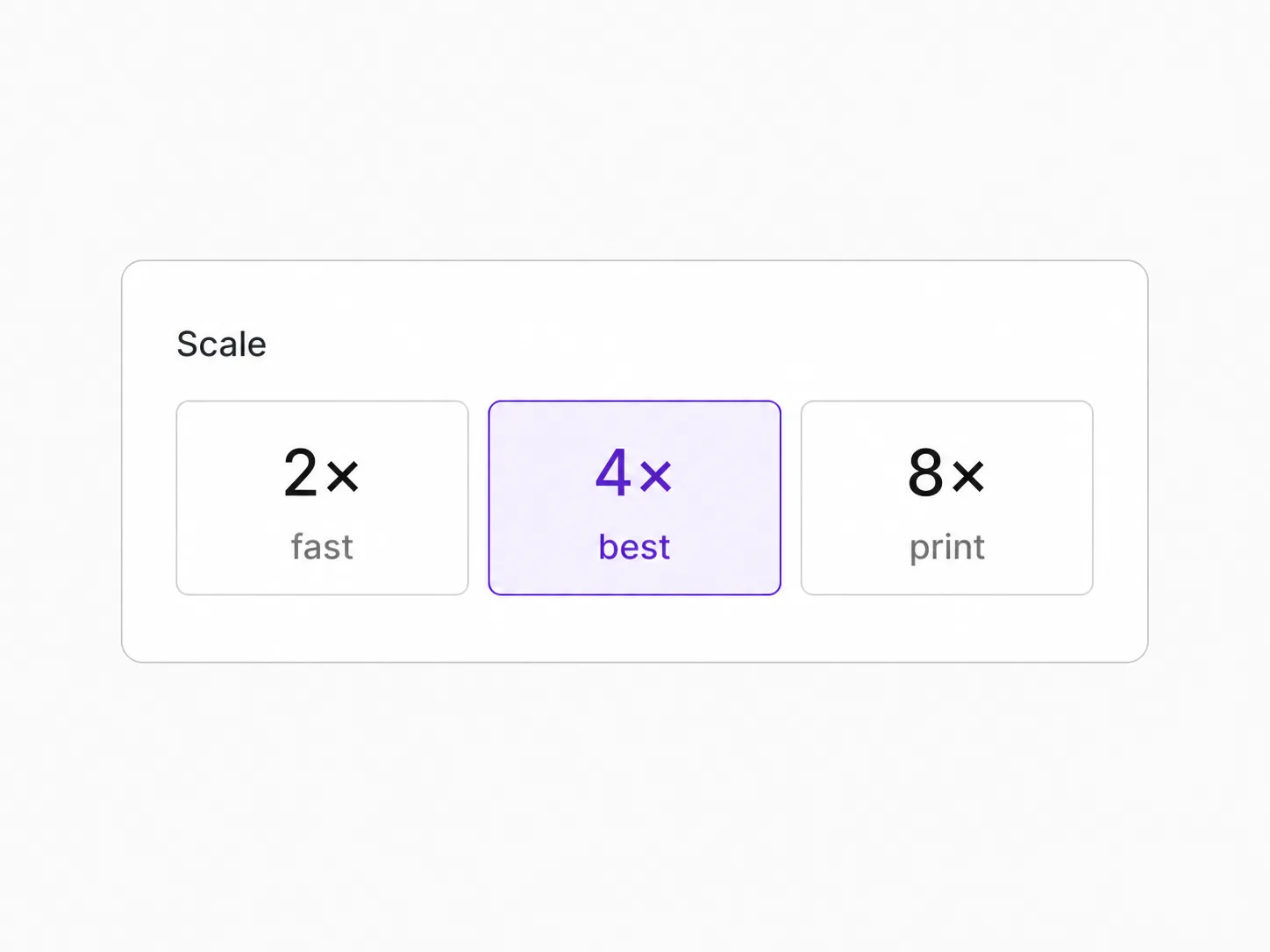
Choose 1080p, 2K, or 4K
Match the destination player or crop plan. Higher tiers cost more credits per second.
- 3
Upscale the existing frames
The tool grows resolution while keeping the same action and timing from the source clip.
- 4

Inspect detail while the clip moves
Pause on faces, text, and edges. Approve only if the motion still looks clean at the new size.
What lands
What the AI video upscaler changes — and what it keeps
Same action and cut points; larger delivery size.
Use the video upscaler for faces and fabric
Skin texture and clothing edges often read cleaner after a careful upscale on portrait-led clips.

Upscale wide video scenes for larger players
Landscape shots that looked soft on a big screen get a higher-resolution pass without a reshoot.

Choose the right video upscaler output tier
1080p for many web slots, 2K as a middle step, 4K when the destination truly needs it.

Upscale video before making a tighter crop
Growing the file first leaves more usable detail when you reframe a hero moment later.
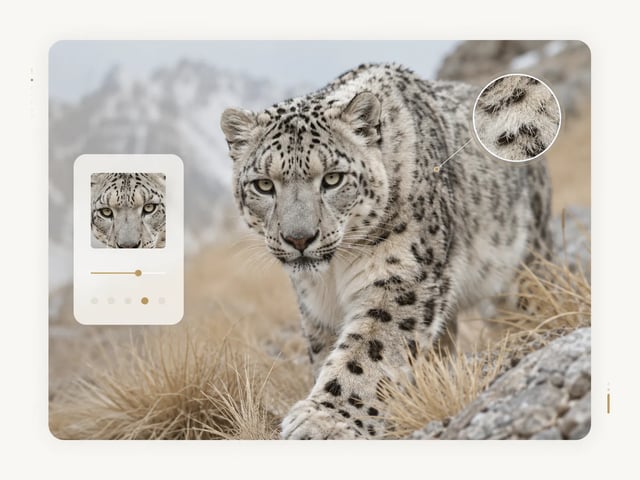
Where more resolution pays off
Where the AI video upscaler makes an existing clip more useful
-
Landing-page video
Use the AI Video Upscaler when a small campaign clip needs to fill a larger embedded player or Hero area. Preserve the approved movement and edit while preparing a resolution that better matches the visible page placement.
-
Vertical and close social crops
Upscale video before extracting a vertical subject crop, reaction close-up, or mobile layout from a wider source. The higher-resolution working file leaves more usable detail inside the final social frame.
-
Client and presentation delivery
Move an approved motion test or concept clip into a higher-resolution review file without rerunning the creative generation. The Video Upscaler helps the same take read more clearly on a presentation screen.
-
Older digital video reuse
Use the AI Video Upscaler to prepare an older or undersized digital clip for current screens while keeping its original timing and edit. Start from the least-compressed archive copy you can find.
AI video upscaler questions
Can I upscale video to 4K from a smaller source?
Yes. Upload a lower-resolution clip and choose 4K when the destination needs it. You can also stop at 1080p or 2K.
Does the AI video upscaler change the action or edit?
It keeps the original shot and timing. You are growing resolution, not rewriting the cut.
Can an AI video upscaler recover every missing detail?
No. It can improve edges and texture, but heavy blur, crushing compression, or tiny faces may still look soft.
How are video upscaler credits calculated?
Credits scale with output tier and duration: 1080p at 12 credits per second, 2K at 22, 4K at 44, with a minimum of 20 credits per run.
When should I choose 4K instead of 1080p?
Choose 4K for large screens, hard crops, or masters you will re-export later. Use 1080p when the final player is already 1080p-class.
What source clips work best to increase video resolution?
The cleanest master you own, with stable focus. A soft social re-download is a weaker starting point than the original export.
Should I upscale low resolution video before cropping?
Often yes. Growing the file first can leave more usable detail when you reframe a hero moment afterward.
Can I use the upscaled clip commercially?
Commercial use is available on paid plans. Confirm your plan before client or paid campaign use.
More video tools
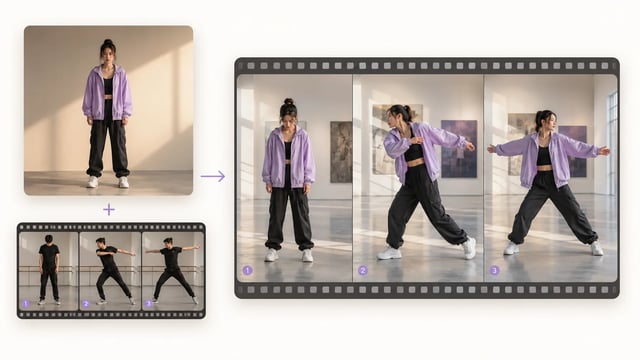
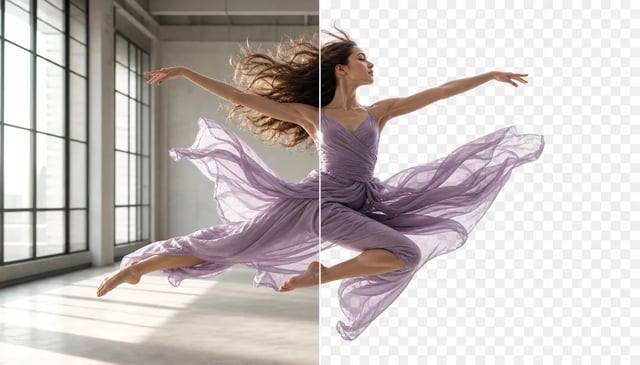
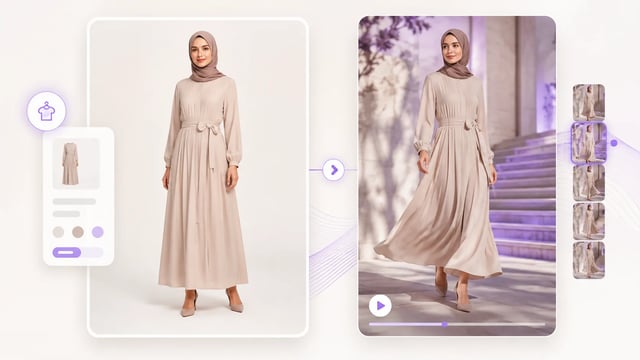
Upscale, cutout, and motion control on the same video stack.
Grow the approved shot
Upscale video to 4K when the shot is already right
Upload the best source, choose 1080p, 2K, or 4K, and inspect the same moving frames at the new size.