Product, portrait, or graphic — subject clean, ready for the next layout
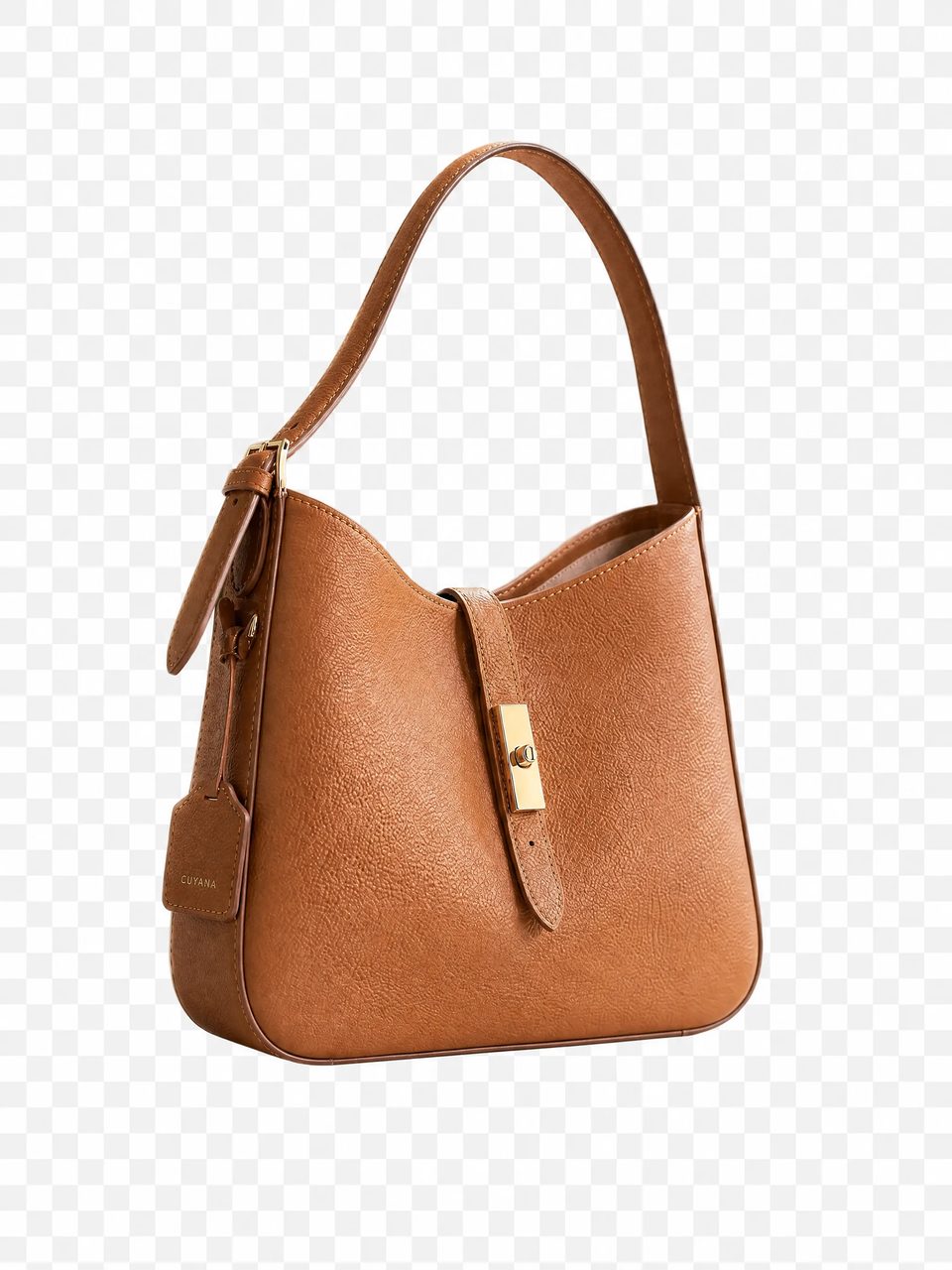
Upload a product photo, portrait, or graphic and run the AI background remover. You get a transparent PNG cutout you can drop on a listing, slide, ad, or new scene — then stay on SupaImagine to upscale, expand, or generate the next version.
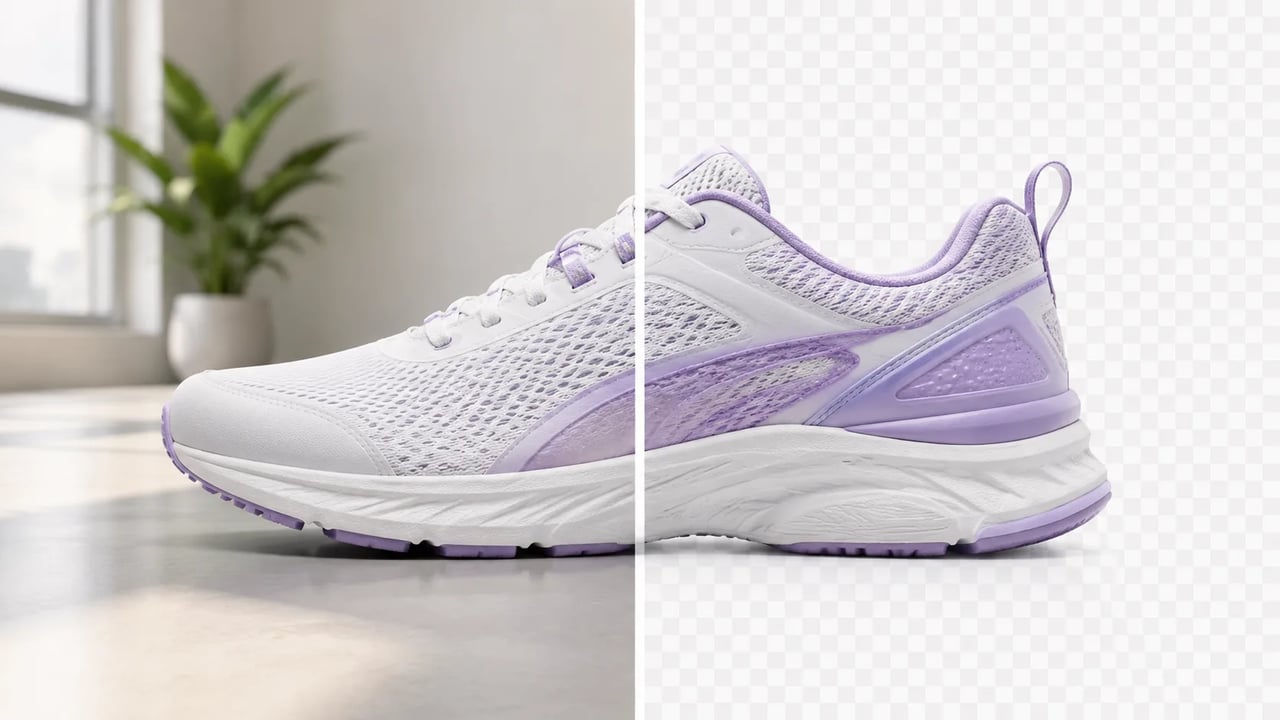
Isolate what you keep. Drop the rest.
You already like the product, person, or graphic. The shelf, room, or white studio box is what fights the new layout. Use this background remover online to isolate the subject as a transparent PNG cutout, then place it on a listing grid, pitch deck, social post, or a model-made scene without opening another app.
Upload once, cut out, reuse the transparent PNG.
Start with a product photo, portrait, graphic, or generated image that needs a cleaner edge.
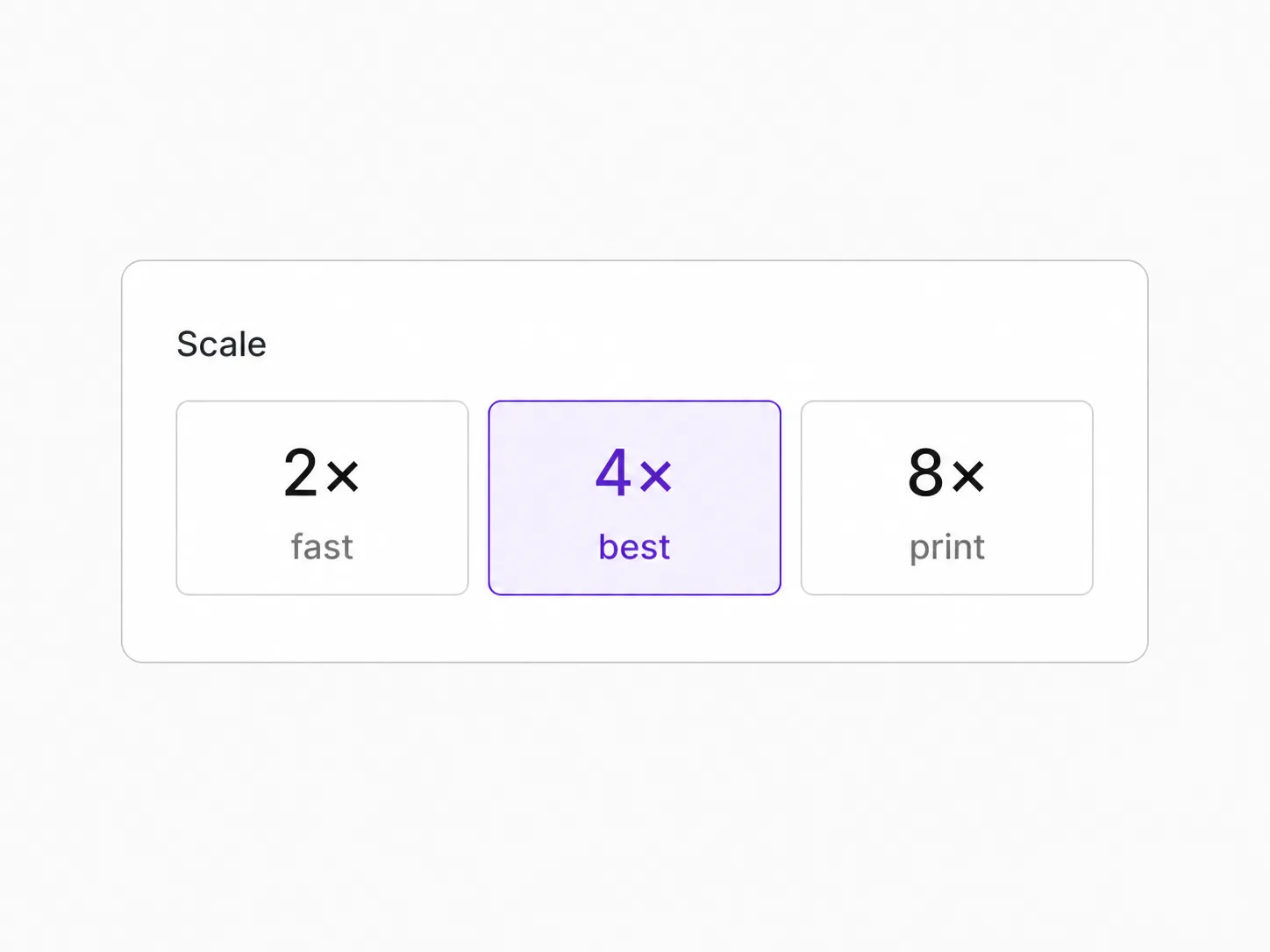
Submit once. This path is prompt-free — no mask painting for the default cutout.
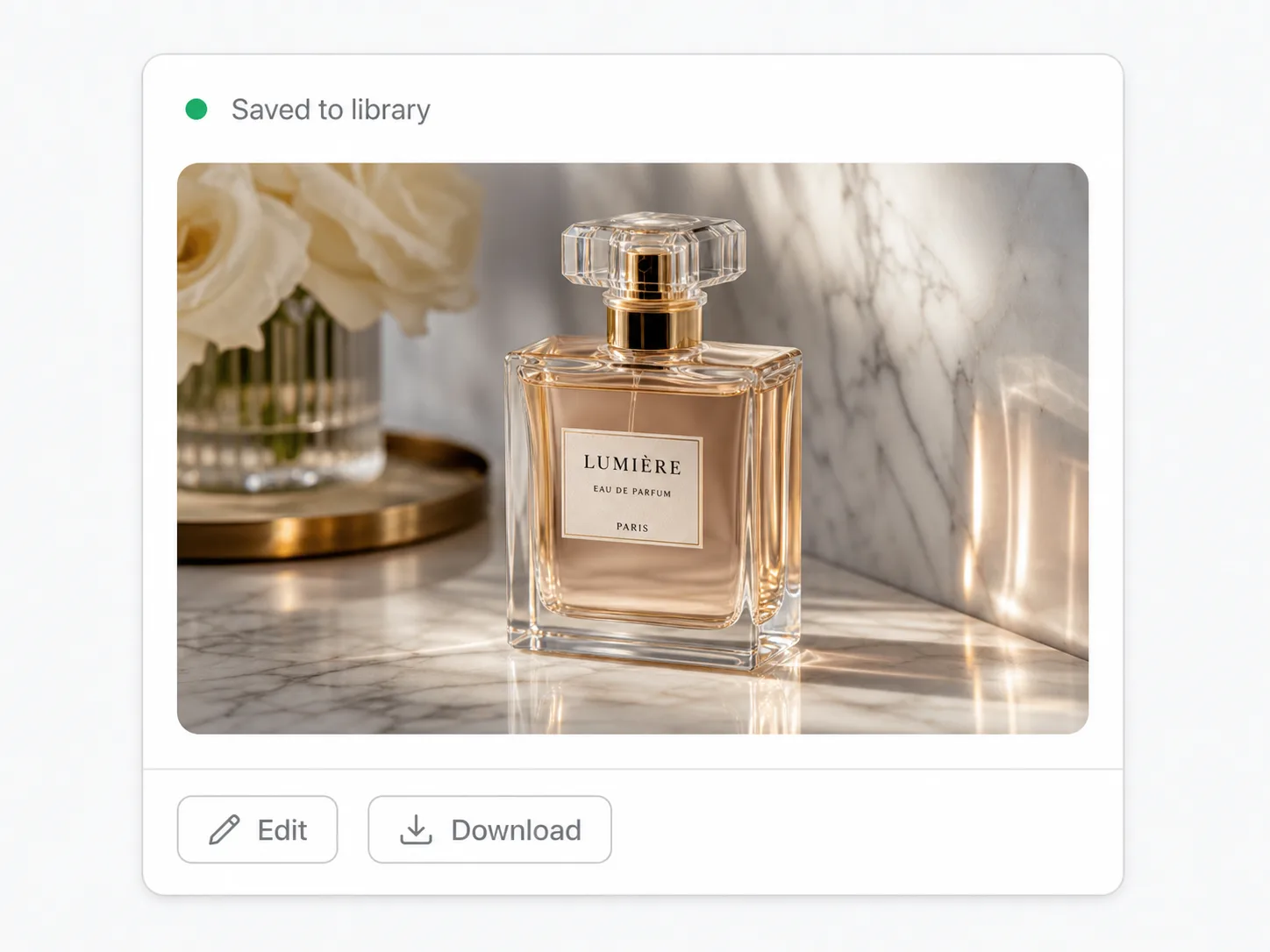
Download the cutout or keep going with upscale, expand, or image generation in the same workspace.
Cutout, upscale, expand, and other one-click jobs on the same image stack.
Wordmarks, icons, and monograms — isolate the logo, clear the backdrop
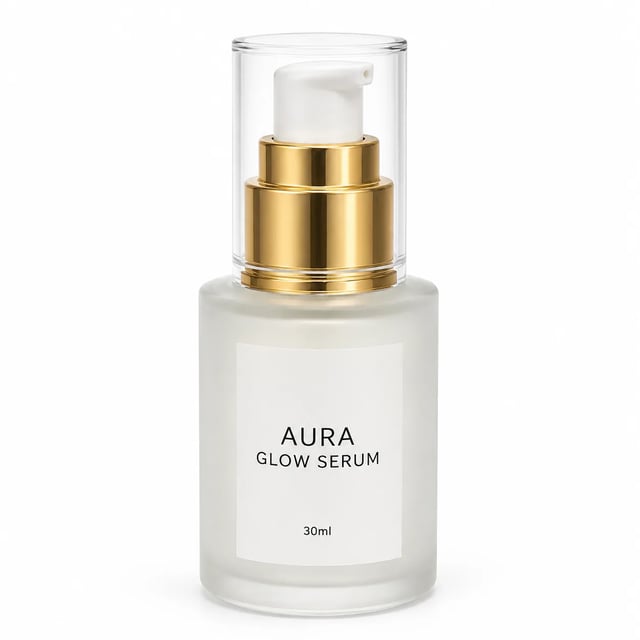
Turn a phone product photo into listing-ready packshots

Room photo + product shot → in-room preview

Empty room in → furnished listing still out

Upload person A, then person B — both faces stay the point

Tight crops become banners, stories, and wide layouts without a reshoot
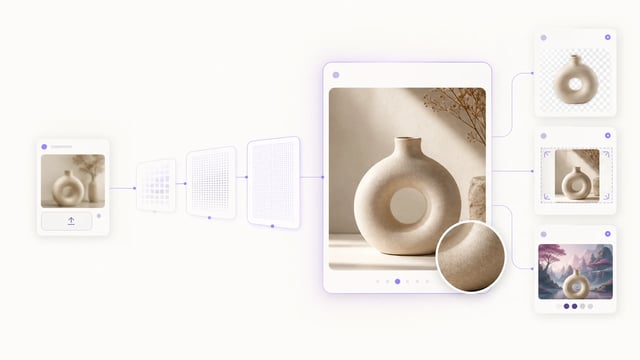
Small crops, soft exports, and AI drafts — bigger files you can actually place

Clearer faces — not a larger blurry file

Posters, product labels, social graphics, and quick visual notes from one upload
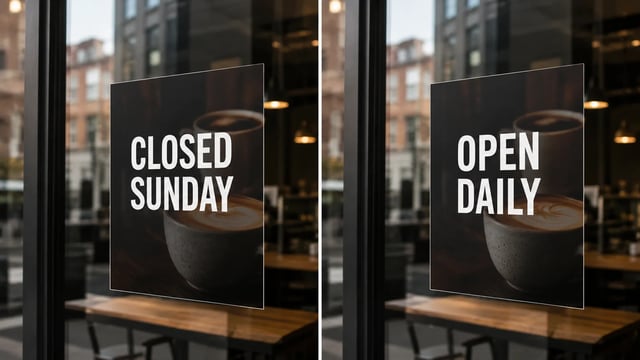
Posters, menus, labels, and screenshots — rewrite in place without rebuilding the graphic
What you get
A cutout step you can reuse — not a second design suite.
The AI background remover returns the subject with a clear edge so you can sit it on a listing, slide, ad, or new scene without a white box fighting the design.
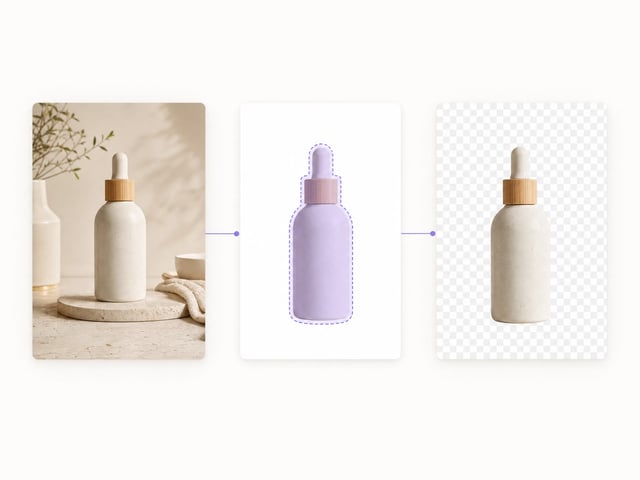
Upload and run. You are not hunting thresholds or reverse modes — the path is cutout, then reuse.
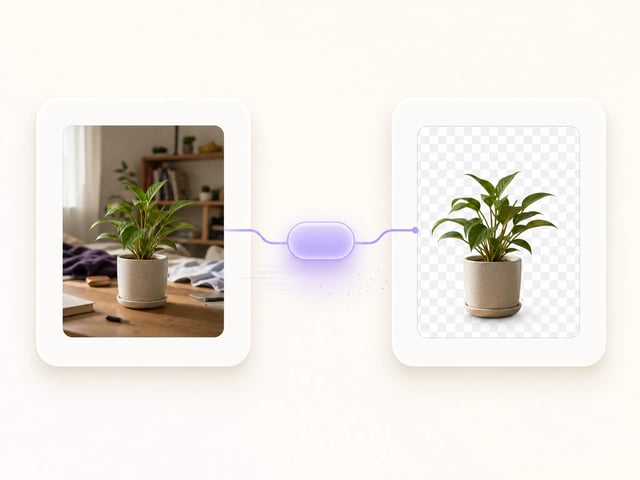
After you remove image background, upscale, expand the edges, or open a model page and build a new scene around the same subject.
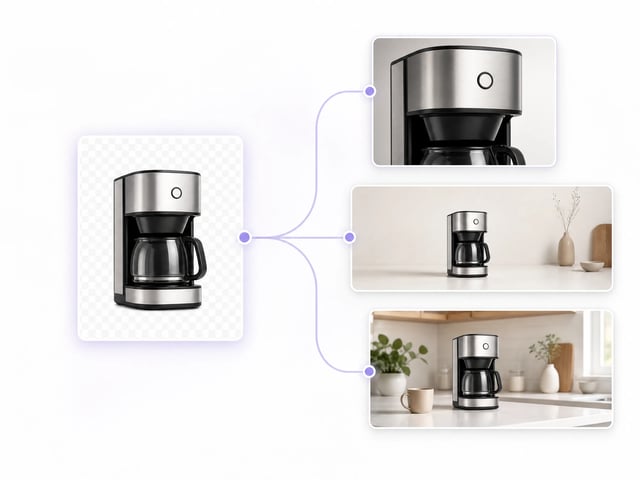
Signup credits can cover a first try. Commercial use follows paid plans and site terms; you keep rights to the source image you upload.
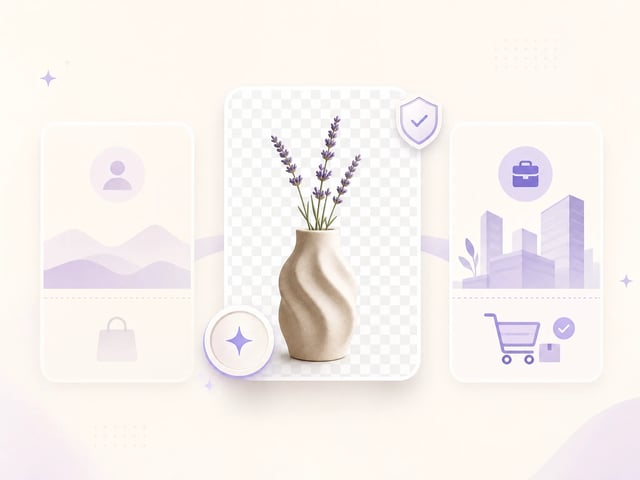
Who needs the cutout
When the subject is right but the background is in the way.
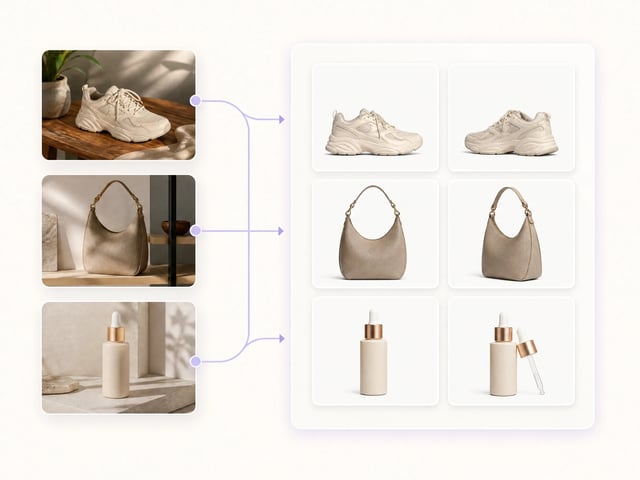
Lift products out of messy table or shelf shots before one clean listing system.
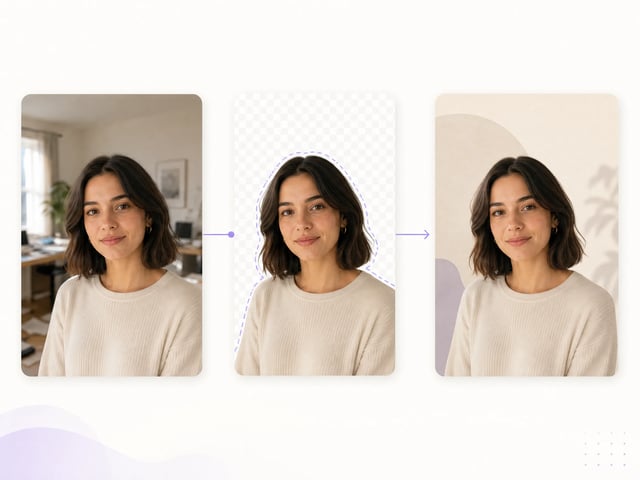
Isolate a person for avatars, team pages, and campaign art without a reshoot.
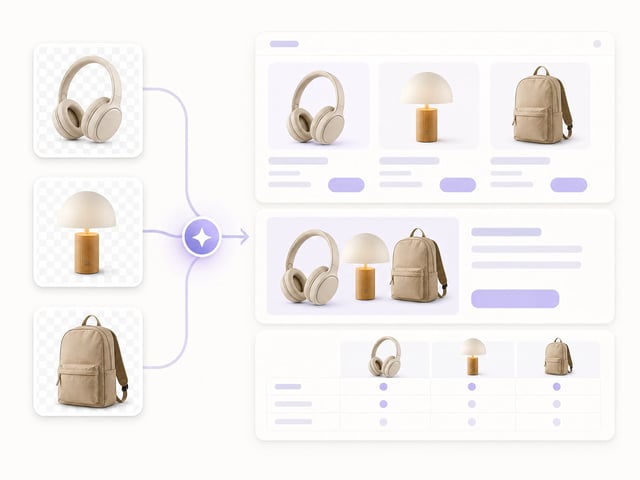
Normalize seller photos so every SKU can sit on a shared template.
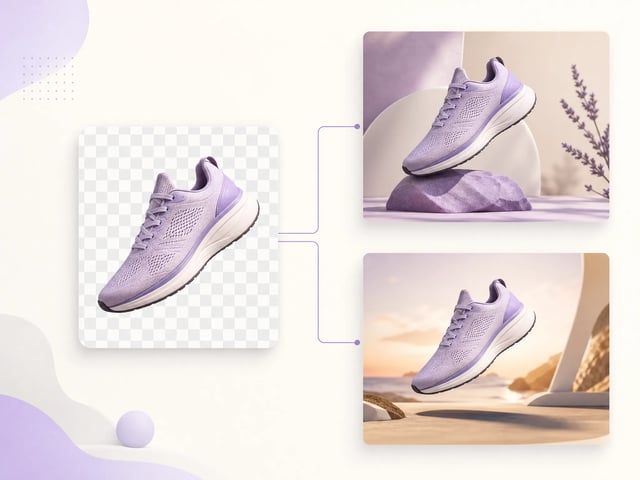
Pull a hero product free, then drop it onto offer art and new generated scenes.
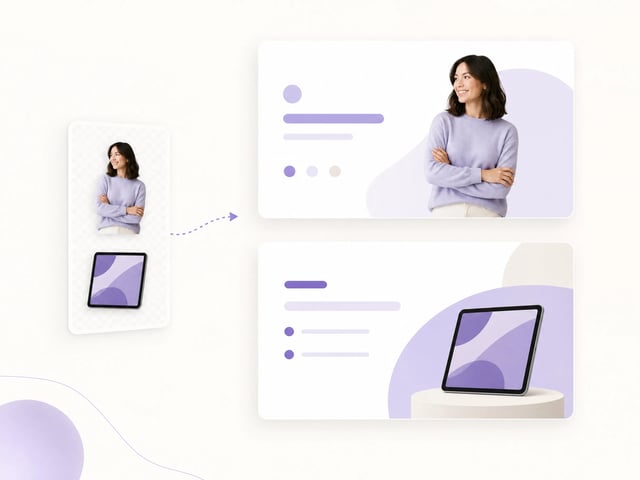
Cut subjects for decks and one-pagers when stock backdrops fight the brand.
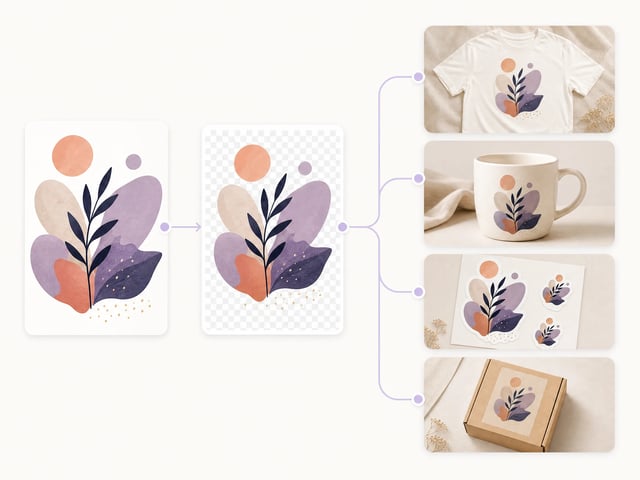
Prep subjects before mockups, stickers, or packaging comps.
A transparent PNG cutout of the uploaded subject — products, portraits, graphics, or generated images — ready to place on a new background or layout.
No. This path is upload-first and prompt-free. For hand-painted masks or colored solid backdrops, take the PNG into your editor after the cutout.
Yes. New accounts get signup credits you can spend on this tool. One removal is 1 credit, so the free signup balance covers many first cutouts. You need an account to start.
Expect a strong first-pass cutout. Fine hair, glass, and motion blur may still need a design-tool polish for print-critical work.
Commercial use requires a paid SupaImagine plan and follows site terms. You also need rights to the source image you upload.
A clear subject with good contrast against the backdrop works best. Very busy scenes or subjects that blend into the background may need a second pass or a manual edge polish.
Yes. Download the PNG, upscale it, expand the edges, or open a model page and build a new scene around the subject — all in the same workspace.
No. SupaImagine exposes a simple cutout path: one upload, one transparent PNG. You are not picking reverse modes or extra format menus here.
Upload once, get the transparent PNG, and stay on SupaImagine for the rest of the image job.