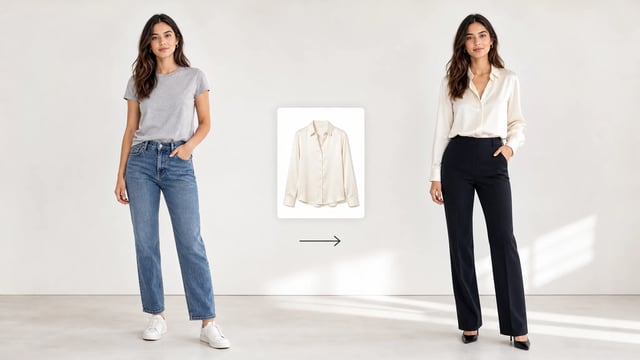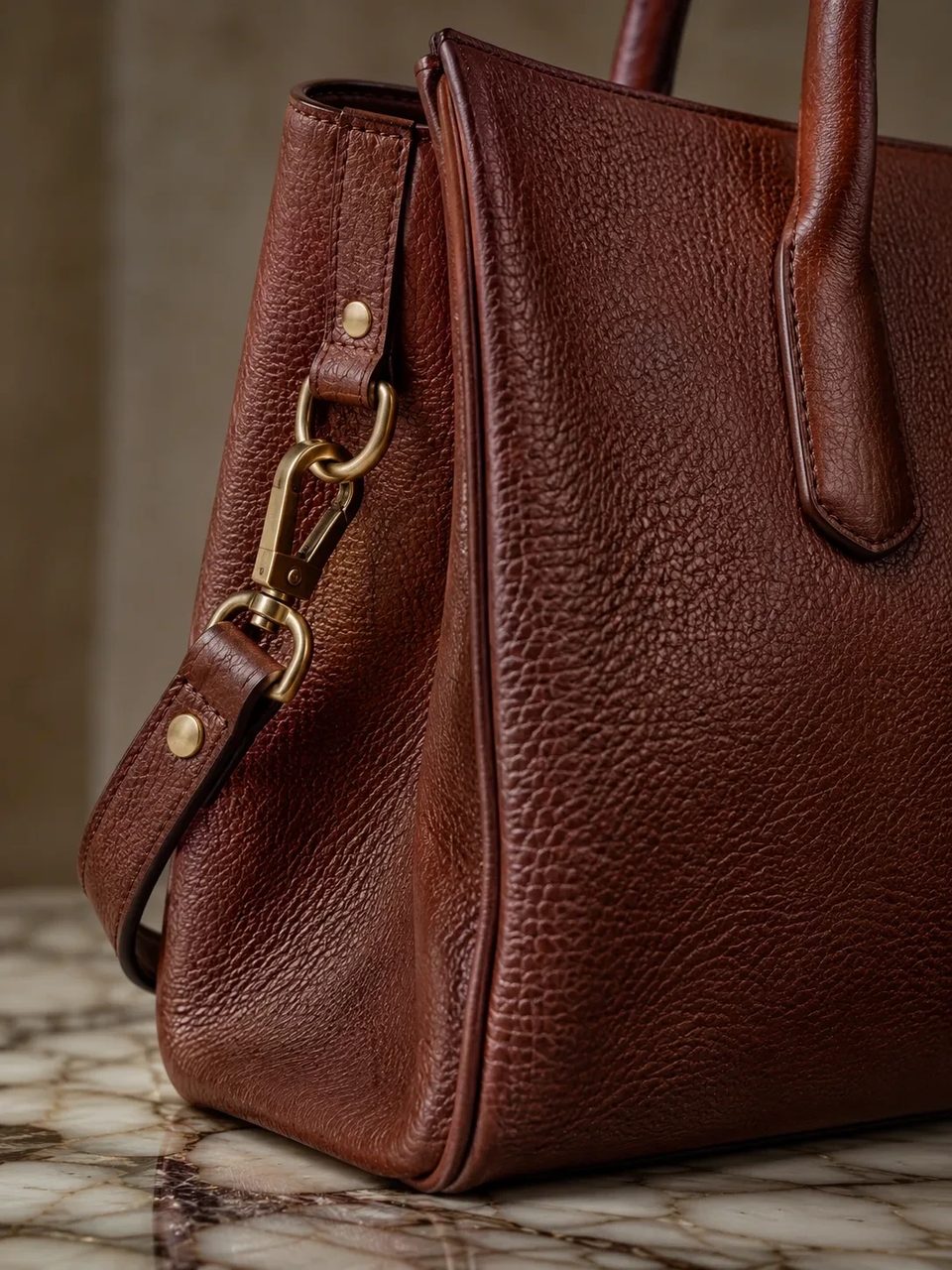

Small crops, soft exports, and AI drafts — bigger files you can actually place
Upload a small product crop, thumbnail, archive scan, or generated draft and run the AI image upscaler. Pick 2x, 4x, or 8x so the file fits the layout you need, then stay on SupaImagine for cutout, expand, or a fresh generation.
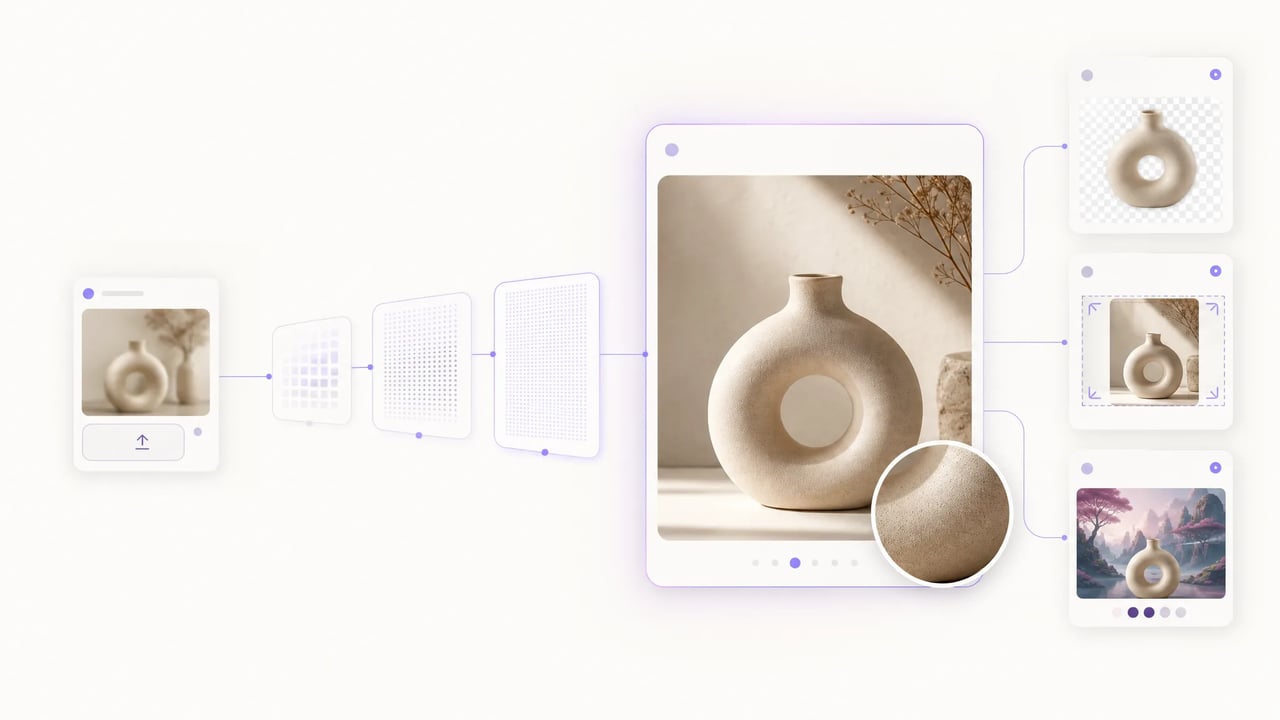
Keep the subject you already like — grow the pixels so the placement stops looking soft.
You already picked the crop, the pose, or the generated take. The problem is size: phone exports, old campaign files, and small AI drafts fall apart on a hero band or paid placement. Use the AI image upscaler here to enlarge the image online, then keep going with background removal or expand when the layout still needs more room.
Upload once, pick the factor, reuse the larger file.
Start with the cleanest crop you have — product photo, soft export, archive scan, or a generated draft worth keeping.
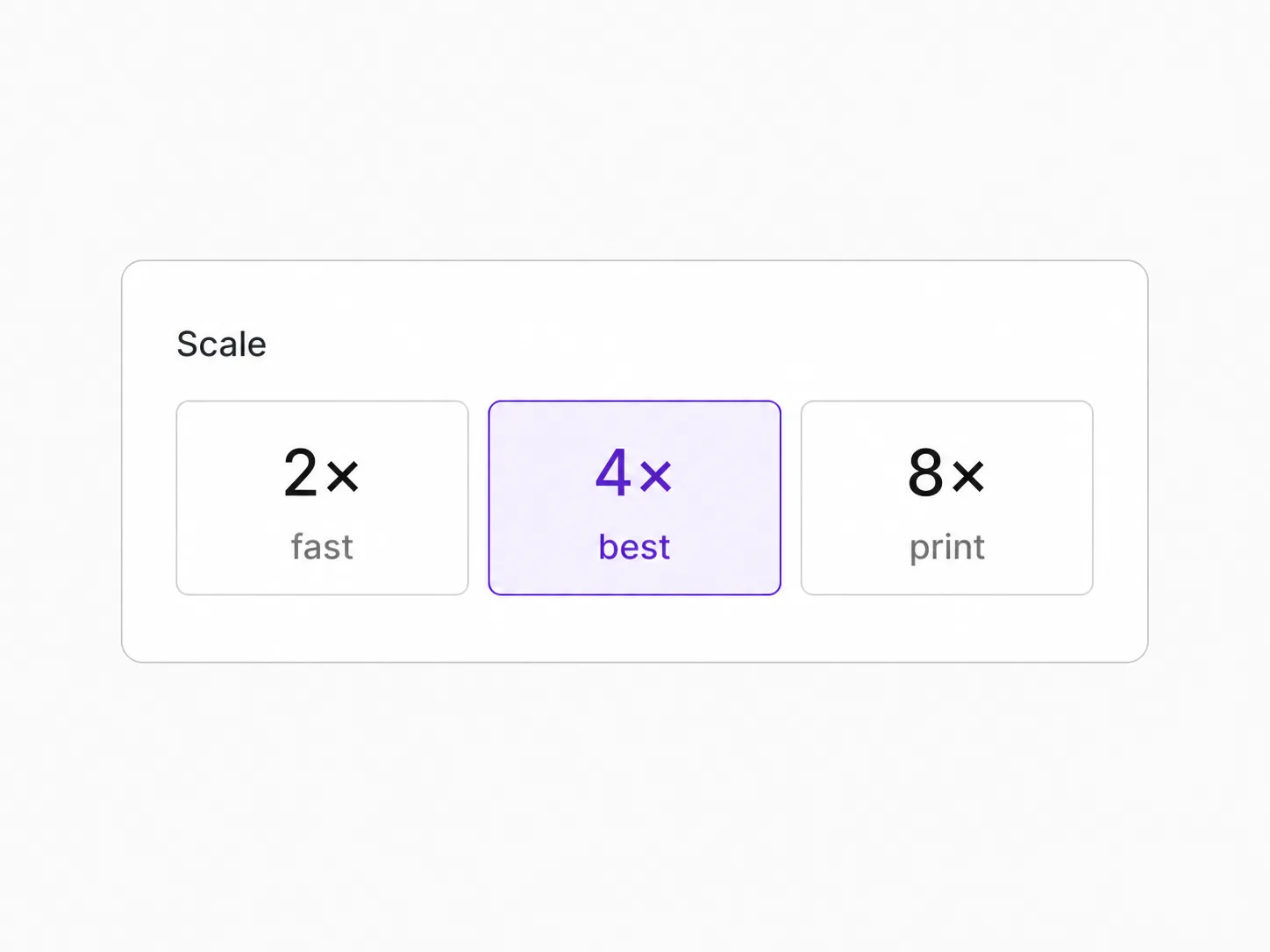
Default to 4x for a solid finish, or step up when the slot is large and the source is tiny.
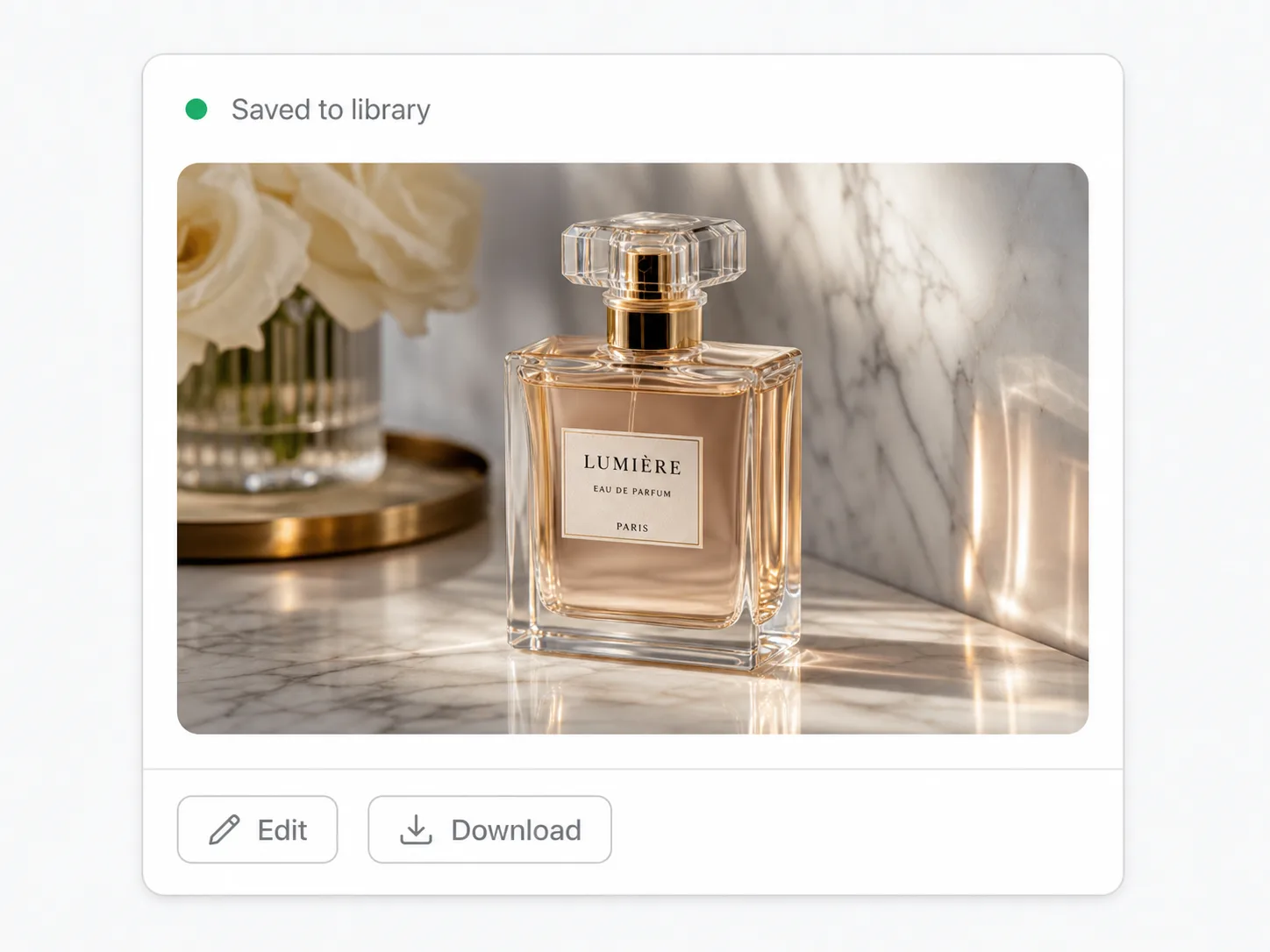
Download the result or keep editing with cutout, expand, and other image tools on the same page stack.
Upscale, cutout, expand, and other one-click jobs on the same image stack.
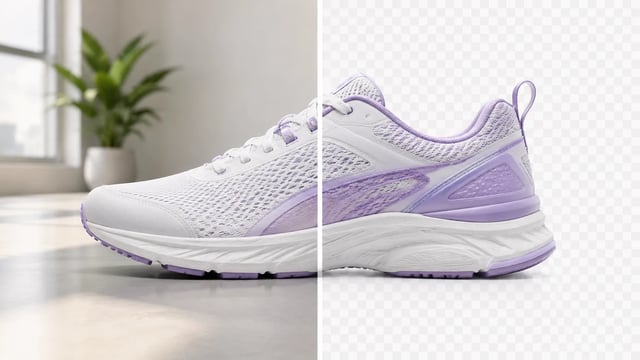
Product, portrait, or graphic — subject clean, ready for the next layout

Wordmarks, icons, and monograms — isolate the logo, clear the backdrop

Turn a phone product photo into listing-ready packshots

Room photo + product shot → in-room preview

Empty room in → furnished listing still out

Upload person A, then person B — both faces stay the point

Tight crops become banners, stories, and wide layouts without a reshoot

Clearer faces — not a larger blurry file

Posters, product labels, social graphics, and quick visual notes from one upload

Posters, menus, labels, and screenshots — rewrite in place without rebuilding the graphic
What lands
A larger working file — not a full photo suite.
Match the enlarge to the job: a quick listing polish at 2x, a default 4x finish, or 8x when the source is tiny and the slot is large.
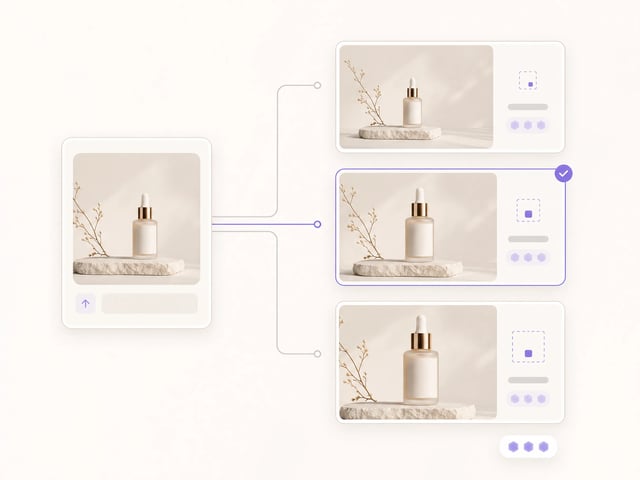
Spend scales with how much you grow the image — 2, 4, or 8 credits — so a small polish does not cost the same as a max enlarge.

Works on product crops, archive scans, social exports, and generated stills you already like enough to keep.
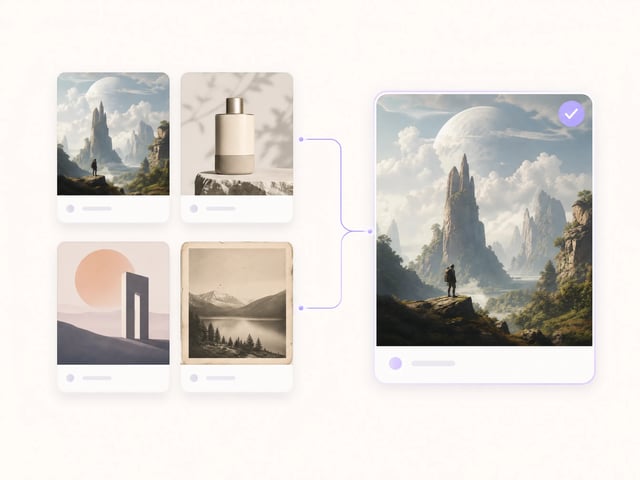
Download the larger file or stay put for cutout, expand, text, or generation in the same SupaImagine workspace.
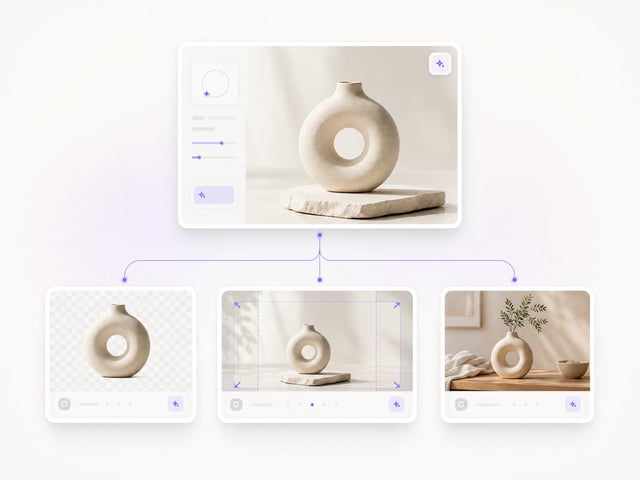
Who needs more pixels
Small sources that still carry the right subject.
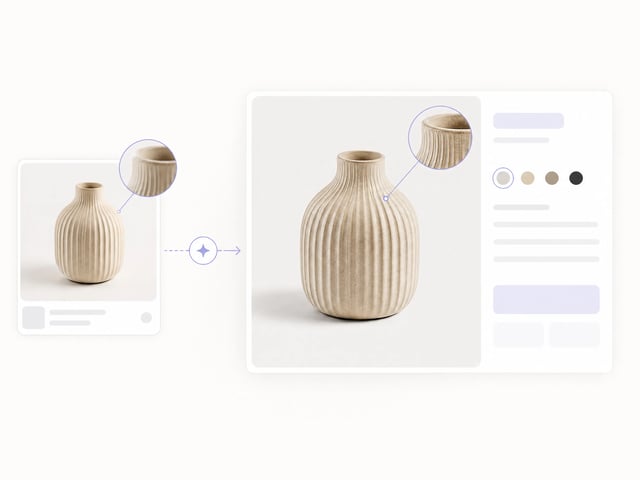
Turn small catalog crops into cleaner listing assets for product pages and comparison tables.
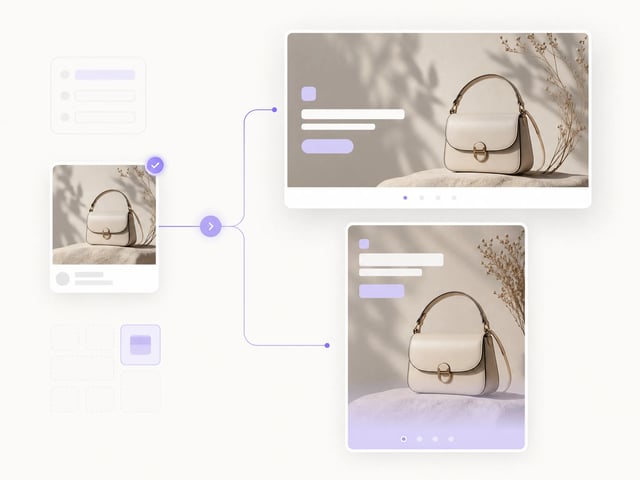
Grow creative that only exists as a soft export before it hits paid placements.
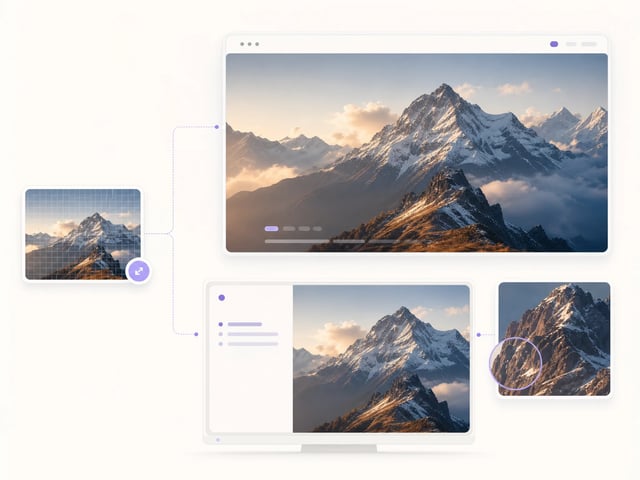
Lift hero and section images when the only source is a compressed export.
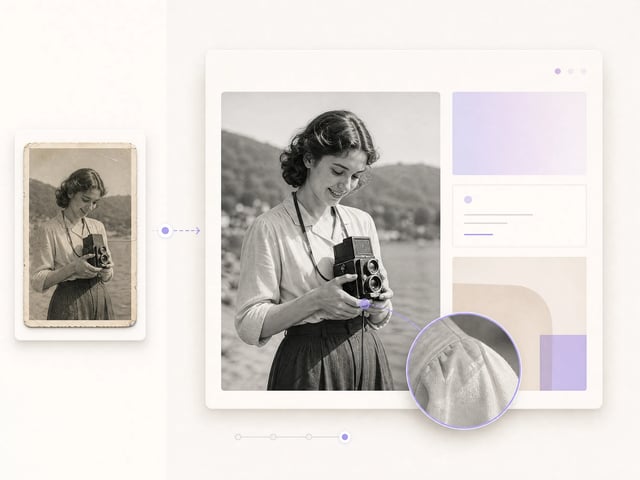
Rescue older campaign files that still brand correctly but lack resolution.
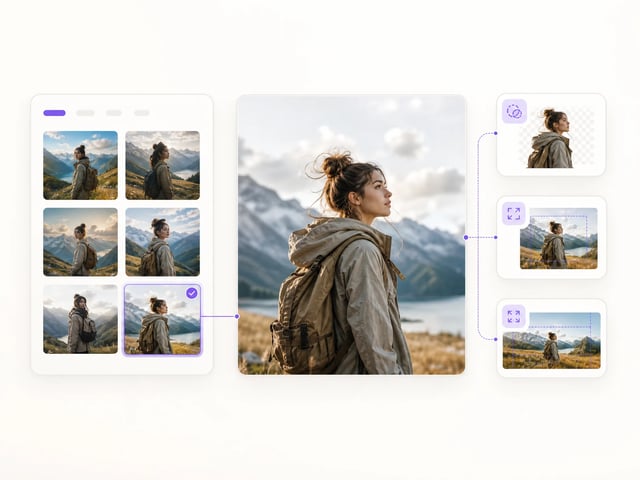
Enlarge a generated take you already like instead of rolling the dice on a full re-prompt.
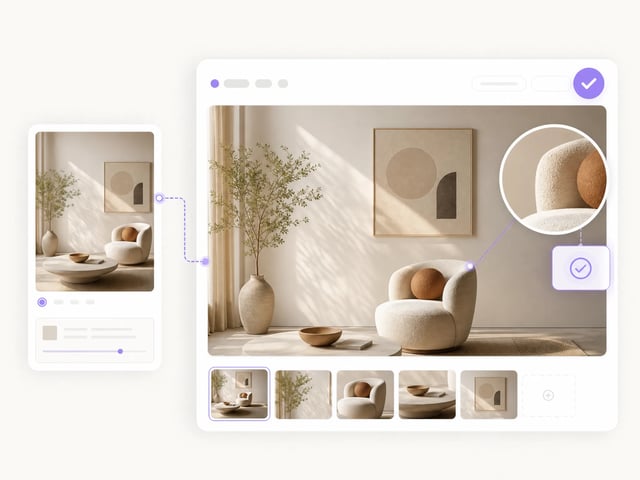
Get a larger proof file before you decide whether print polish is still needed offline.
You get a larger version of the same image at 2x, 4x, or 8x. Edges and texture usually look cleaner for layouts, but it will not invent a brand-new photo or fix every soft focus problem.
Use 2x for a light listing polish, 4x as the default finish for most web and ad slots, and 8x when the source is tiny and the placement is large. Higher factors cost more credits.
Yes. New accounts get signup credits you can spend on this tool. Default 4x is 4 credits, and even 8x is 8 — both fit inside the free signup balance. You need an account; there is no anonymous unlimited path.
Yes. If a generated still already has the composition you want, enlarge image first instead of re-rolling the whole prompt just to gain resolution.
No. An image enhancer helps soft exports and small sources, but motion blur, heavy compression blocks, or out-of-focus faces may still look soft after enlarge.
Prefer the least-compressed original you have, with the subject already framed the way you like. Cropping out empty junk first often beats upscaling noise.
Yes. Download the larger file or stay on SupaImagine for background removal, expand, text tools, or generation without starting over in another app.
Commercial use is available on paid plans. Check your plan before shipping paid campaigns or client deliverables.
Choose the factor, enlarge the image, and stay on SupaImagine for the rest of the job.