
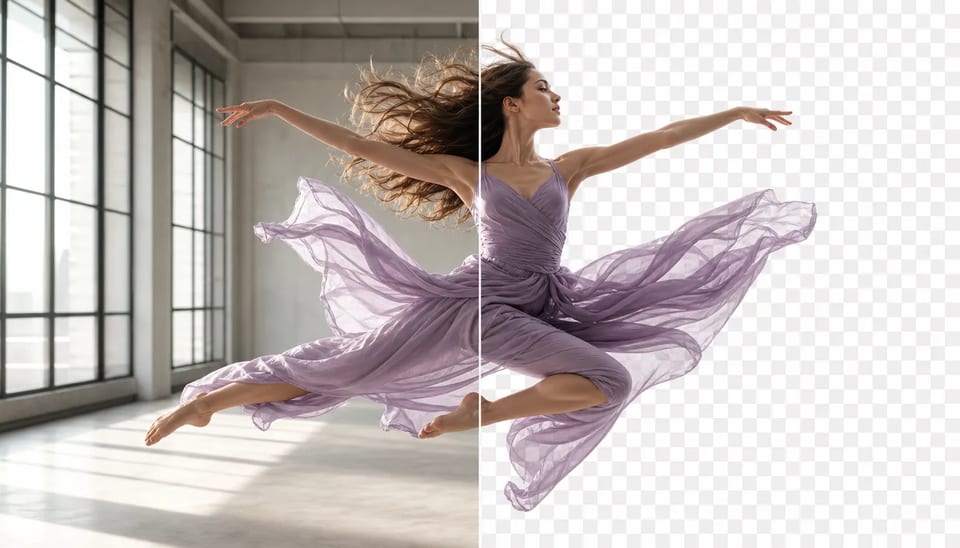
Remove Background From Video Keep the moving subject
Transparent cutouts for people and products — without a green screen shoot
Upload a clip and remove background from video with AI. The video background remover keeps the moving subject and exports a transparent (or solid-color) result so you can drop the action into a new scene without rebuilding the motion.
- Upload one video
- Remove the scene frame by frame
- Designed for moving hair and fabric edges
- Default to transparency or choose a solid color
- Try free with signup credits
- Commercial use on paid plans
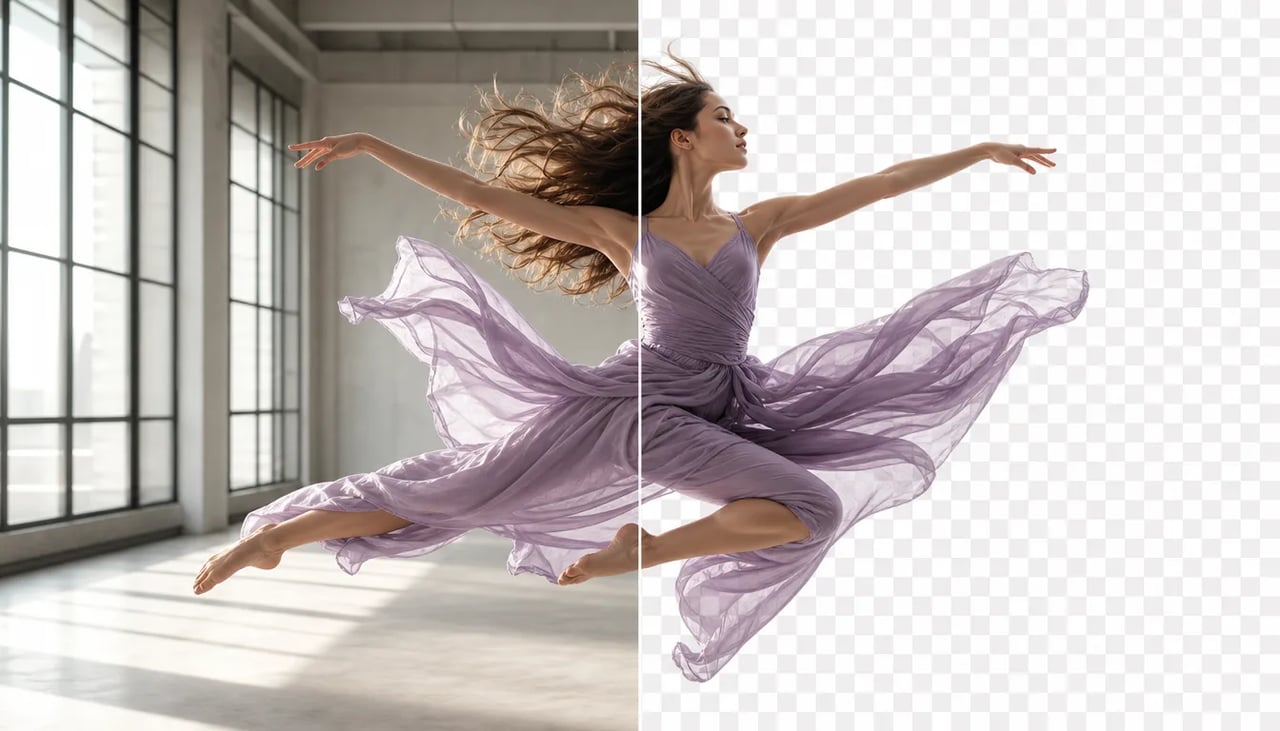
Remove background from video without rebuilding the motion
When the action is worth keeping and the set is not.
You already have a readable performance or product move. The recorded room fights the final composite. Use the AI video background remover to make video background transparent (or solid), keep the subject motion, and reuse the cutout in a new setting.
| remove background from video | video background remover | AI video background remover | make video background transparent |
Cutout path
Use the video background remover to create a reusable cutout
- 1

Choose a readable source video
Prefer a clear subject with contrast against the background. Extreme motion blur is harder.
- 2
Remove the background across the clip
Run the remover so the subject is isolated for the full duration.
- 3

Inspect difficult moving edges
Check hair, sleeves, hands, and fast motion before you trust the cutout in a composite.
- 4

Composite the transparent video
Place the subject on a new background, solid color, or generated scene and finish the edit.
What lands
What to inspect after you remove background from video
Subject isolation for reuse — not a full VFX suite.
Isolate a moving subject with the video background remover
People and products can leave the original room while the action continues.

Review hair, sleeves, hands, and motion blur
Difficult edges need a human look — pause frames where hair or fabric moves fastest.

Turn transparent video into a finished composite
Drop the cutout onto a new plate, color, or generated scene after export.

Create reusable video background remover assets
One clean subject plate can support multiple campaign layouts without a reshoot.

Where transparent video helps
Use the video background remover to reuse motion in new settings
-
Product demonstrations
Use the AI Video Background Remover to isolate a presenter, hand demonstration, or rotating product before placing the motion over a branded campaign background. The product action stays intact while the visual environment changes.
-
Dance and performance edits
Remove background from video to keep choreography recorded in a rehearsal room, then composite the transparent performer onto a stage, visualizer, concert environment, or social campaign scene.
-
Reusable social presenters
Turn one talking clip into a transparent presenter overlay for tutorials, reactions, announcements, and vertical posts. The Video Background Remover makes the existing delivery easier to place across several layouts.
-
Mascot and character composites
Extract a costumed performer or mascot with the AI Video Background Remover before moving the action into a game-style environment, event graphic, branded world, or fictional scene.
AI video background remover questions
Can I remove background from video without a green screen?
Yes. Upload a normal clip and isolate the subject. Cleaner contrast helps, but a green screen is not required.
What does the video background remover return?
A version of the clip with the background removed — typically transparent, or a solid color if you choose one — so the subject can be composited elsewhere.
Which source clips are easiest to process?
Readable subjects with decent lighting and contrast. Heavy motion blur, tiny subjects, or busy multi-person chaos are harder.
Can the video background remover preserve hair and flowing clothing?
It is designed for difficult edges, but you should still pause and inspect frames where hair or fabric moves fastest.
Can I try video background removal free after signup?
Yes. Signup credits cover a minimum-length run (10-credit floor). Longer clips cost more as duration grows. You need an account.
How many credits does video background removal use?
5 credits per second of source video, with a 10-credit minimum per run.
Can I make video background transparent for ads and explainers?
Yes — that is a common use. Export the cutout, then place the subject on a new plate or brand color.
Can I use the transparent video commercially?
Commercial use is available on paid plans. Confirm your plan before client or paid campaign use.
More video tools
Cutout, upscale, and motion control on the same video stack.
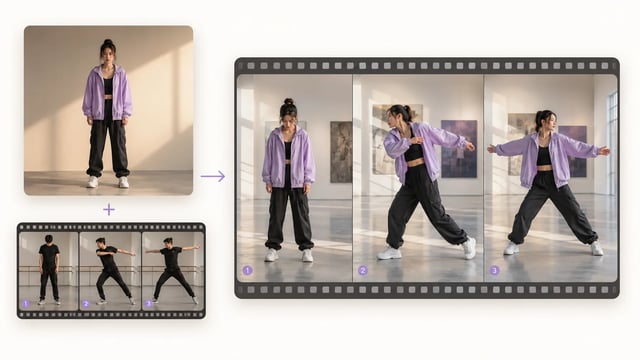


Keep the action, change the set
Remove background from video and reuse the subject
Upload the clip, inspect moving edges, and drop the transparent subject into a new scene.