AI Lip Sync Video Generator From Image & Audio

One face, your audio, synchronized mouth movement

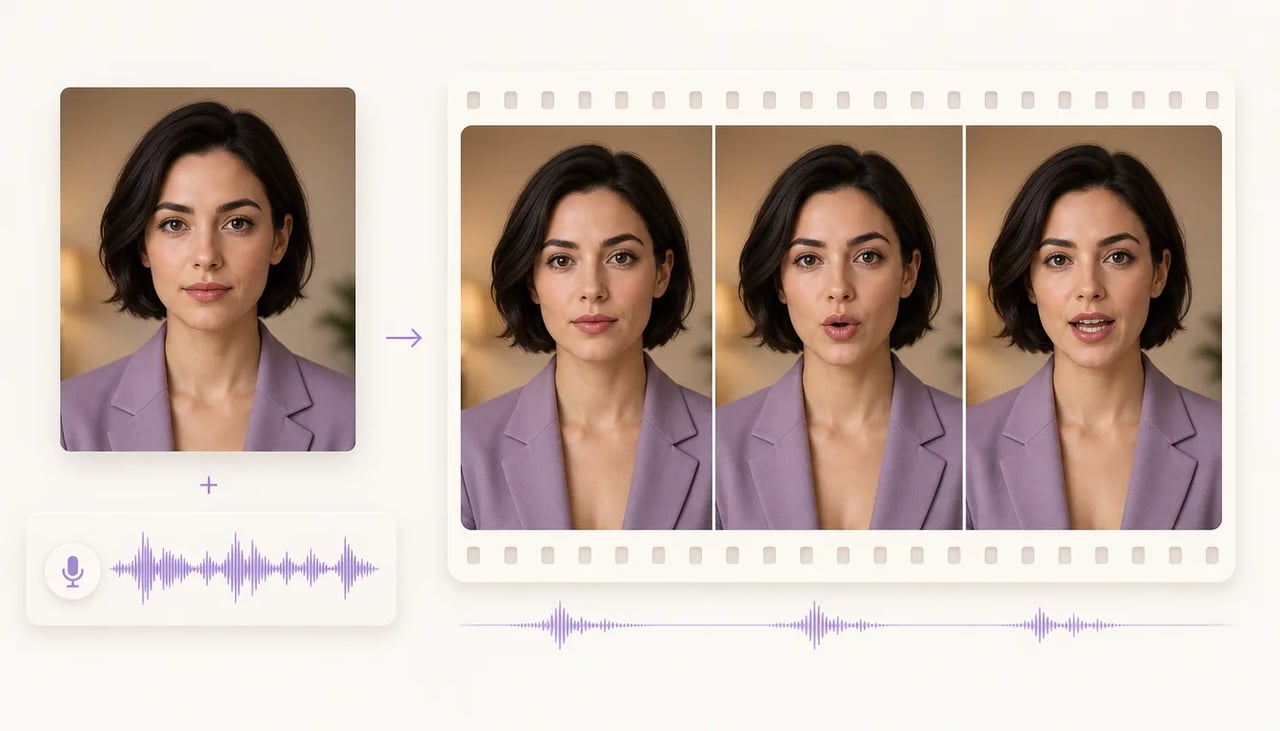
The AI Lip Sync Video Generator turns one portrait and one uploaded audio track into a talking-head video with synchronized mouth movement. Upload the face you want to animate, then add the recorded line that should control the speech and clip duration. The AI Lip Sync Video Generator keeps the portrait as the visual anchor while the audio drives visible mouth shapes, with 720p or 1080p output for social messages, dubbing, course intros, and presenter prototypes.

  • Upload one portrait image
  • Add your own audio track
  • Generate synchronized mouth movement
  • Choose 720p or 1080p
Portrait and speech waveform producing three synchronized talking-head video frames

Create With the AI Lip Sync Video Generator

Add one clear portrait, then upload the exact audio that should drive the visible speech. The Lip Sync Video Generator follows the recording rather than creating a stock voice.

The AI Lip Sync Video Generator Gives One Portrait a Voice Track

Use your own recorded line instead of relying on a built-in script or stock voice.

Use the AI Lip Sync Video Generator when the portrait and voice recording already exist and the missing deliverable is a synchronized talking video. The portrait controls who appears and how the shot is framed; the uploaded audio controls what is heard, how the speech is paced, and how long the clip runs. This Lip Sync Video Generator does not expose a typed-script or text-to-speech path, so prepare the final recording first. Clear lips, stable lighting, and a front-facing or gently angled portrait make fast consonants and rounded vowels easier to inspect.

| AI lip sync video generator | portrait lip sync | image and audio to talking video |

Image plus audio

Build an AI Lip Sync Video From a Portrait and Audio

1

Choose the Lip Sync portrait

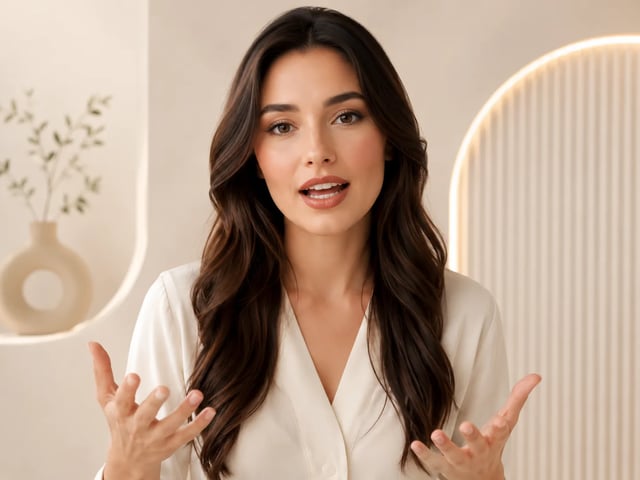
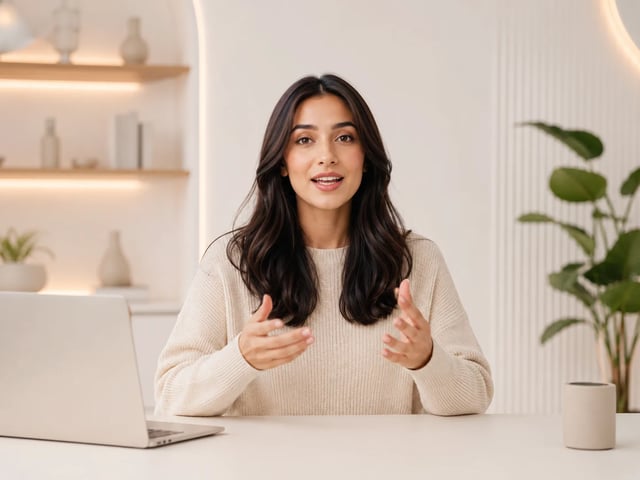
Give the AI Lip Sync Video Generator a sharp portrait where the face is large enough to inspect, the lips are visible, and hair, hands, or props do not cover the mouth. Stable lighting and a modest head angle provide a clearer visual reference.
2

Upload the finished voice track

Add the recording that should determine the Lip Sync Video duration and mouth timing. Trim unwanted silence and use clean speech when possible, because the uploaded audio—not a typed script—drives the visible delivery.

3

Generate at 720p or 1080p

Choose 720p for a lower-cost Lip Sync review or select 1080p when the face will appear larger in a presentation, landing page, course, or campaign export.

4

Review the complete spoken line

Inspect the AI Lip Sync Video through fast speech, closed consonants, rounded vowels, pauses, and head movement. A convincing opening frame is not enough if synchronization drifts later in the audio.

What to inspect

How the AI Lip Sync Video Generator Follows Uploaded Audio

The useful proof is not a waveform alone; it is the same face forming the line over time.

Match visible speech to your uploaded audio

The AI Lip Sync Video Generator uses your recording as the timing source for visible speech. Review how mouth shapes change across the complete line, especially around quick consonants, long vowels, breaths, and pauses. This is an audio-driven path: changing the recording changes both the spoken delivery and the resulting clip length.

Four-frame close-up sequence of the same presenter forming different mouth shapes while speaking

Give the Lip Sync Video Generator a readable face

A front-facing or gently angled portrait with clear lips gives the AI Lip Sync Video Generator a stronger visual anchor. Avoid tiny faces, extreme profiles, heavy shadow over the mouth, and foreground objects that cross the lips. The goal is not only to preserve a recognizable presenter, but to make synchronization easy to evaluate frame by frame.

Publication-ready talking-head campaign stills featuring one consistent presenter

Create localized Lip Sync Video messages

Pair the same approved portrait with different recorded language tracks to create regional explainers, product messages, course intros, or campaign announcements. The AI Lip Sync Video Generator does not translate or synthesize the voice for you; each localized version needs its own prepared audio and should be reviewed for the pace and mouth shapes of that recording.

Three coordinated regional video thumbnails featuring the same presenter in localized campaign variants

Review Lip Sync at 720p or deliver at 1080p

Use 720p when the immediate question is whether the face and audio synchronize naturally. Choose 1080p when the approved talking-head video will appear larger or needs closer facial detail. The AI Lip Sync Video Generator charges by audio duration and resolution, so the output tier should match the current review or delivery stage.

Same talking presenter shown as a compact 720p preview and a sharper 1080p campaign frame

Use cases

Where the AI Lip Sync Video Generator Turns a Still Face Into a Speaker

Short social messages

Use the AI Lip Sync Video Generator to turn an approved campaign portrait and recorded hook into a concise talking-head post. The result can introduce an offer, announcement, event, or product update without organizing a new presenter shoot.

Localized dubbing passes

Pair the same cleared portrait with a translated recording for each market. The Lip Sync Video Generator creates a separate visible delivery for every audio track, giving regional teams a concrete clip to review instead of a silent localization mockup.

Course and tutorial intros

Create a short instructor introduction from a portrait and completed narration. Use the AI Lip Sync Video Generator for the opening or transition, then place the talking-head result into the larger lesson edit.

Talking-avatar prototypes

Test whether a character or presenter portrait reads naturally while speaking before investing in a longer series. Review one real line in the Lip Sync Video Generator to catch mouth visibility, framing, and identity issues early.

AI Lip Sync Video Generator Questions

What inputs does the AI Lip Sync Video Generator require?

It requires one portrait image and one audio file. The image supplies the face and framing; the uploaded audio supplies the speech and duration.

Can I type a script instead of uploading audio?

No. The current SupaImagine tool does not expose text-to-speech or a typed-script path. Record or prepare the audio first, then upload it with the portrait.

Which AI Lip Sync Video resolutions are available?

The AI Lip Sync Video Generator offers 720p and 1080p output. Choose 720p for a lighter review pass or 1080p when facial detail and a larger final placement matter.

How is the credit cost calculated?

The current rates are 5 credits per second at 720p and 10 credits per second at 1080p, with a 15-credit minimum charge. Duration follows the uploaded audio.

What portrait usually works best?

Use a sharp image where the face is large enough to inspect, the mouth is visible, and hair or hands do not cover the lips.

Can I publish the resulting talking video commercially?

Commercial use requires a paid SupaImagine plan and the necessary rights to both the portrait and the audio recording.

Start with a face and a voice

Turn your recorded line into an AI Lip Sync Video

Open the AI Lip Sync Video Generator, upload the portrait, add the finished audio, and inspect synchronized mouth movement across the complete line.