TLDR
- You need true transparency in the file, not a painted checkerboard. PNG can store per-pixel opacity; JPEG cannot (W3C PNG data representation; Adobe Express on transparent backgrounds).
- OpenAI documents preview native transparency for
gpt-image-2when the request asks for a transparent background and PNG or WebP output (image generation guide; prompting guide, dated April 21, 2026). - ChatGPT-style prompts still lie. Users kept getting a fake checkerboard instead of alpha (May 2026 community thread).
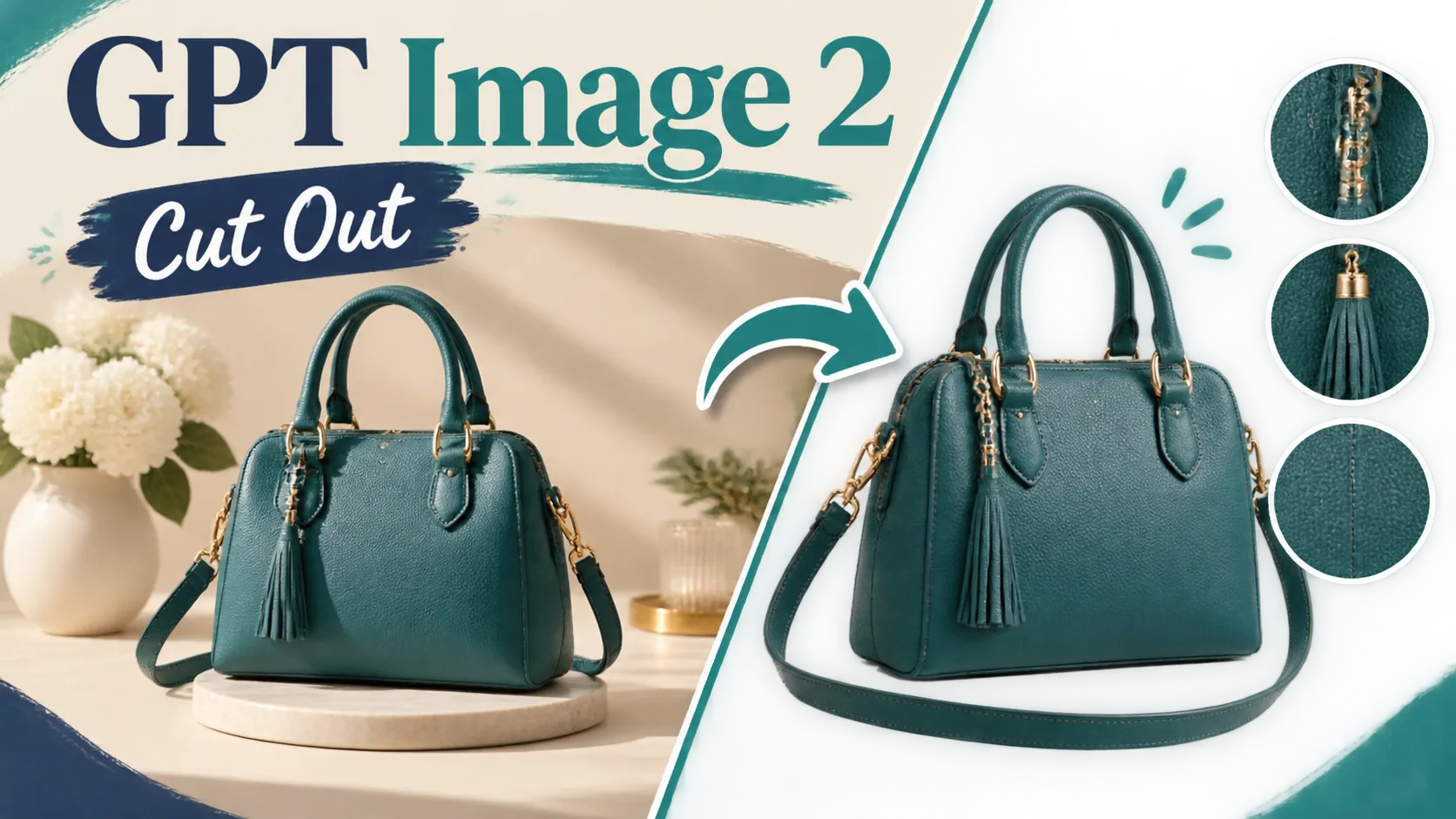
- On SupaImagine today: optional GPT Image 2 still → Background Remover → zoom the edges. Do not expect this generator to emit native alpha in one click.
- Logo marks are a different job. Use the logo background remover, not this product/portrait path.
Key Takeaways
- Released: Images 2.0 /
gpt-image-2public story is April 21, 2026 (OpenAI blog; model card). - What OpenAI documents (preview): pair a transparent-background request with
pngorwebp; JPEG is the wrong format (create-image reference; prompting guide). - Prompt can override the setting: OpenAI’s August 20 cookbook warns that prompt instructions take priority. If the prompt describes a backdrop, the model may paint a scene instead of alpha (transparent assets cookbook).
- Preview is not “pixel-perfect.” Community testers on August 20, 2026 reported thin halos and opaque regions that were not fully solid (community API thread).
- On this site: GPT Image 2 is live for stills (text-to-image and image-to-image, 1K / 2K / 4K). Background Remover is live for existing photos, defaulting to a transparent-style cutout. GPT Image 2 here still outputs a regular still, not a transparent PNG.
- Credits: signup credits cover a default Background Remover run (1 credit); GPT Image 2 uses the on-site 1K / 2K / 4K ladder. Commercial use follows paid plans.
Two paths: cut out vs generate
| Path | What you get | When to use it | What fails |
| --- | --- | --- | --- |
| Generate, then cut | Opaque still → isolated PNG | Today on SupaImagine | Hair, glass, and fine straps still need an edge check |
| Generate with alpha | PNG/WebP whose pixels start transparent | OpenAI documents this in preview for gpt-image-2 | Prompt scenery can override the request; preview edges can halo |
| Prompt only (“transparent PNG please”) | Often a drawn checkerboard | Never as your only plan | Looks transparent in the chat, fails in Figma |
Use the first row on this site today. The second row is what OpenAI documents. The third row is the trap from May.
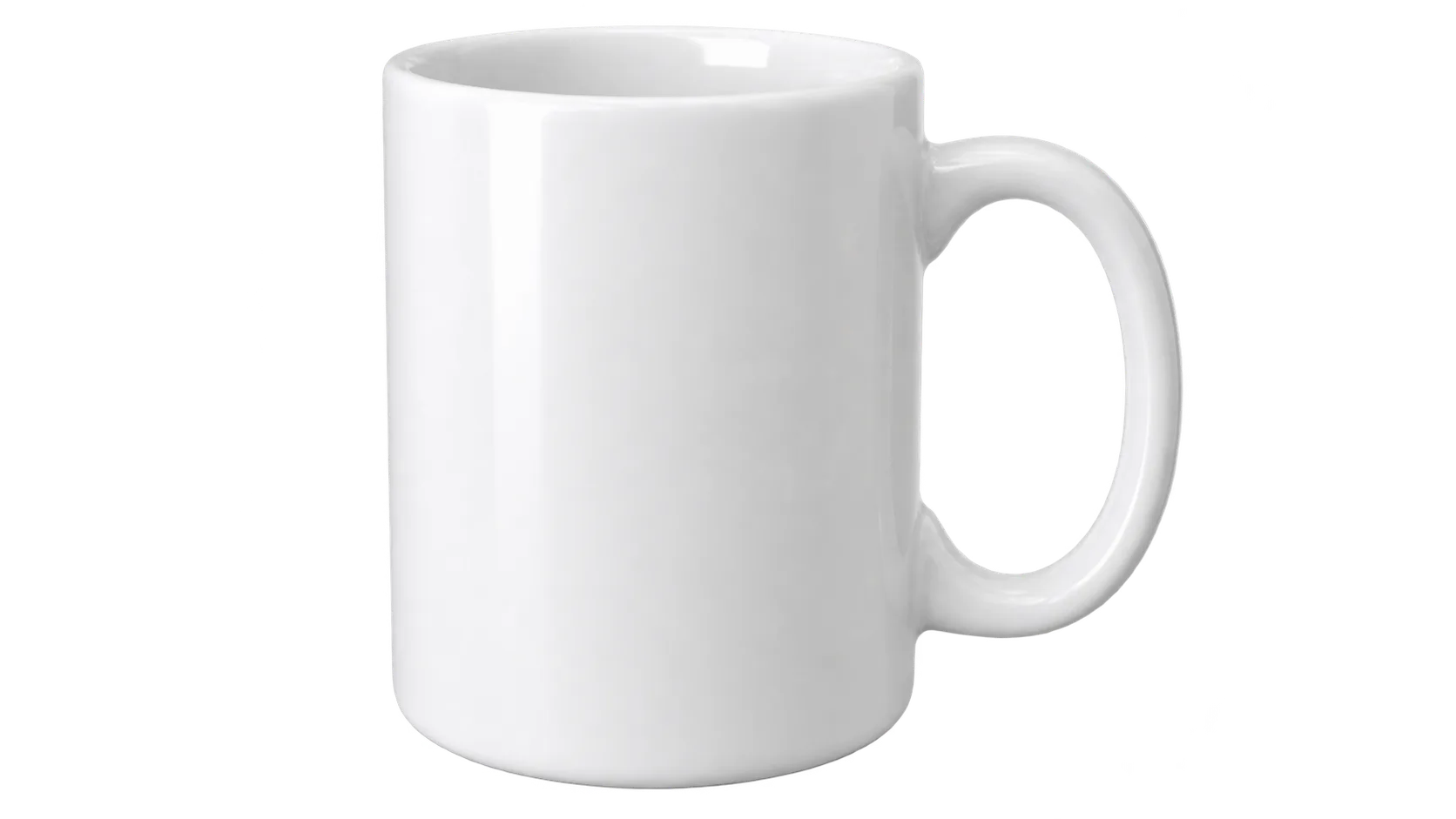
Isolated product still for a cutout workflow (white ceramic mug). Prompt: single mug, no scenery. Model: GPT Image 2 still, then treat as a candidate for Background Remover. Generated on SupaImagine.
What we know vs what we don’t
What we know
- OpenAI positions
gpt-image-2as its current flagship image model for generation and editing (model card; developer announcement). - Official docs now say transparent backgrounds are in preview for
gpt-image-2, with PNG or WebP required (image generation guide). - The April 21 prompting guide lists transparent PNG/WebP assets among preview capabilities and tells you to isolate the subject: no scenery, no solid backdrop, no checkerboard, no unwanted shadows.
- The August 20 cookbook walks through e-commerce products, slide charts, stickers, and print-on-demand—always as reusable assets, not as a ChatGPT screenshot.
- Alpha is a real file property, not a visual trick (W3C PNG; MDN alpha).
- On SupaImagine, Background Remover is an upload-and-isolate tool. GPT Image 2 is a still generator. They are sequential, not the same button.
What we don’t know (or must qualify)
- Whether a given preview-alpha file will survive hair, frosted glass, or sheer fabric without a second pass—the August 20 community thread already flags halo and “almost opaque” pixels (community API thread).
- Whether every downstream app will keep alpha. Some “export for web” paths flatten to JPEG.
- Whether ChatGPT’s consumer UI matches the documented API preview on any given day (May reports said it often did not).
- One-click transparent PNG from GPT Image 2 on this site: not available. This guide will not pretend it is.
- Medical IDs, passport photos, and pixel-perfect matting: not promised.
Honest workflow on SupaImagine
Stage 0 — Decide the subject
- Product, portrait, sticker, pack shot → this article.
- Wordmark, icon, monogram → logo background remover. Forcing a brand mark through the general remover is the usual failure.
Stage 1 — Generate a still you can cut (optional)
Open GPT Image 2 if you do not already have a photo. Ask for a simple backdrop you can isolate later: solid studio, plain table, or a single object filling the frame. Do not ask the model to “draw a checkerboard to prove transparency.” That is how fake alpha happens (May 2026 reports).
Draft at 1K. Re-run keepers at 2K or 4K only after the composition is right. On this site you can pick that ladder for both text-to-image and image-to-image.
Stage 2 — Isolate on Background Remover
Open Background Remover, upload the still, and run the cutout. The live tool is image-in, cutout-out. It is not a text-to-image model and not a logo generator.
Stage 3 — Edge QA (the part people skip)
Zoom to 100–200% and place the download on white, black, and a saturated brand color:
| Risk | Failure | Fix | | --- | --- | --- | | Halo | Light fringe on a dark slide | Re-run; avoid busy original backdrops | | Hair / fur | Soft matte holes | Simpler lighting; accept a second pass | | Glass / liquid | Window turns into a hole, or a solid slab | Prefer generate-then-cut; inspect refraction | | Checkerboard baked in | Gray squares in the PNG | You prompted a pattern, not alpha—regenerate the still | | Wrong subject | Background object kept | Crop tighter before upload |
Transparency is not binary. PNG alpha can store partial opacity along antialiased edges (W3C PNG alpha samples). Soft fringes that look fine on a checkerboard still glow on a red ad.
Stage 4 — Know the ceiling
- You get a clean isolated subject aimed at transparent-style reuse.
- Pixel-perfect matting is not guaranteed.
- GPT Image 2 on this site does not mean “download already has alpha.”
- Commercial use follows paid plans—confirm before a client campaign.
- Signup credits cover a default-tier Background Remover trial with an account.
Copyable prompts (still first, then cut)
These prompts are for GPT Image 2. They ask for an easy-to-cut still. After you keep a frame, run Background Remover. Do not treat the generator output as the final transparent PNG.
Prompt 1 — white-backdrop product
Photoreal product photo of a matte ceramic mug, three-quarter view, fully visible.
Solid seamless light-gray studio backdrop, even softbox lighting, no table edge,
no props, no text, no logo, no watermark. Sharp focus, catalog lighting.
Leave a small margin of empty backdrop around the mug.
Prompt 2 — die-cut sticker (still, not fake alpha)
A single die-cut vinyl sticker of a small orange tabby cat sitting, centered.
Thick white sticker border, simple kawaii illustration, no extra stickers.
Plain cool-white paper desk, even overhead light, no scenery, no cast shadow drama.
No checkerboard, no transparency grid, no text, no watermark.
Prompt 3 — pack-shot bottle
Photoreal amber glass dropper bottle, front view, liquid visible, metal cap.
Solid warm-ivory seamless backdrop, soft side light, gentle glass refraction.
No extra bottles, no labels with readable words, no logo, no watermark.
Full object in frame with padding. Easy to isolate later.
If you later follow OpenAI’s own preview path, their cookbook says to drop the scenery and ask for an isolated object on fully transparent alpha (transparent assets cookbook). That is not a button on this site.
When to use the logo tool instead
| Intent | Right page | | --- | --- | | General subject / product / person PNG | Background Remover (this article) | | Wordmark / icon / badge | Logo Background Remover | | Readable in-image type | The GPT Image 2 poster-text guide | | Invent a new mark from text | Not a cutout tool |
One job per page. Logo marks belong on the logo tool, not here.
How to evaluate on SupaImagine (3 steps)
- Generate or upload one simple still (optional: GPT Image 2 at 1K).
- Open Background Remover, run the cutout, download PNG.
- Score four checks: halo on dark (Y/N), subject holes (Y/N), baked checkerboard (Y/N), wrong object kept (Y/N). Only keep a file that fails none.
Checklist card
[ ] Deliverable is true alpha, not a drawn grid
[ ] Subject is product/portrait/sticker (not a wordmark)
[ ] Still generated or uploaded with a simple backdrop
[ ] Cut out on Background Remover
[ ] Zoomed edges; tested on light and dark
[ ] No claim that GPT Image 2 on this site emitted native alpha
[ ] Logo marks sent to the logo tool instead
[ ] Plan/credits confirmed for commercial use
FAQ
Does GPT Image 2 support a transparent background?
OpenAI’s current image-generation docs say yes, in preview, for gpt-image-2 when the request uses a transparent background and PNG or WebP (image generation guide). That is what OpenAI documents. It is not the same as one-click transparency on SupaImagine.
Can I just prompt “transparent PNG” and be done?
No. The May 2026 community thread is full of painted checkerboards that look transparent in chat and fail in design tools (community reports).
Does SupaImagine’s GPT Image 2 generator output native alpha?
No. Use it for the still. Use Background Remover for the isolation. Do not expect one-click transparency from this generator.
Why PNG instead of JPEG?
JPEG has no alpha channel. PNG (and WebP) can (MDN alpha; Adobe Express).
Will hair, glass, or frosted bottles cut cleanly?
Often “good enough” for listings; not a pixel-perfect matte guarantee. OpenAI’s own cookbook highlights glass and fine fibers as the hard cases even when alpha is generated natively (cookbook). Always zoom.
Is this the same as removing a logo background?
No. Logo marks belong on the logo background remover. This path is for general subjects.
Can I try the cutout after signup?
Yes. Signup credits cover a default-tier Background Remover run; you need an account (product FAQ).
Can I use the PNG commercially?
Commercial use is described as available on paid plans on the product pages—confirm before client work.
Should I upscale first?
No. Isolate a keeper, then upscale. Scaling a bad matte only scales the error.
What if I already have a photo, not an AI still?
Skip GPT Image 2. Upload straight to Background Remover.