TLDR
- Job = square release art: one still for singles, EPs, mixtapes, or podcast-style tiles—not a multi-page booklet or brand kit.
- Controls that matter: genre style chip + subject/mood brief + optional exact title words + optional reference photo.
- Platform specs are separate: generate concept first, then match Spotify cover art requirements and Apple Music cover art guidelines before you deliver to a distributor.
- Hard no’s: do not treat outputs as distribution-ready masters, copyright clearance, or automatic title lettering that always ships.
Key Takeaways
- Try here: AI Album Cover Generator is live as a task page with system guidance, six genre chips, cover-brief placeholder, and square default.
- Six style chips: Hip-Hop, Synthwave, Lo-Fi, Jazz, Metal, and Pop each inject a short visual-language block; switching chips does not erase your typed brief (product FAQ on that page).
- Text policy: lettering appears only when you ask for specific words; the tool is positioned to avoid inventing fake track names or watermarks when you leave text out.
- Credits (product fact): on-site FAQ states a default 1K run costs 5 credits, with signup credits covering at least one trial (account required; not unlimited free).
- Streaming square baseline: Spotify’s artist help states cover art must be 1:1, TIFF/PNG/JPG, between 640px and 10000px on a side, sRGB, and not upscaled junk (official requirements).
- Apple delivery bar is stricter on pixels: Apple’s cover-art support page asks for a perfect square at least 4000×4000 among other quality rules (Apple cover art); provider packaging docs also stress square JPEG/PNG delivery (digital packaging).
- Adjacent tools: GPT Image 2 for free-form stills, add text to photo when you need a second lettering pass, image upscaler after composition locks.
What “AI album cover” means here
| Intent | What you want | Right path on SupaImagine | Wrong path | | --- | --- | --- | --- | | Release cover concept | Square art that matches track mood | Album cover generator | Treating a tall poster crop as “done” | | Readable title on cover | Exact song/artist line in-frame | Ask for those words in the brief; re-run; optional add text | Hoping the model invents a perfect logotype | | Photo-guided cover | Restyle a portrait or motif | Upload reference on the same tool page | Claiming identity lock like a catalog face model | | Distributor upload | Pixel/format acceptance | Export + upscale + manual QA against Spotify/Apple docs | Claiming the generator auto-ships to DSPs |
If your search was really “design a full campaign kit / Spotify Canvas / motion album art,” stop and re-scope: those are adjacent jobs. This article stays on still square cover concepts.
Pipeline (honest 6 stages)
Stage 0 — Brief the release (5 minutes)
Write four lines before you open the generator:
- Release type: single, EP, mixtape, or podcast tile.
- Genre/mood: one primary lane (the chip list is a good starting menu).
- Subject: what must be visible at thumbnail size (face, object, skyline, abstract texture).
- Lettering: none / title only / title + artist—and the exact spelling.
Thumbnail truth: most listeners first see your art as a tiny square. Busy edges die; one clear subject wins.
Stage 1 — Open the task tool (not a blank canvas)
Open the AI Album Cover Generator. Prefer this page over a generic model page when the job is music cover, because the product is already shaped with:
- six genre style chips,
- a cover-brief placeholder,
- 1:1 default,
- optional photo path on the same form.
The product FAQ is explicit: this is not a full label design system and not auto-upload to streaming platforms.
Stage 2 — Pick a genre style chip
Choose Hip-Hop, Synthwave, Lo-Fi, Jazz, Metal, or Pop so the visual language is set before you write a novel. Each chip appends a short visual-language block at generate time; your subject text stays editable between tries.
Rule of thumb: if two chips both “feel right,” run one brief on both chips and pick with thumbnail QA—not with vibe alone.
Stage 3 — Write the track brief (copyable shape)
Use a tight structure you can paste:
Track mood: [one sentence]
Subject (thumbnail-safe): [what must read at small size]
Palette: [2–4 colors]
Composition: centered subject, generous margins, square 1:1, no tiny edge details
Lettering: [NONE] OR exact words "[TITLE]" in [weight/style], high contrast, large
Avoid: fake logos, fake watermarks, tiny unreadable text, letterboxing
Prompt A — midnight single, no lettering
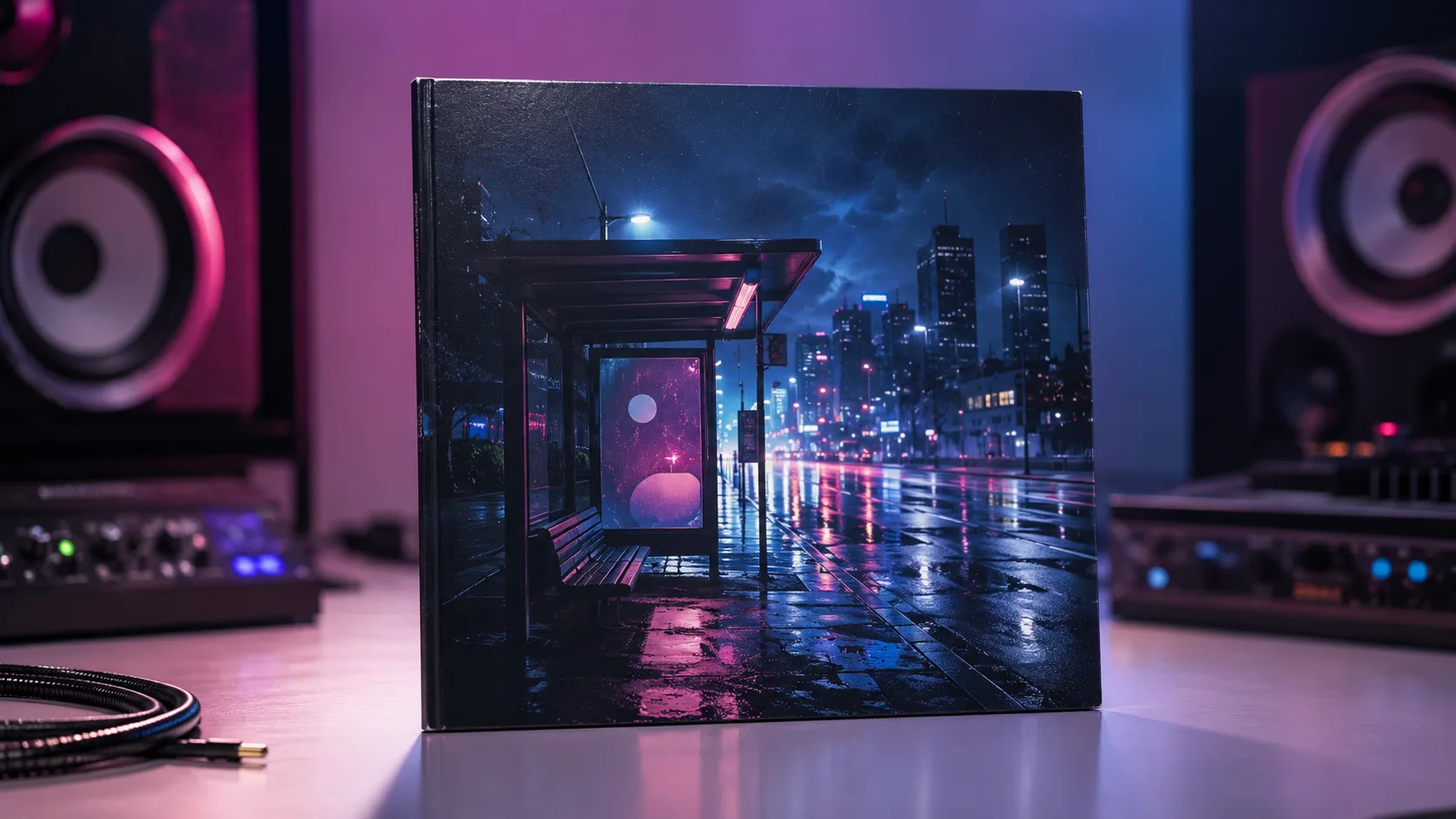
Moody lo-fi single cover, square 1:1. Empty late-night bus stop under light rain, neon reflections on wet pavement, soft grain, teal and magenta palette, one empty bench as the clear center subject, wide margins, no people, no logos, no text, no watermarks. Thumbnail-safe silhouette.Prompt B — jazz ballad with exact title
Square 1:1 jazz album cover. Charcoal and gold palette, soft spotlight on a single upright bass in a smoky club corner, elegant negative space at the top third. Exact title lettering only: "AFTER HOURS" in clean high-contrast serif, large and centered top, no other text, no fake record label logos, no watermark. Readable at small size.Prompt C — photo-guided metal mood
Restyle this reference portrait into a square 1:1 metal single cover: storm sky, dramatic rim light, high contrast, keep the person recognizable as the center subject, no band logos, no extra text unless specified, no watermark, bold silhouette for thumbnails.Run A/B first without a photo; use C only when you have a rights-clear reference.
Stage 4 — Generate, then do thumbnail QA
After each run, shrink the result to roughly phone-playlist size (or step back from the monitor) and score:
| Check | Pass means | | --- | --- | | Subject | You can name the main object in under one second | | Margins | Edges are not full of tiny ornaments that vanish | | Contrast | Dark-mode UI will not swallow the subject | | Lettering | If present, every word is still readable when small | | Artifacts | No random glyphs, watermarks, or broken hands/faces if people are central |
Fail any row → change one variable (chip, subject line, or lettering), not five at once.
Stage 5 — Lettering honesty
In-image text is a layout job, not a vibe. Product positioning on the album tool: GPT Image 2 can place clear words when you specify them; it will not invent fake titles if you leave text out. For hard production lettering, treat the first pass as a comp, then:
- re-run with stricter type instructions, or
- lock art and finish words on add text to photo, or
- composite final type in a design tool you control.
Related deep-dive on readable in-image words: How to Make Readable Poster Text with GPT Image 2—same lettering risk class, different job (poster vs square cover). Keep intents separate.
Stage 6 — Match platform specs after the concept locks
AI generation gives you a visual direction. Distributors and DSPs still enforce file rules. Anchor on primary docs:
- Spotify (artist help): square 1:1; TIFF, PNG, or JPG with lossless encoding where applicable; 640–10000px on each side; sRGB, 24-bit; do not upscale low-res sources (cover art requirements).
- Apple Music (cover art support): perfect square; at least 4000×4000 among listed quality rules; avoid blurry, pixelated, misleading art (cover art guidelines).
- Apple provider packaging: square JPEG/PNG delivery expectations for packaging workflows (digital packaging for music).
Practical sequence on SupaImagine:
- Lock composition at square concept quality.
- If you need more pixels, use image upscaler only on a keeper—do not upscale noise and call it “4K art direction.”
- Export and re-check against the live Spotify/Apple pages on the day you deliver (pixel rules and policy text can change).
What we know vs what we don’t
What we know
- SupaImagine ships a dedicated AI Album Cover Generator with genre chips, cover brief UX, optional photo, and square default.
- Product FAQ: outputs are cover stills for releases/promos, not auto-DSP upload or a full design system.
- Default 1K path is billed in credits (FAQ: 5 credits for default 1K; signup credits exist for trials).
- Spotify and Apple publish public technical baselines for square cover delivery (Spotify, Apple).
- JPEG does not carry alpha the way PNG can; for opaque streaming covers that is usually fine—transparency is a logo problem, not a DSP cover default.
What we don’t know (or must qualify)
- Whether a given AI still will pass every distributor content review (rights, likeness, misleading artist depiction).
- Whether in-image lettering will be pixel-perfect on the first try.
- Exact file-size caps every aggregator enforces on the day you upload—re-read your distributor checklist.
- Commercial rights for your plan—confirm SupaImagine pricing/legal for your account before client or paid campaigns.
How to evaluate on SupaImagine (3 steps)
- Open AI Album Cover Generator, pick one genre chip, paste Prompt A or your real brief at 1:1.
- Score with the thumbnail table (subject / margins / contrast / lettering / artifacts).
- Promote only keepers: optional upscaler, optional add text, then manual export QA against Spotify/Apple docs.
Checklist card
[ ] Genre chip chosen on purpose
[ ] Brief names one thumbnail-safe subject
[ ] 1:1 square locked for streaming covers
[ ] Lettering exact spelling or deliberately none
[ ] Thumbnail QA pass
[ ] No fake label logos / watermarks
[ ] Pixel target checked on Spotify + Apple pages today
[ ] Rights-clear references only
FAQ
Is this the same as a general AI image generator?
Partly. Under the hood you still get a still image, but the album cover tool is task-shaped: genre chips, cover brief, square default. The GPT Image 2 model page is the general surface for any image job.
Do I need a photo?
No. Text-only works. Add a photo only when you want reference-guided restyling (product FAQ).
Why default to 1:1?
Because most streaming single/album tiles are square. Spotify’s requirements explicitly call for a 1:1 aspect ratio (requirements). You can still pick other ratios on-site when you need a story crop later.
Will the tool invent my song title?
Product FAQ: only if you ask for specific words. Otherwise it is positioned to avoid inventing fake titles.
Is the generator free?
You can try with signup credits; default 1K is 5 credits per on-site FAQ. It is not unlimited free and not free without an account.
Can I upload straight to Spotify from SupaImagine?
No. SupaImagine generates art. You (or your distributor) still deliver files that meet Spotify and Apple rules.
What pixel size should I aim for?
Concept on-site first. For delivery, re-read the live docs: Spotify’s public range is 640–10000px square; Apple’s cover page emphasizes ≥4000×4000 quality bars. Prefer generating a clean composition, then upscale a keeper if needed—do not upscale mush (Spotify: don’t upscale).
What if lettering is almost right but not shippable?
Lock the art, then use add text to photo or external type tools. Do not force five more full regenerations that change the whole scene.
Can I use outputs commercially?
Follow your SupaImagine plan and legal terms. The product FAQ points commercial rights to account plan—confirm before paid campaigns.
How is this different from the readable poster-text guide?
That guide is about legible poster/layout text on GPT Image 2. This guide is about square music cover workflow and streaming-shaped QA. Cross-link, do not merge intents.
About Theo Nakamura
Theo Nakamura is a Prompt Engineering Writer on SupaImagine. He turns messy prompt experiments into repeatable workflows and writes the hands-on guides on the site—so builders ship fewer unusable drafts.