TLDR
Treat every text-heavy brief as three separate contracts: (1) exact strings you refuse to paraphrase, (2) layout rules (where type sits, how large, how many lines), and (3) scene style. GPT Image 2 is positioned by OpenAI for precisely those structured, text-forward jobs (community announcement). On SupaImagine, draft at 1K, then re-run keepers at 2K or 4K—the product page and catalog expose that resolution ladder for both text-to-image and image-to-image.
Key Takeaways
- Released: OpenAI’s Images 2.0 /
gpt-image-2public story lands April 21, 2026 (OpenAI blog, developer post). - Official emphasis: improved text rendering, layouts, editing, and instruction-following—not “pretty noise only” (developer post).
- Model surface: API id
gpt-image-2(snapshot alias family includesgpt-image-2-2026-04-21on the model card); generation/editing guidance lives in the image generation guide. - Prompt pattern that works: quote exact words, cap line count, name type size relative to the frame, and ban extra labels.
- Failure modes still real: paragraph-length body copy, tiny legal footnotes, and “fake full app UI” with 20 labels will still break—use the checklist below.
- On SupaImagine: open the GPT Image 2 generator for text-to-image or image-to-image (edit a photo/poster you already have). Host-side resolution steps are 1K / 2K / 4K for this model in catalog.
When GPT Image 2 is the right tool for text
Use this model when the deliverable fails if the words fail:
| Job | Why text quality is the product | | --- | --- | | Campaign / event poster | Headline + date must survive a feed crop | | Price tag / menu / package label | Spelling and currency symbols are non-negotiable | | UI or slide mock | Button labels and titles are part of the design review | | Bilingual card | Two scripts in one frame—layout discipline matters |
OpenAI’s own positioning for gpt-image-2 stresses complex visual tasks and usable outputs with stronger layouts and text (developer post). Third-party write-ups after launch repeat the multilingual/in-image text theme (EdTech Innovation Hub, Cooley Peak summary, Segmind hands-on review)—treat those as secondary reporting, not as a certified language matrix. In the workflow below, you decide pass/fail by reading the pixels.
If you already have a blank poster or product photo and only need to print type onto it, stay on the same generator page and use image-to-image rather than starting from noise. SupaImagine’s GPT Image 2 page is built around that “words must stay clear” spine.
Prompt pattern (copy this structure)
Use four blocks every time. Keep them in this order:
- Scene — subject, lighting, materials (one or two sentences).
- Exact text — wrap every string in quotes; say “exact text” and “fully legible.”
- Typography & layout — size (large / medium), position, max lines, alignment.
- Negatives — no extra text, no watermark, no logos (unless you want them).
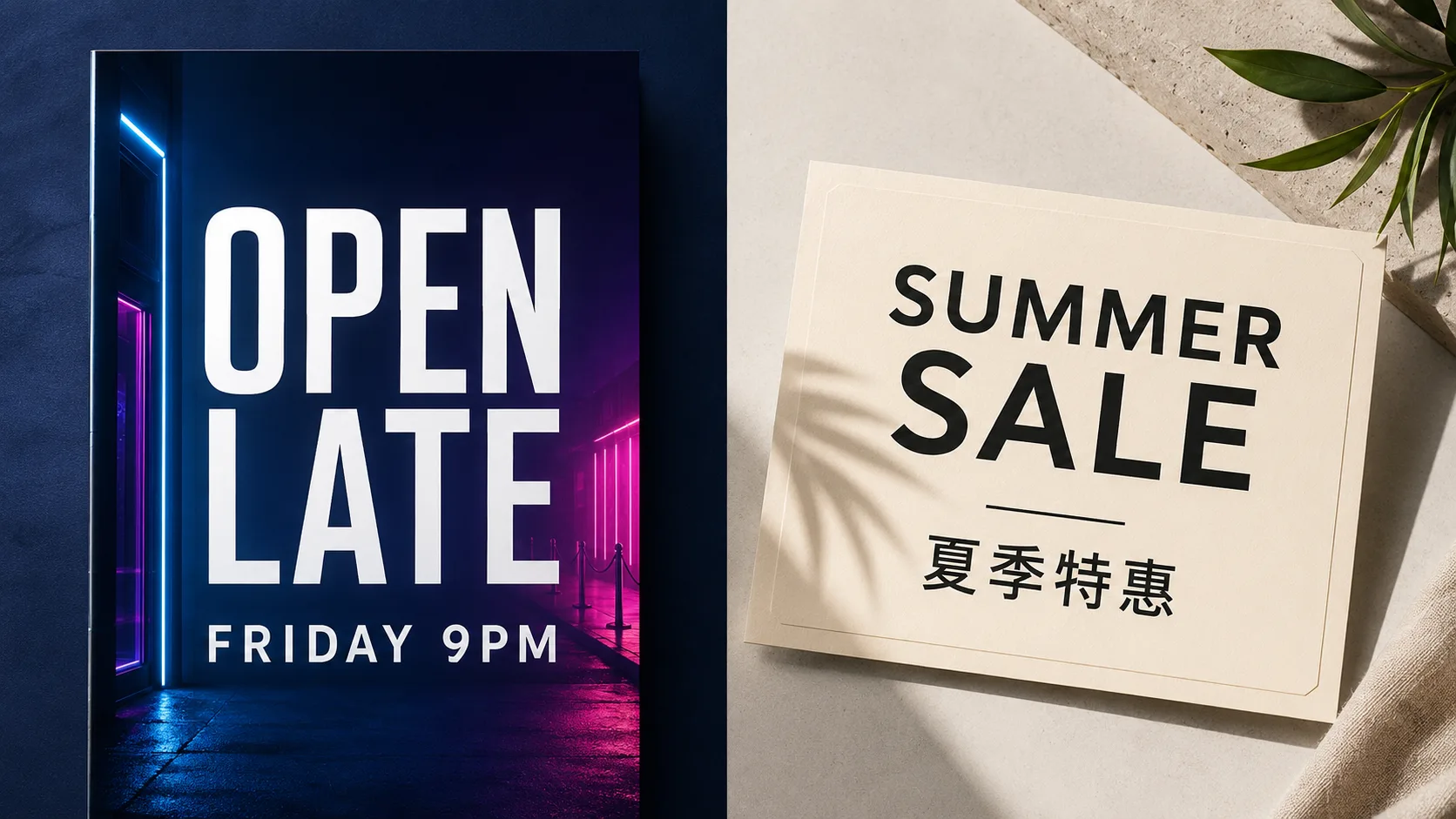
Prompt 1 — English event poster (text-to-image)
Vertical event poster, deep navy background, soft cyan and magenta neon glow,
subtle rain reflections on wet pavement, clean open space in the upper third.
Large exact text "OPEN LATE" in clean white sans-serif, centered, fully legible and sharp.
Smaller exact text "FRIDAY 9PM" directly under the headline, same type family, fully legible.
No other text, no logos, no watermark, no QR code. High contrast type against dark background.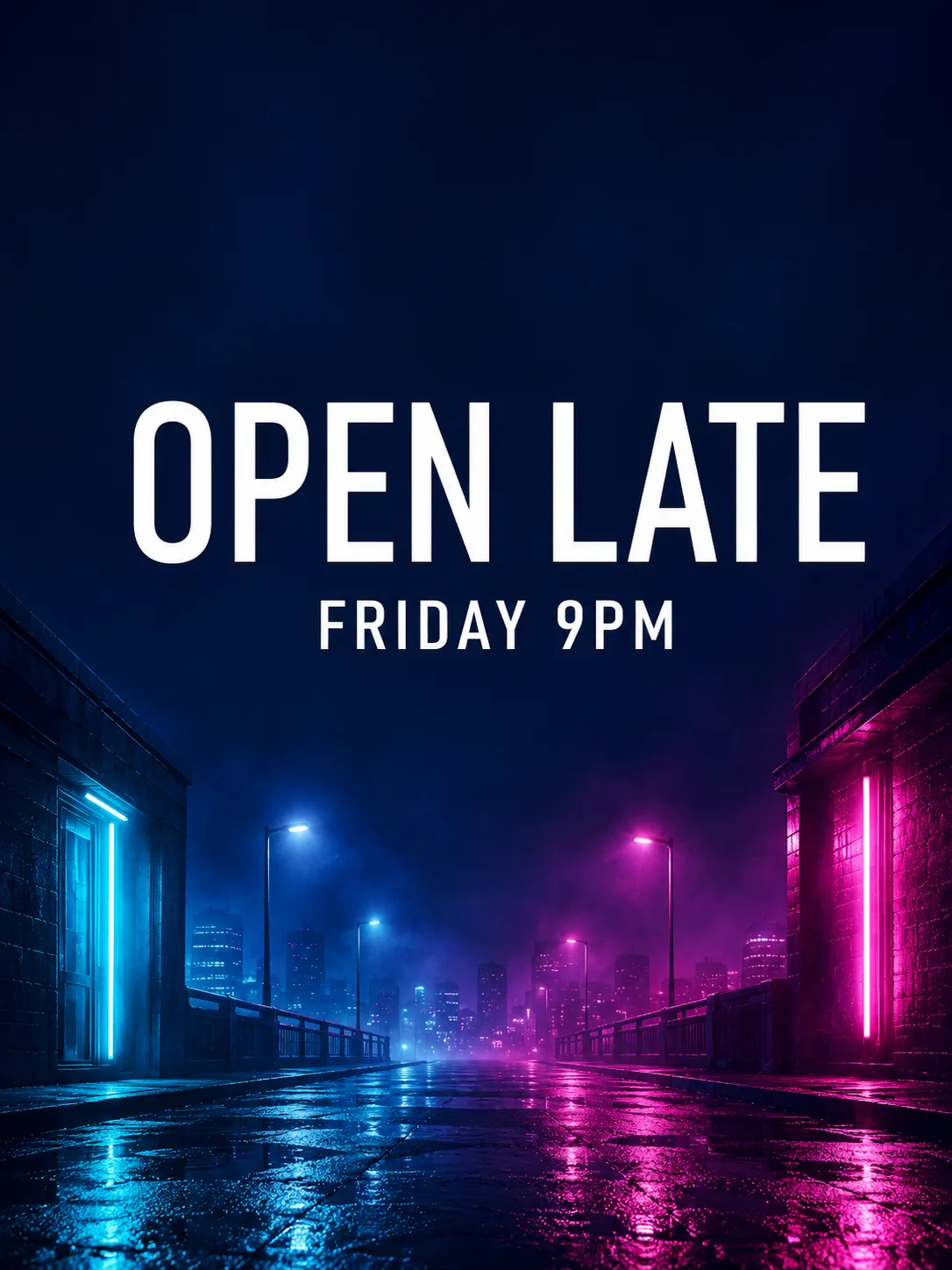
Prompt 1 result · GPT Image 2 · 1K · exact strings OPEN LATE + FRIDAY 9PM · generated on SupaImagine
Prompt 2 — Product price tag (text-to-image)
Close-up product still of a matte black coffee bag on a light wood table, soft daylight from the left.
On the front label area, large exact text "HOUSE BLEND" in bold white sans-serif, fully legible.
Under it, medium exact text "12 oz · $14" fully legible, same alignment, high contrast.
Do not invent other lines. No barcode, no extra badges, no watermark.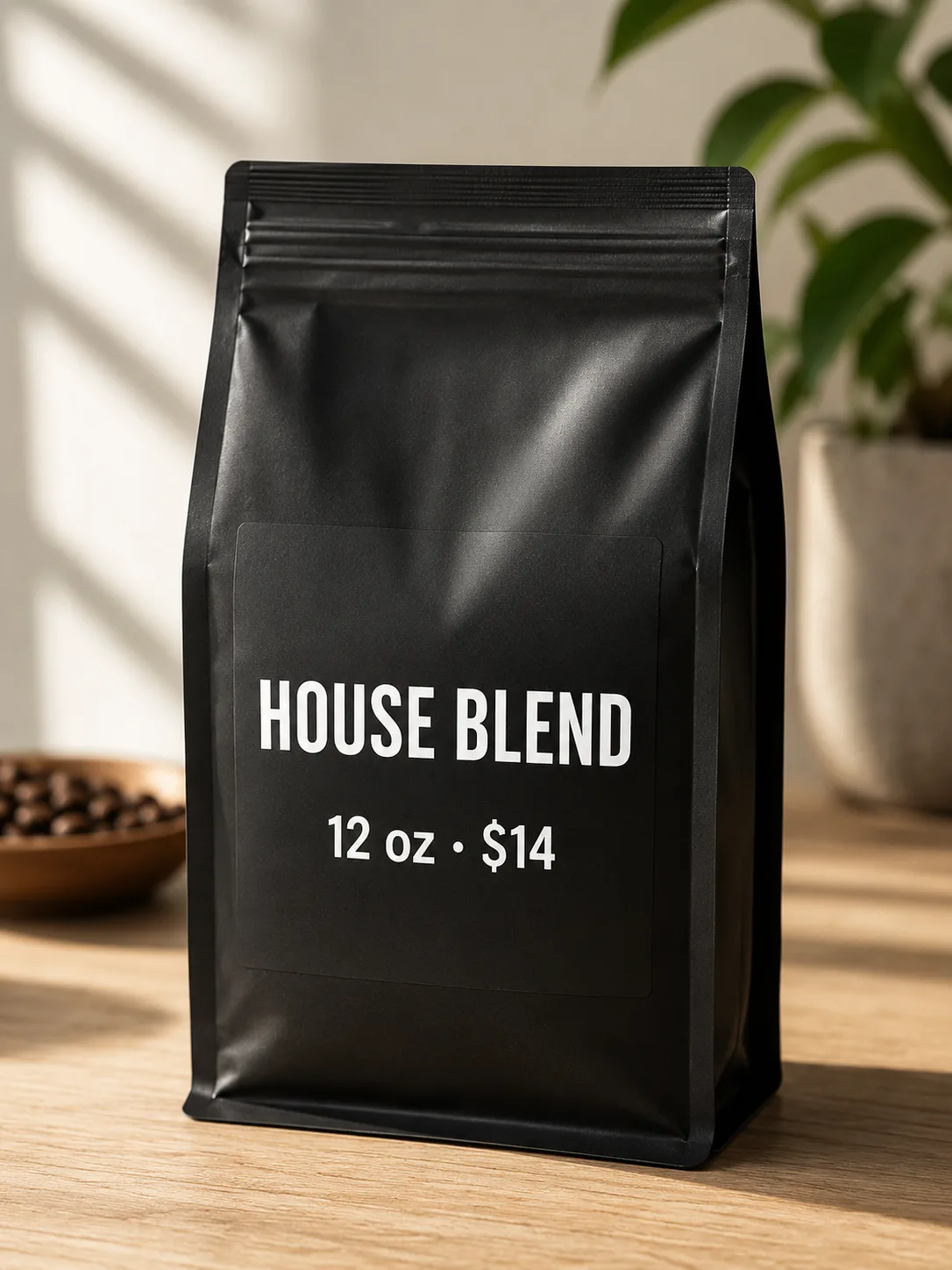
Prompt 2 result · GPT Image 2 · 1K · HOUSE BLEND / 12 oz · $14 · generated on SupaImagine
Prompt 3 — Bilingual promo card (text-to-image)
Square social card, warm cream paper texture, minimal geometric border, generous margins.
Top half: large exact text "SUMMER SALE" in black sans-serif, fully legible.
Bottom half: large exact text "夏季特惠" in black, fully legible, same visual weight.
One thin horizontal rule between the two lines. No other text, no logos, no watermark.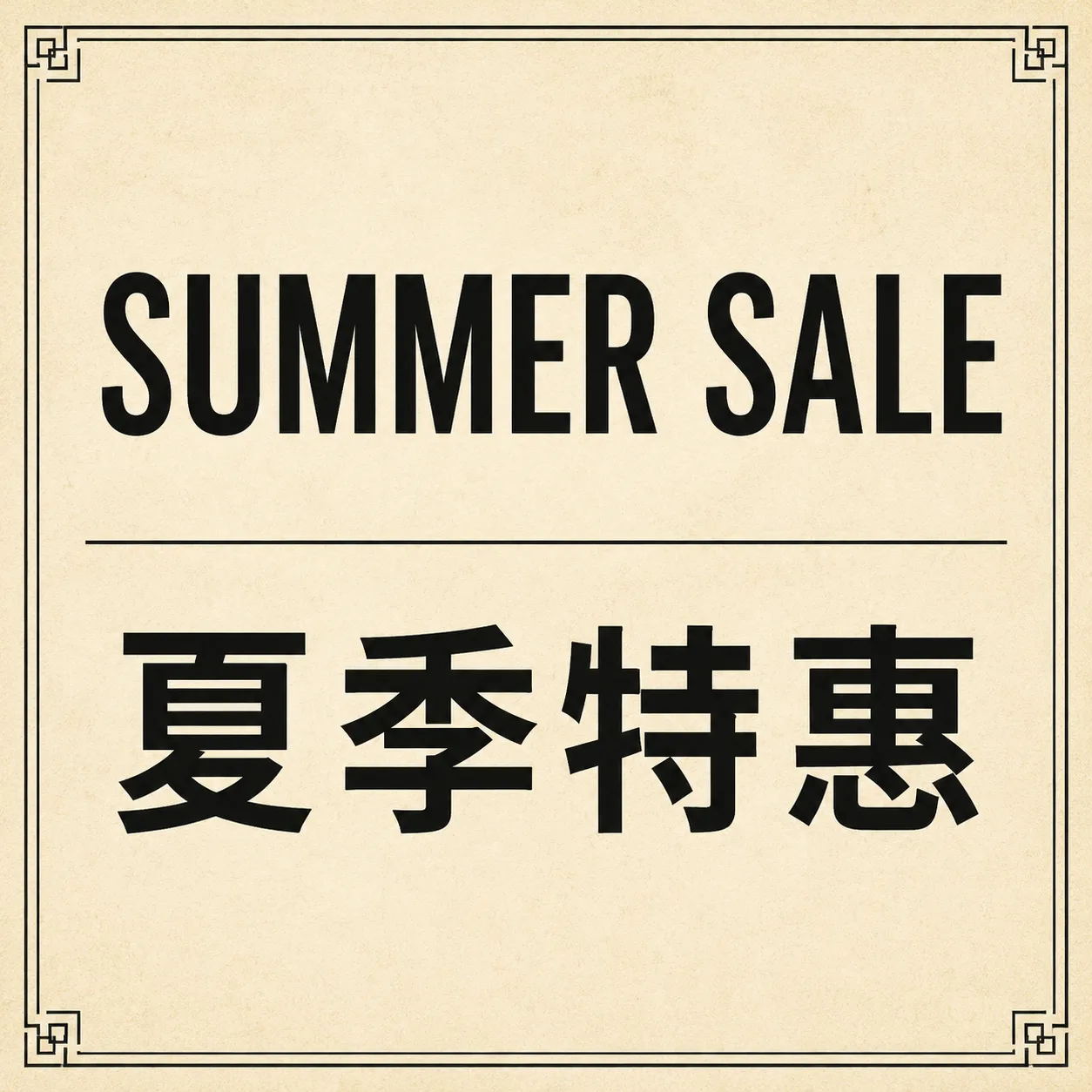
Prompt 3 result · GPT Image 2 · 1K · EN + 中文 · generated on SupaImagine
Prompt 4 — Image-to-image label fix (when you already have a photo)
Keep the exact same product photo, camera angle, lighting, and background.
Only update the front label: large exact text "RIVIERA" and smaller exact text "50 ml" under it,
sharp and fully legible on the label. Do not replace the bottle or restyle the scene.
No extra text, no watermark.
Before (blank label reference) → After (exact text only):
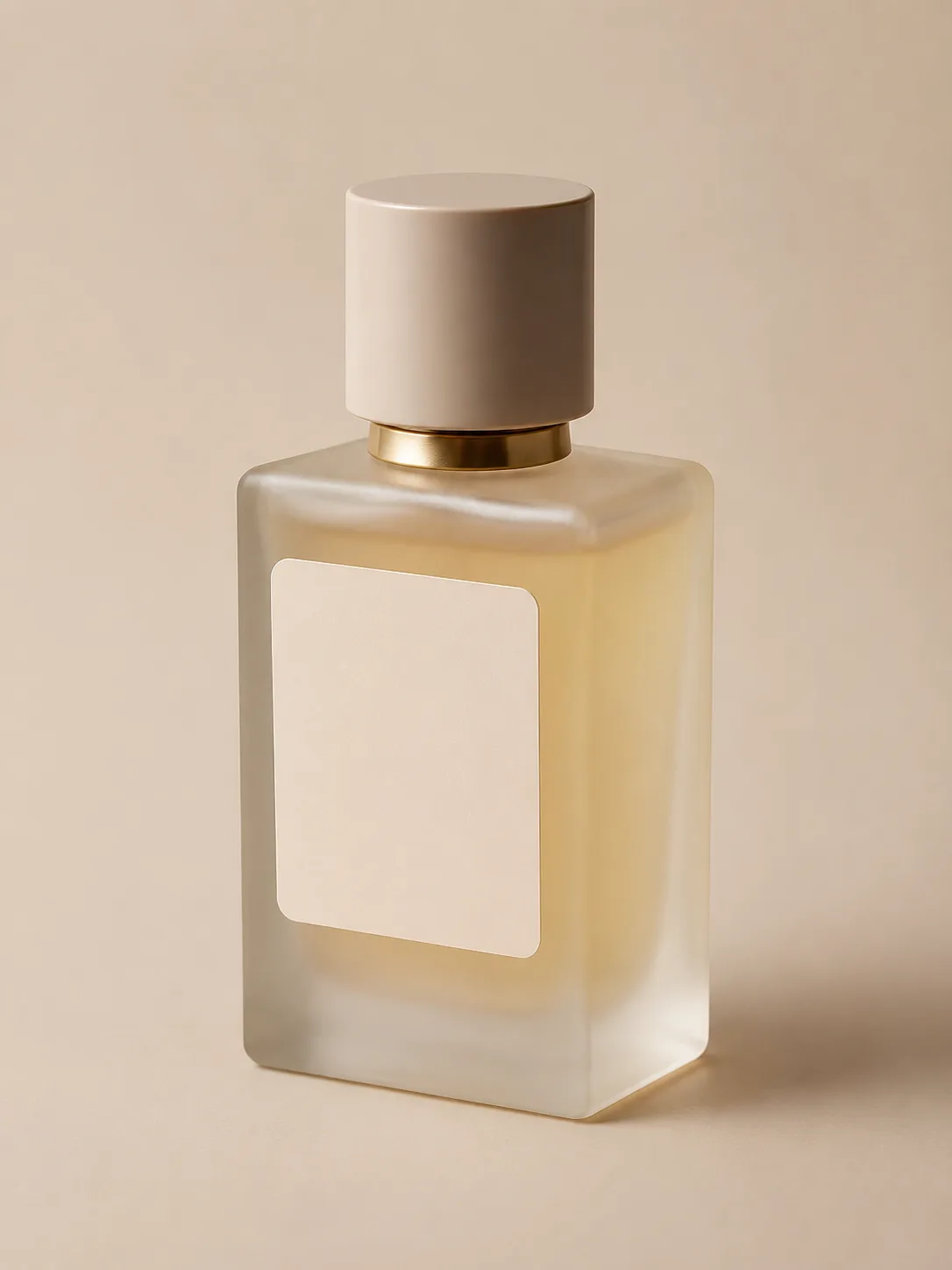
Prompt 4 before · blank label still · GPT Image 2 · 1K · generated on SupaImagine
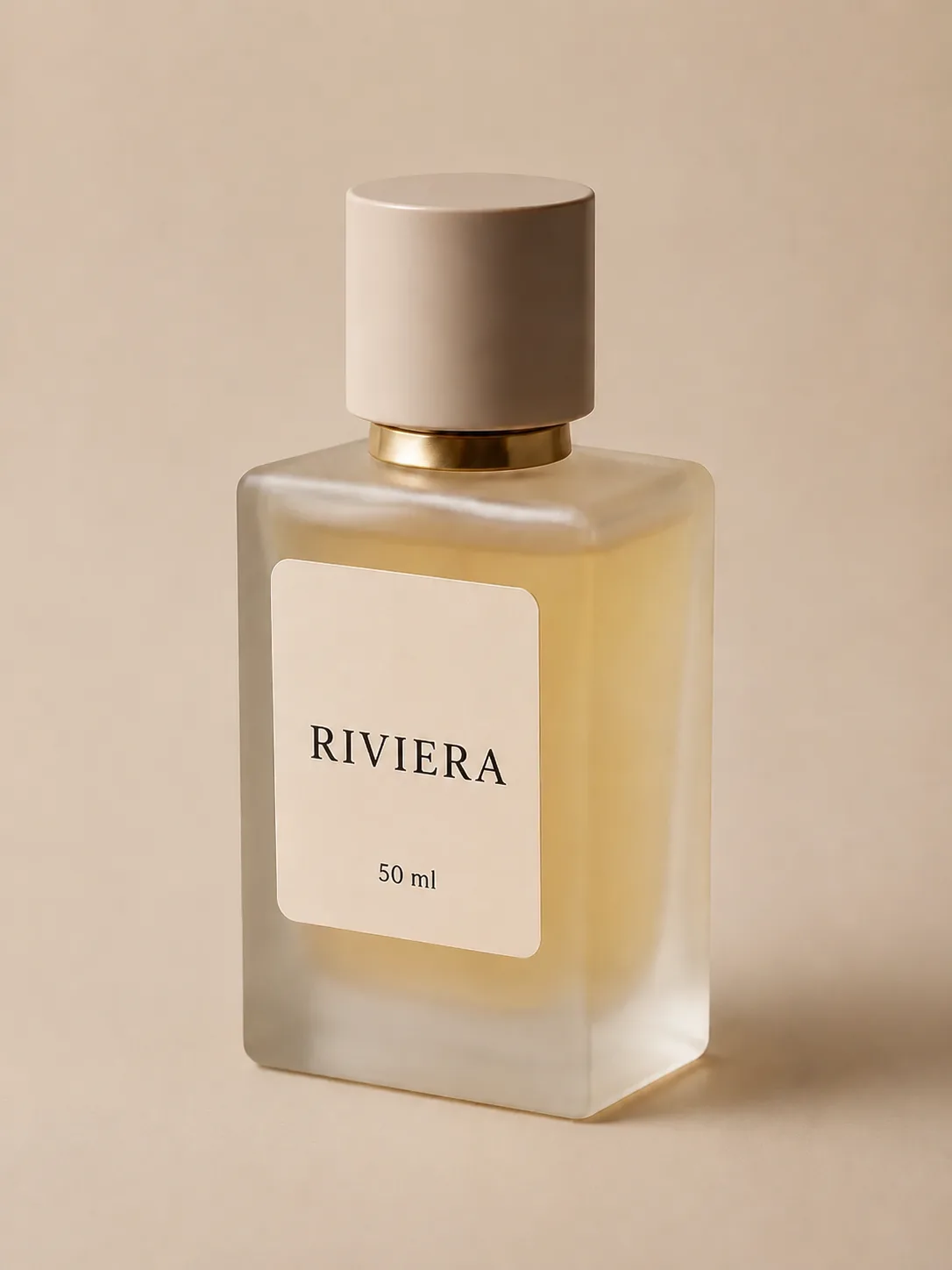
Prompt 4 after · image-to-image · RIVIERA + 50 ml · same camera/lighting · GPT Image 2 · 1K · generated on SupaImagine
(That last pattern matches the kind of edit-in-place jobs OpenAI highlights when it talks about stronger editing and instruction-following (developer post).)
Checklist before you hit generate
- [ ] Every customer-facing string is in “quotes” with the words exact text
- [ ] You named max lines (usually 1–3)
- [ ] You said fully legible / sharp and high contrast
- [ ] You banned extra text / watermark
- [ ] Aspect ratio matches the channel (story 9:16, feed 1:1, landscape 16:9)
Failure boundaries (what still breaks)
Be honest with the brief—even with a stronger text model:
| Failure mode | Why it fails | Fix | | --- | --- | --- | | Paragraph body copy | Too many characters; glyphs collapse | Keep ≤ ~6–8 words per line; move body to real layout tools | | Tiny legal footnotes | Model prioritizes hero type | Drop microcopy from the image; add it in design software | | Full app chrome | Dozens of labels + icons | Mock one screen region (nav + one CTA), not a whole OS | | Unquoted slogan | Model “improves” your marketing line | Always quote and say exact | | Low contrast | Style prompt fights the type | Force high contrast and a clean type color | | 1K export for print crop | Soft edges when you zoom | Promote keeper to 2K/4K on SupaImagine |
Upstream host docs for the KIE gpt-image-2 path (mirrored in-repo under docs/references/kie.ai/image-models/gpt-image/) also expose practical constraints you will feel in product UIs: long prompts are allowed (on the order of tens of thousands of characters on that API surface), resolution enums 1K / 2K / 4K, and some aspect-ratio + resolution combinations are rejected (for example, certain ratios unavailable at 2K/4K; 1:1 cannot convert to 4K on that path). SupaImagine’s generator is the friendly front door—if a ratio/resolution pair fails, simplify the ratio or step down one resolution tier and retry.
Resolution ladder on SupaImagine
Do not burn high resolution on a vague prompt.
- 1K — explore layout and spelling. Cheap loop.
- Lock the prompt — only change one variable at a time (type size, color, or scene).
- 2K or 4K — re-run the winning prompt when the frame is a real candidate.
On SupaImagine’s GPT Image 2 catalog entry, both text-to-image and image-to-image expose that 1K / 2K / 4K ladder. Prefer 1K drafts → higher-res finish, the same way you would not print every sketch.
How to evaluate on SupaImagine (3 steps)
- Open the GPT Image 2 generator (model preselected).
- Paste Prompt 1 or your real slogan using the four-block pattern. Start at 1K.
- Judge only the type at 100% zoom: spelling, edges, contrast, and crop survival. If it passes, re-run at 2K/4K and keep the export in your library.
Optional second path: if you already have a blank poster photo, switch to image-to-image, upload it, and use Prompt 4’s structure so the model only changes the text region.
Need a dedicated “add text to an existing photo” tool later? SupaImagine also lists Add Text to Photo—use it when the job is pure overlay tooling; keep GPT Image 2 when the scene and type must be designed together.
What We Know vs. What We Don’t
| We know (sourced) | We don’t know / won’t claim |
| --- | --- |
| Public launch narrative April 21, 2026 for Images 2.0 / gpt-image-2 (OpenAI blog, community) | That every language and every font style is “solved” on every host |
| Official emphasis on text rendering, layouts, editing, instruction-following (community) | Pixel-perfect PDF/print production without a human check |
| Model card positions GPT Image 2 as SOTA generation + editing (model card) | Identical behavior across ChatGPT UI, raw OpenAI API, and every reseller |
| SupaImagine offers browser t2i + i2i with 1K/2K/4K for this slug | Upstream $/image tables (intentionally not compared here) |
| Multilingual in-image text is part of the public story (community; secondary press) | A fixed official “N languages guaranteed” matrix without your own A/B |
FAQ
Is GPT Image 2 the same as ChatGPT Images 2.0?
In public messaging, ChatGPT Images 2.0 is the product experience and gpt-image-2 is the API model name announced the same day (OpenAI blog, developer post). Hosts may differ in UI controls even when the model family matches.
Why does my slogan still come out wrong?
Usually the prompt paraphrased the line, stacked too many words, or fought the scene with low contrast. Quote the exact string, shorten it, and force high contrast type.
Should I start at 4K?
No. 1K until spelling and layout pass; then 2K/4K for keepers on the SupaImagine GPT Image 2 page.
Can I edit text on a photo I already have?
Yes—use image-to-image on the same page: “keep the photo, only change these exact strings.” That matches the editing-oriented story OpenAI told at launch (developer post).
How long can the prompt be?
Official OpenAI surfaces document generation/editing in the image generation guide. On the KIE-hosted path mirrored in our references, prompts can be very long—but long ≠ better. Dense layout instructions help; rambling style essays do not.
Does multilingual text always work?
OpenAI’s launch notes emphasize multilingual text rendering (developer post). Always zoom-check non-Latin scripts the same way you check English—do not ship on faith.
Will this replace Figma or InDesign?
No. Use GPT Image 2 for concept, mock, and social-ready frames. Final brand systems, spacing grids, and legal microcopy still belong in design tools.
Where do I try it without an API key?
Open GPT Image 2 on SupaImagine, paste one of the prompts above, and generate. Signup credits cover first tries on the product path described on that page.
What if I only need text on a photo, not a full scene?
Try Add Text to Photo for overlay-style jobs, or stay on GPT Image 2 image-to-image when the lighting and label must match the product shot.
Can I compare other models after I lock a prompt?
Yes—keep the same prompt and run it on another image model only after GPT Image 2 has proven the text contract. This article’s job is the readable-text workflow, not a model bake-off.