Image to Prompt Generator for Visual References

Upload an image, extract the reusable prompt, then generate a new version.

SupaImagine turns a reference image into an editable AI prompt that describes subject, style, lighting, composition, and visual details. Use it when you found an image direction you like and need a generator-ready prompt instead of starting from a blank text box.

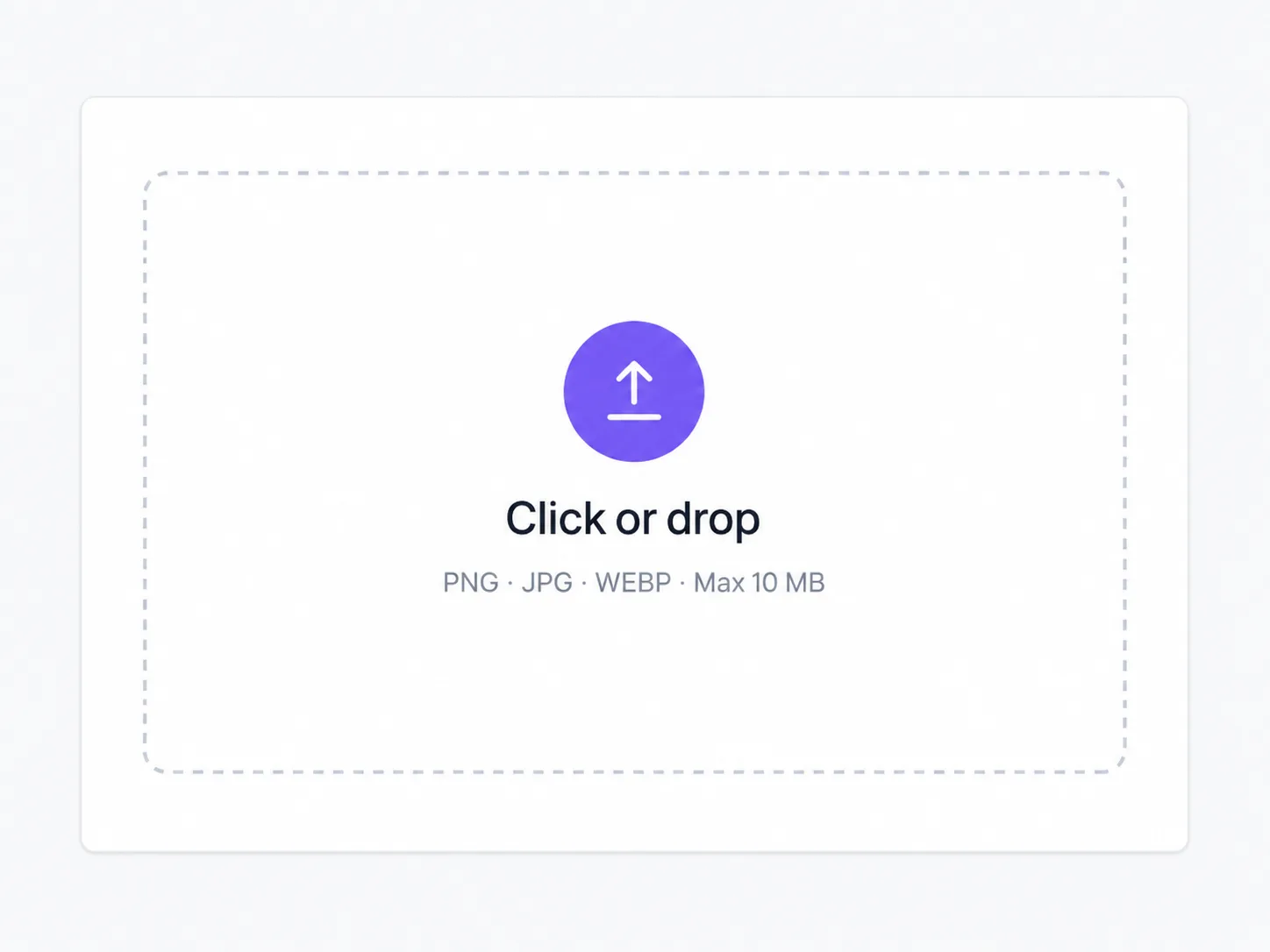
  • Upload PNG, JPG, or WebP
  • Get an editable prompt
  • Short, standard, or detailed output
  • Aspect ratio suggestion included
  • Copy the prompt instantly
  • Open the image generator with the prompt
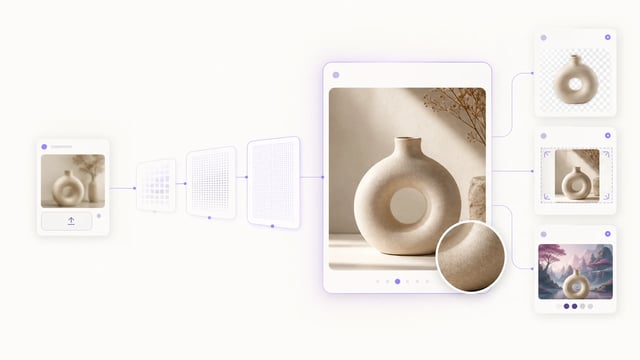
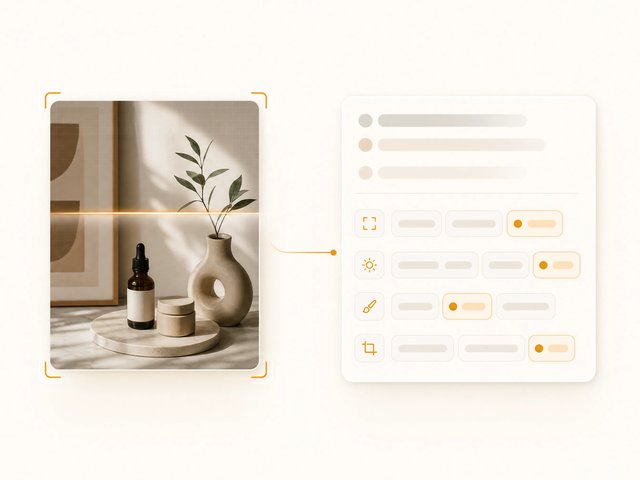
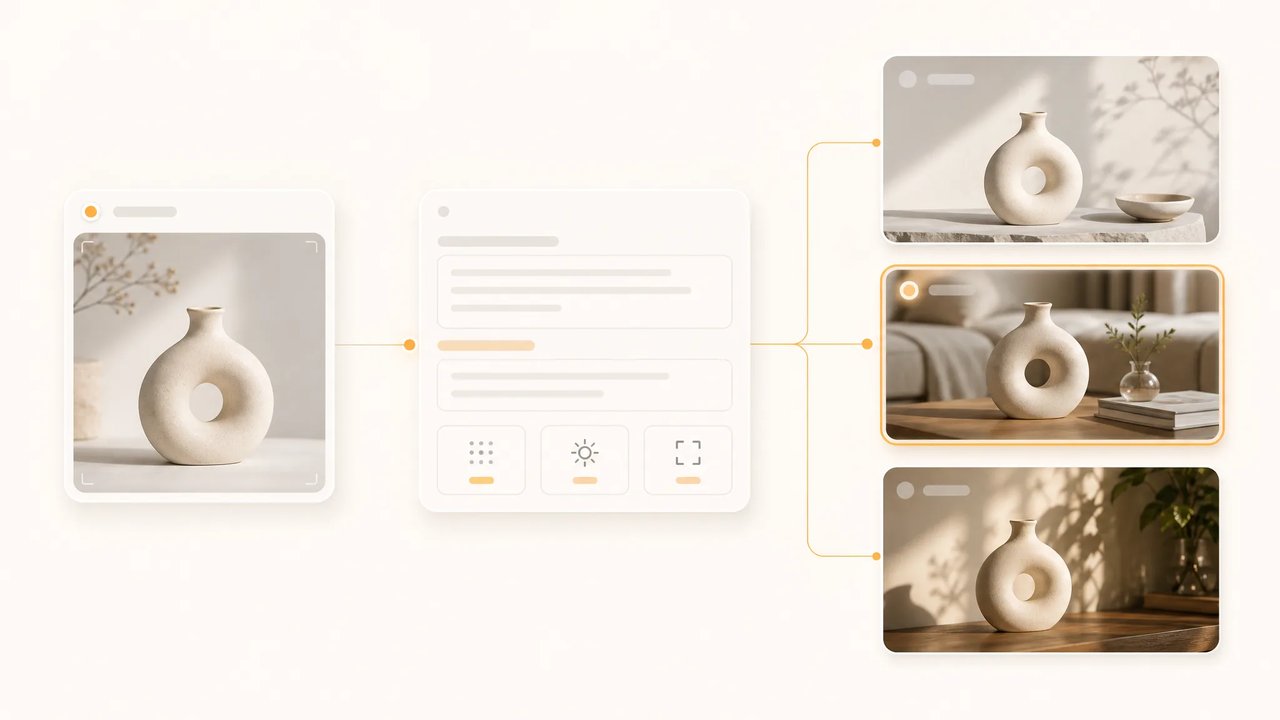
Image to Prompt workflow turning a reference image into an editable prompt and new AI image results

Live tool

Turn a Reference Image Into an AI Prompt

Drop in an image, choose how detailed the reverse prompt should be, then edit or send the result into the SupaImagine image generator.

The reverse prompt request reads the uploaded image for this request; it does not create a saved generation task.

Prompt draft

Suggested aspect: auto

Your reverse prompt will appear here with reusable details such as subject, composition, light, material, color palette, camera angle, and style cues.

subjectstylelightingcomposition

Real examples

Reference Images Become Generator-Ready Prompts

Use Image to Prompt when you already have a product shot, interior reference, or social visual and need reusable prompt language.

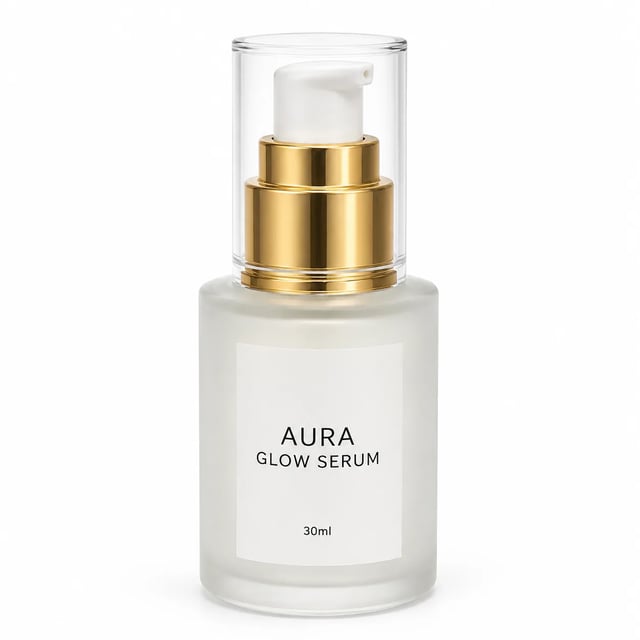
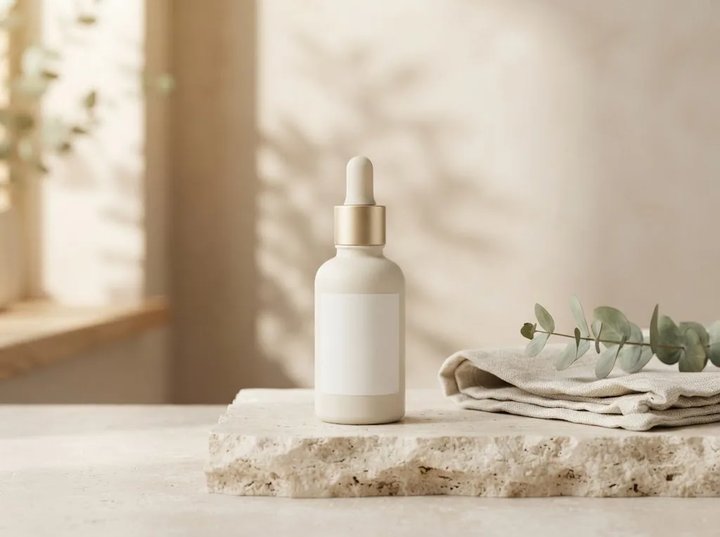
A matte skincare serum bottle on a stone plinth with warm window light
Product photo
4:3

Extracted prompt

Product photo reference

A premium skincare serum bottle on a pale stone plinth beside folded linen and eucalyptus, warm morning window light, soft botanical shadows, shallow depth of field, muted cream, sage, and champagne palette, minimal editorial product photography, clean negative space, calm luxury beauty brand mood.

Subject serum bottle Style premium product photo Light warm window light
Use this prompt
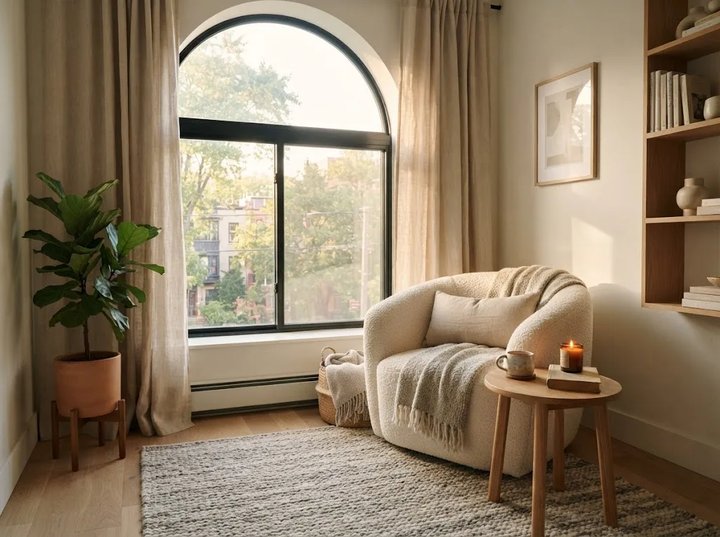
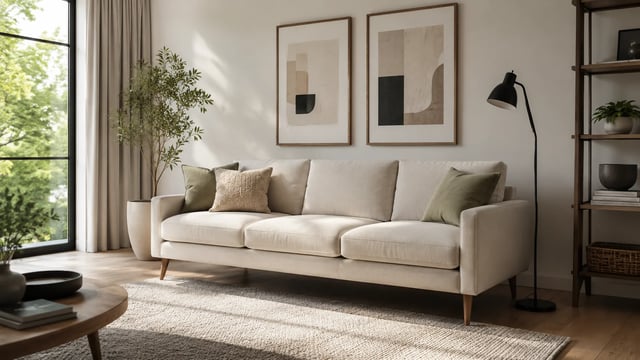
A cozy apartment reading nook with an arched window and boucle chair
Interior photo
4:3

Extracted prompt

Interior mood reference

A cozy modern apartment reading nook with a boucle armchair beside a large arched window, oak side table, textured wool rug, linen curtains, leafy plant, warm late-afternoon sunlight, neutral Scandinavian-Japanese styling, calm lived-in editorial interior design photo.

Room reading nook Style Japandi interior Mood warm and calm
Use this prompt
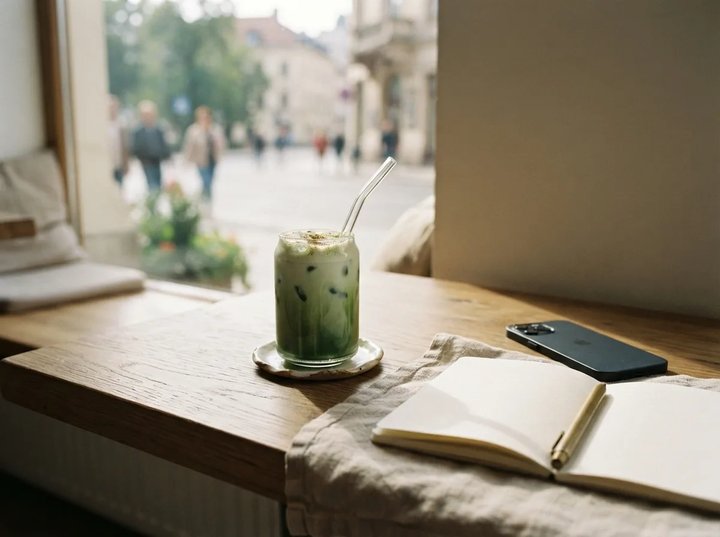
An iced matcha latte on a cafe table with a notebook and soft window light
Lifestyle photo
4:3

Extracted prompt

Social content reference

A handmade iced matcha latte in a clear glass on a warm wood cafe table, open blank notebook and face-down phone nearby, soft morning window light, blurred city street outside, fresh green accents, shallow depth of field, natural lifestyle creator photography.

Subject iced matcha Scene cafe table Use social post
Use this prompt

Reverse the Look Before You Rewrite the Prompt

Image to Prompt is for the moment when the visual direction already exists, but the words do not.

Most AI image work starts with a blank prompt field. This page starts from the opposite side: upload a reference image first, then let SupaImagine produce a structured prompt you can edit. Keep the mood, lens, material, environment, or composition, swap the subject, and send the result into the same image generator workspace when you are ready to create.

| image to prompt generator | reverse image prompt | AI prompt from image | reference image prompt |

Workflow

From Reference Image to Reusable Prompt

Use the reverse prompt as a starting point, not a locked caption.

1

Upload the reference

Start with a product shot, character concept, room photo, poster, thumbnail, or any visual direction you want to describe in prompt language.

2

Choose the prompt depth

Short is useful for quick summaries, Standard keeps the main visual cues, and Detailed expands the prompt for style, light, material, and composition.

3

Edit the generated text

The result is a normal prompt. Change the subject, remove details you do not want, or keep the visual style while replacing the object or scene.

4

Generate a new image

Use the generator handoff to open SupaImagine's image workspace with the prompt already in the URL, then choose the model that fits the job.

Why it helps

Use Image to Prompt as a Creative Bridge

The tool does not promise to recover an exact hidden prompt. It gives you a strong editable starting point from the visible image.

Turn visual cues into editable words

The reverse prompt pulls the visible subject, setting, composition, color, lighting, and style into text you can revise before generation.

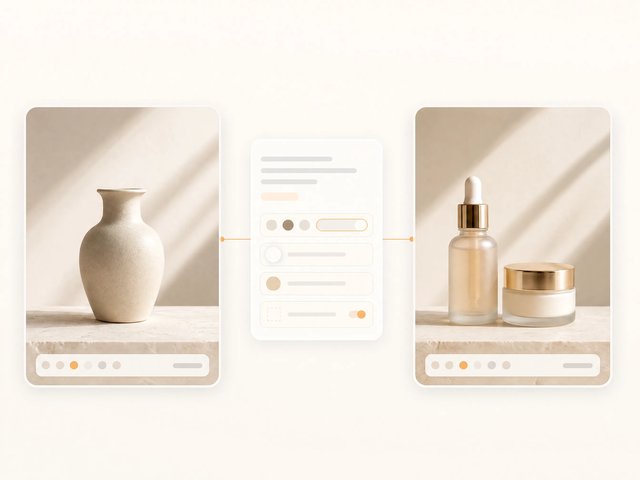
Reference image cues converted into editable prompt chips

Keep the style, swap the subject

Use the prompt like a template: preserve the lighting and composition, then replace the product, character, room, or prop with your own idea.

Prompt template preserving visual style while swapping the product subject

Move straight into generation

The handoff opens SupaImagine's image generator with the prompt in the URL, so the reverse result can become a new image without retyping.

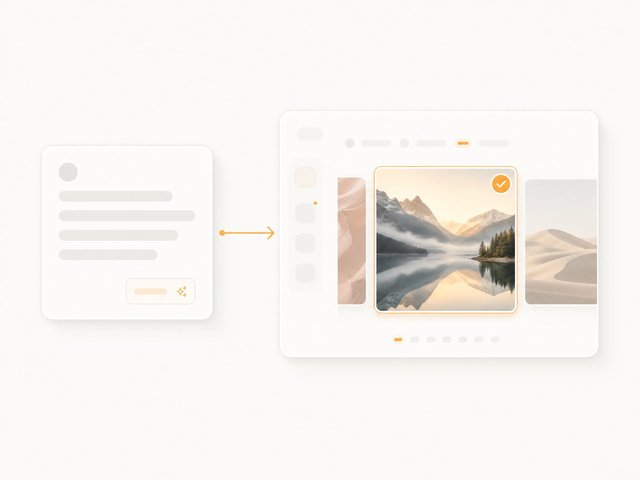
Reverse prompt handed off into an AI image generator workspace

Use cases

Who Uses Image to Prompt

The best users already have a visual reference and need usable prompt language.

Product Teams

Translate a competitor-style product shot or mood reference into a prompt, then replace the object with your own product direction.

Character Designers

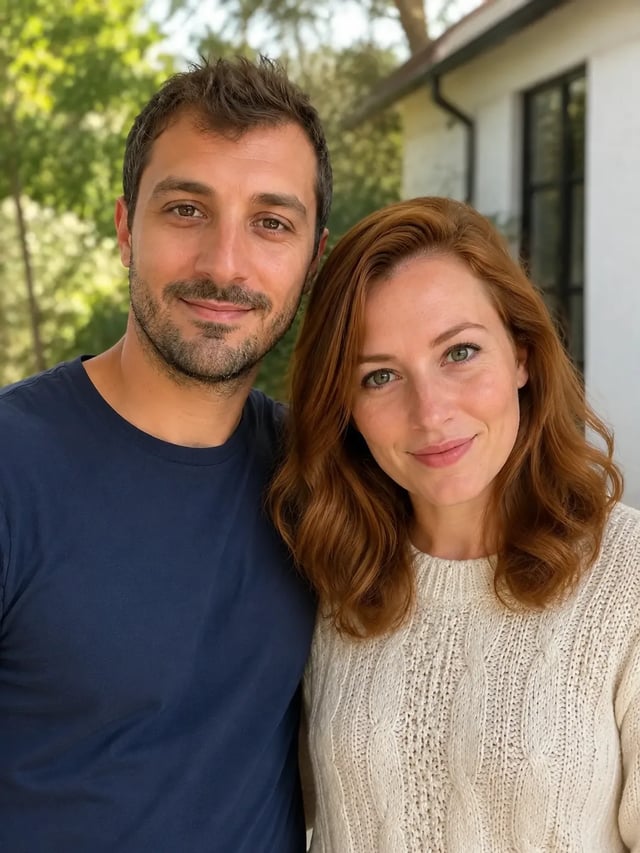
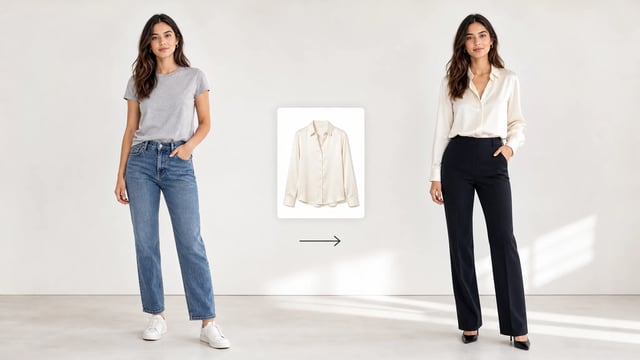
Capture outfit, pose, lens, lighting, and scene language from a reference before generating a new character concept.

Social & Ad Creators

Reverse a thumbnail, poster, or campaign visual into text so the same composition can be adapted for a different topic or offer.

Interior and Moodboard Work

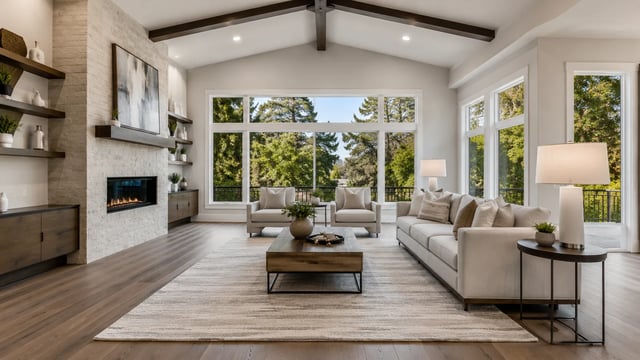
Turn a room, material palette, or decor reference into a structured prompt for new interiors and style variations.

Image to Prompt Questions

What is the Image to Prompt Generator on SupaImagine?

It is a reverse prompt tool. You upload a reference image, choose Short, Standard, or Detailed, and SupaImagine returns an editable text prompt plus a suggested aspect ratio. The prompt can be copied or opened in the AI Image Generator.

Does it recover the exact original prompt?

No. A finished image does not contain the exact hidden prompt that made it. The tool describes what is visible in the image so you get a practical prompt for recreating a similar direction or remixing it.

Does image to prompt use image generation credits?

The reverse prompt request itself is not an image generation task and does not create a saved task. If you then open the AI Image Generator and create a new image, that generation follows the selected model's normal access and credit rules.

What image formats can I upload?

Use PNG, JPG, or WebP. The browser downsizes large images before sending the reverse prompt request, and the server still validates the image type and size before reading it.

Can I edit the generated prompt before using it?

Yes. The output panel is editable. You can remove details, swap the subject, make the style more specific, or copy the prompt into another workflow.

What should I choose: Short, Standard, or Detailed?

Short is best for a quick caption-like prompt. Standard is the default for most references. Detailed is useful when you want more visual language about lighting, camera angle, material, color, and composition.

What happens if I hit the reverse prompt limit?

The reverse prompt endpoint has daily fairness limits for free use and site capacity. If the limit message appears, you can still write a prompt manually or come back after the quota refreshes.

Start from the image

Reverse one reference, then generate the next version

Upload a visual direction, turn it into prompt language, and keep working inside SupaImagine.