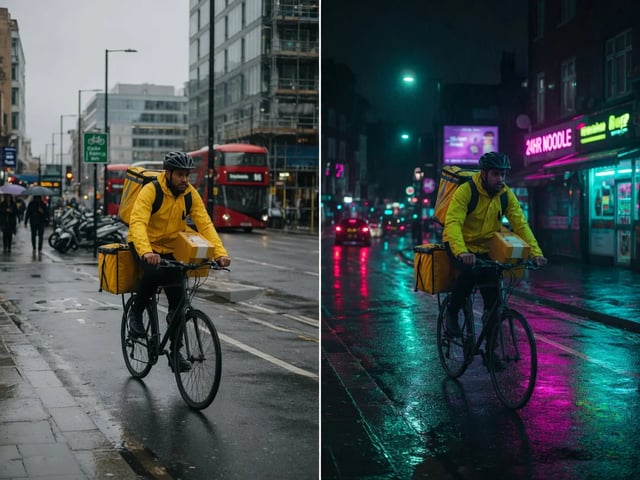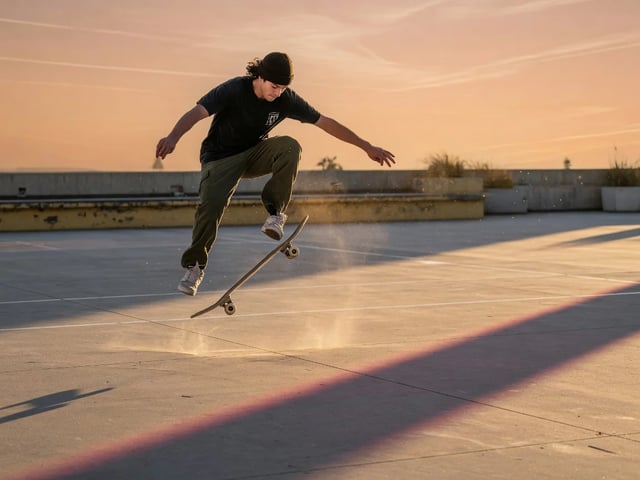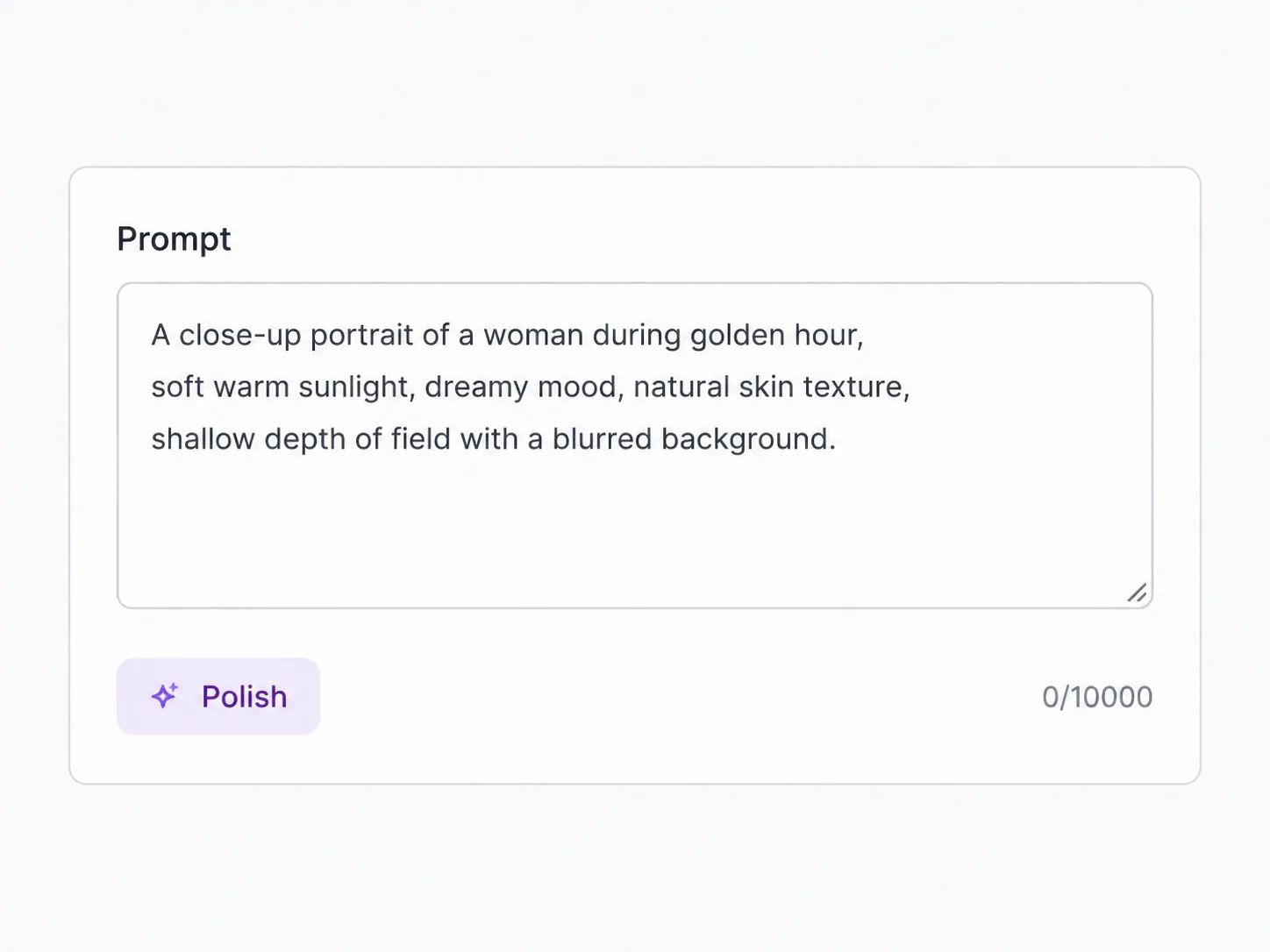
Pick the starting material
Use text when you want a fresh scene, add an image when a product shot or illustration should move, or upload a source video when the job is an edit rather than a new shot.
Text, images, or source clips in — short Gemini video out, billed by the second
Gemini Omni Flash is Google's preview model for fast video generation and natural-language editing. On SupaImagine, the omni-flash model gives you a practical three-way path: write a prompt, animate a still, or upload a source clip and describe the change. Text and image runs expose 3-10 second duration, 16:9 or 9:16 framing, and a 30-credit-per-second cost; source-video edits keep the instruction simple and preserve what you do not ask to change.
Start from text, an image, or a source video. For text and image runs, choose 16:9 or 9:16 and a 3-10 second duration; for video edits, upload the clip and keep the instruction simple.
Need a 4K finishing pass, longer timing controls, or dialogue-focused lip-sync? Switch models without leaving the workspace.
Omni Flash sits between generation and editing: it can make a short clip from nothing, animate a still, or restyle an existing video with one instruction.
Most AI video pages split creation and editing into separate tools. Gemini Omni Flash is useful when the same idea needs both: first draft a short Gemini clip from a text prompt, then turn a product image into motion, then ask a source clip to change style, lighting, background, or a visible object. SupaImagine keeps the product surface honest. It exposes the fal.ai text-to-video, image-to-video, and video-edit endpoints currently wired in the catalog; it prices them at 30 credits per second; and it avoids promising preview-only abilities that the integration does not expose, such as voice editing, video extension, or interpolation between frames.
| gemini omni flash generator | gemini omni flash video generator | gemini omni flash video editing | gemini omni flash image to video | gemini omni flash edit | google gemini omni flash |
Use text when you want a fresh scene, add an image when a product shot or illustration should move, or upload a source video when the job is an edit rather than a new shot.
Describe the scene, motion, camera, and optional audio cue for generation. For edits, keep the prompt simple and include "Keep everything else the same" when only one part should change.
Text and image runs support landscape or vertical output and 3-10 second duration. SupaImagine prices those runs at 30 credits per second; uploaded-video edits use the detected source duration for billing.
The result saves to your private library, so you can rerun the prompt, send the same idea to Veo or Seedance, or use another video tool when the clip needs finishing.
The page stays close to the live SupaImagine integration: prompt-to-video, still-to-video, and source-video edits at a per-second price.
Write a scene with the subject, movement, camera, lighting, and timing. Prompt details such as "single continuous shot" or "no dialogue" help the model steer the clip.
Upload a product photo, illustration, poster, or generated frame and describe the motion you want. High-resolution images and specific movement prompts give the image-to-video path better material.
Use the edit endpoint for changes like lighting, background, wardrobe, surface material, or a visual style. Short, direct edit prompts are safer than over-described rewrites.
Text and image runs expose 3, 8, or 10-second choices in the current UI. At 30 credits per second, a short test costs less than a longer keeper.
Choose 16:9 when the clip belongs in a wide edit, or 9:16 when it is headed for Shorts, Reels, TikTok, or mobile-first ads.
Uploaded-video editing is region-limited, voice editing and audio references are not supported, and video extension or interpolation is outside this integration. The safest page is the one that tells you before you spend credits.
Choose by starting point
They all live in the same video workspace, but the best first model depends on what you already have.
| Veo 3.1 Google-quality short take | Seedance 2 Flexible premium shots | ||
|---|---|---|---|
| Best for | Prompt edits and short multimodal drafts | A polished Google-style cinematic beat | Longer controlled shots and finishing passes |
| Inputs on SupaImagine | Text, image, or source video | Text, first frame, first+last frame | Text, frame, video/reference media |
| Duration | 3-10s for t2v/i2v; edits by source clip | Current SupaImagine run: 8s | 4-15s |
| Cost shape | 30 credits per second | Resolution-tiered clip pricing | Duration and tier dependent |
| Avoid when | You need voice editing, extension, or interpolation | You need source-video editing | You need conversational clip edits |
Where it fits
It is strongest when creation and revision belong in the same short-video loop.
Draft a vertical hook, change one visual detail, and compare a three-second test against a longer version before spending on the final pass.
Turn a generated packshot, UI mockup, or product still into a short motion pass without rebuilding the scene from scratch.
Upload a source clip and ask for one focused change: make it anime, shift the lighting, alter a surface, or change the background while keeping the rest stable.
Test transformation ideas where viewers need to understand what changed, not just watch a generic generated scene.
Use concise instructions and timing cues to prototype one beat of a campaign, tutorial, or explainer before a higher-cost production route.
Run the same brief on Omni Flash, Veo, and Seedance, then keep the model whose motion, edit fidelity, and cost fit the job.
Gemini Omni Flash is Google's preview Gemini video model for fast generation and natural-language editing. On SupaImagine, the omni-flash catalog entry is wired to fal.ai endpoints for text-to-video, image-to-video, and source-video editing.
Yes, through the source-video edit path: upload a clip, then write the change you want. Keep edit prompts simple, and use "Keep everything else the same" when only one element should move. Uploaded-video editing is not available in every region, including the EEA, Switzerland, and the United Kingdom.
For text-to-video and image-to-video on SupaImagine, the current exposed duration range is 3-10 seconds. For source-video edits, the cost is based on the uploaded clip duration that SupaImagine detects before the run.
Gemini Omni Flash is priced at 30 credits per second. A 3-second run costs 90 credits, the 8-second default costs 240 credits, and a 10-second run costs 300 credits. SupaImagine has 10 starter credits for new accounts, so this model is not a free-daily or starter-credit model.
The model can use audio direction in the prompt, such as music, ambience, or no dialogue. SupaImagine does not expose audio references or voice editing for this integration, and sensitive prompts can be filtered upstream, so do not treat audio as an absolute guarantee for every run.
Use Gemini Omni Flash when you want prompt-based editing or the same model to start from text, a still, or a source clip. Use Veo 3.1 when the job is a polished Google-style short take from text or frames and you do not need source-video editing.
Videos generated on a paid SupaImagine plan are cleared for commercial use under the site's terms. Starter-credit experiments are for evaluation and personal use, so upgrade before using outputs in client work, ads, or paid campaigns.
Avoid celebrity impersonation, non-consensual likeness edits, minors, deceptive identity changes, or policy-sensitive requests. Gemini Omni Flash also has preview limitations around recognizable people and uploaded-video editing regions, so blocked prompts should be treated as safety behavior rather than a billing workaround.
Keep building
Generate the source image, compare another video model, or refine the finished clip without moving assets between tools.
Create the product shot, character frame, or visual concept that becomes your image-to-video input.
Return to the full video picker when the same prompt should face Veo, Seedance, HappyHorse, or another model.
When an edit needs repeatable motion from a reference clip, switch to the motion-control tool.
Need dialogue and mouth movement instead of a visual edit? Use the lip-sync workflow.
Sharpen or enlarge a keeper after Omni Flash gets the movement or edit right.
Open the complete toolkit for generation, motion control, lip-sync, upscaling, and cleanup.
Text, image, or source video in; prompt-directed Gemini motion out; every second priced before you run.