01DAY15HOUR43MIN07SEC
Limited-Time 50% OFF!Get Offer

Grok Imagine AI Image Generator

xAI's image model for making, editing, and combining — fast

Grok Imagine is xAI's image model, and SupaImagine runs it right in your browser — no X account, nothing to install. Type a prompt to make something new, upload a photo and describe the edit you want, or drop in several pictures and have Grok Imagine pull them into one scene — merging subjects, carrying a style across, or building a composite. It turns results around fast, so trying another version barely costs you, and every image you make is saved to your own library to reopen and reuse.

  • Combine several images into one scene
  • Edit any photo by describing the change
  • Generate from a text prompt, square to widescreen
  • Fast turnaround built for quick iteration
  • 5 credits an image — generate, edit, or combine
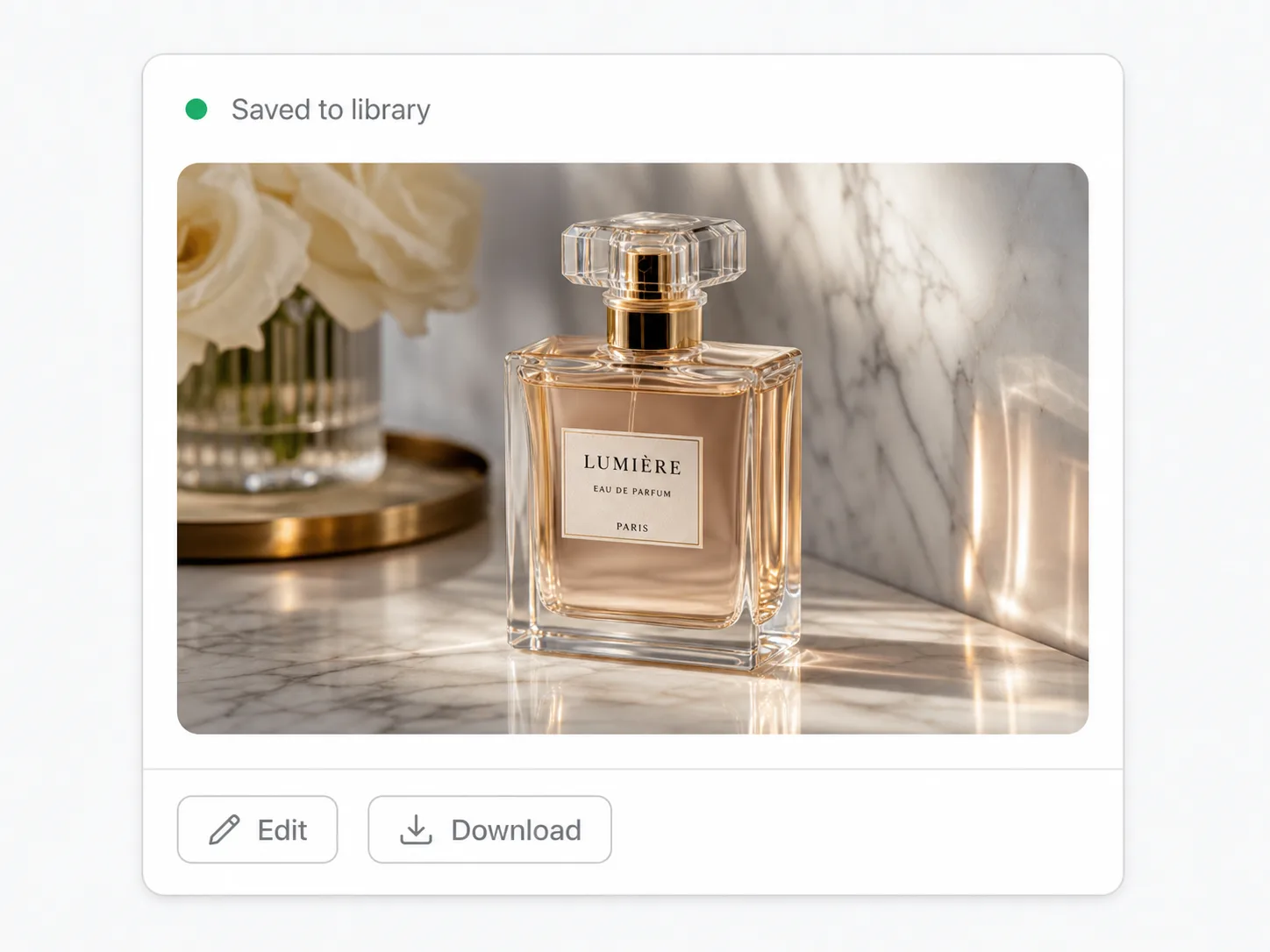
  • Every result saved to your library
Grok Imagine shown in LED dot-matrix lettering on a futuristic visor with the Grok emblem, deep-violet cyber portrait

Generate, Edit, and Combine With Grok Imagine in Your Browser

Start from a prompt, upload a photo to edit, or bring a few images together into one — nothing to install, and every result lands in your library.

One Grok Model for Prompting, Editing, and Compositing

Reach for Grok Imagine when a job spans more than one step — make it, change it, or merge a few sources into a single picture.

A lot of image work isn't one clean action. You generate a base, swap something out, then pull in a second photo to make it whole. Grok Imagine handles that whole arc in one model: describe an image and it builds it; upload one and describe the change and it edits it; add several and it merges them — combining subjects, transferring a look, or composing a scene from the parts. It's quick on its feet, so iterating is cheap, and because it runs on SupaImagine every version is saved to your library instead of vanishing when you close the tab.

One Grok Model for Prompting, Editing, and Compositing

| grok imagine | grok imagine generator | grok imagine ai image generator | grok image generator |

Grok Imagine's Edge: Building One Scene From Several Photos

Pull several images into one

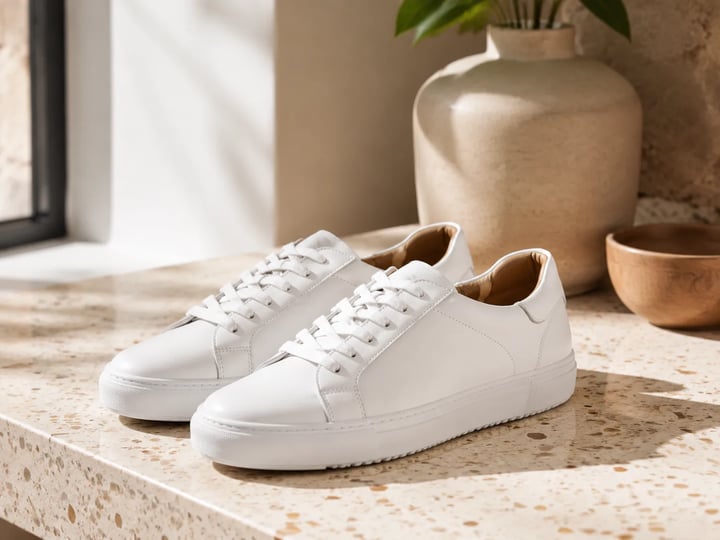
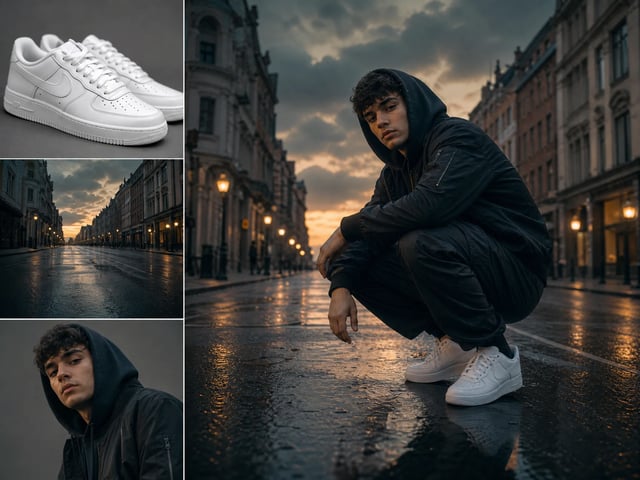
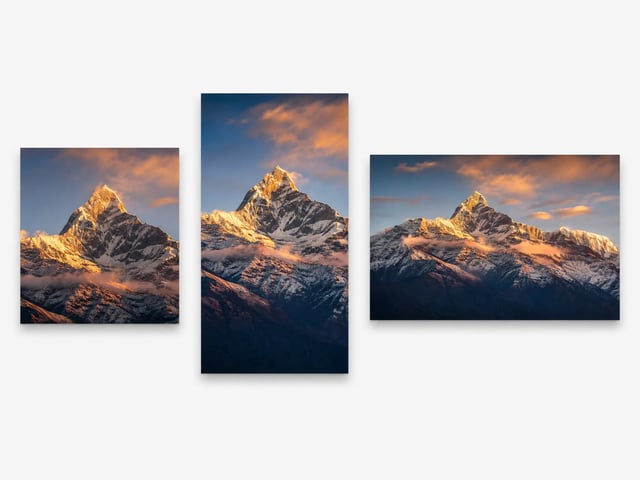
Upload more than one picture and tell Grok Imagine how they belong together — drop a product onto a new backdrop, bring two people into the same shot, or carry the style of one image onto another. It composes from the parts instead of making you mask and stack them by hand, which is the thing most single-image models can't do.

Grok Imagine merging several uploaded photos into one composed scene

Change a photo by saying so

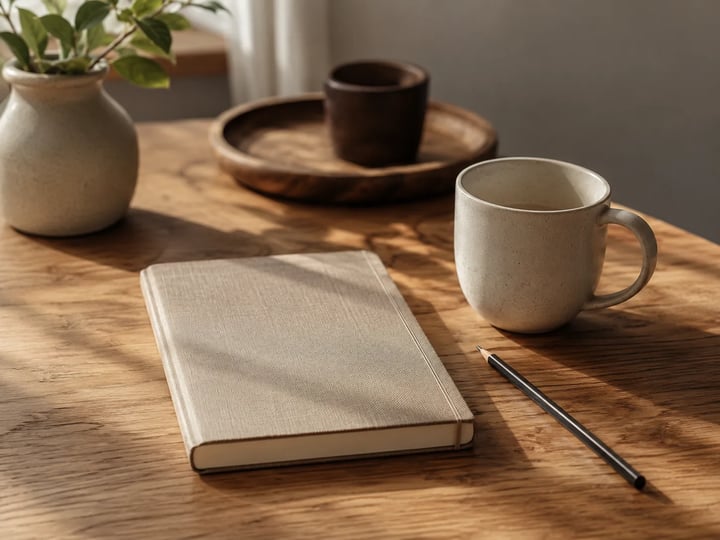
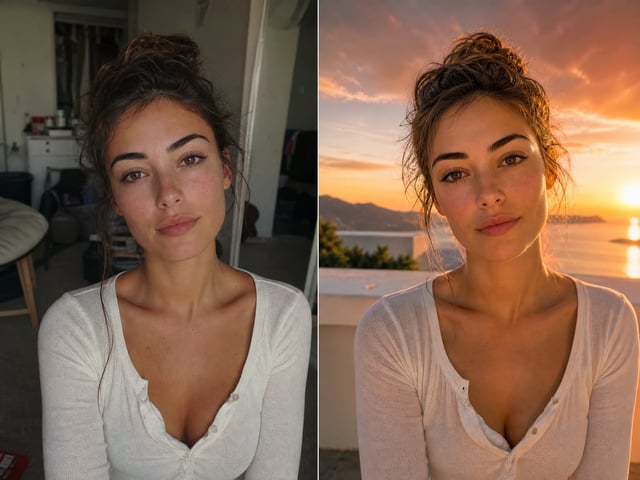
Already have an image? Switch to image-to-image, drop it in, and describe the edit — recolor an object, replace a background, add or remove something — in plain words, with no selections or layers. The parts of the picture you didn't mention are left as they were.

A photo edited from a plain-language prompt in Grok Imagine

Generate fresh, in any frame

Start from text when there's nothing to begin with: write the scene and Grok Imagine renders it, photoreal or stylized, at the ratio you need — square for a post, portrait for a story, widescreen for a banner. The same model that edits and combines also creates, so you never switch tools mid-idea.

Grok Imagine generating images in square, portrait, and widescreen ratios

Fast, and nothing gets lost

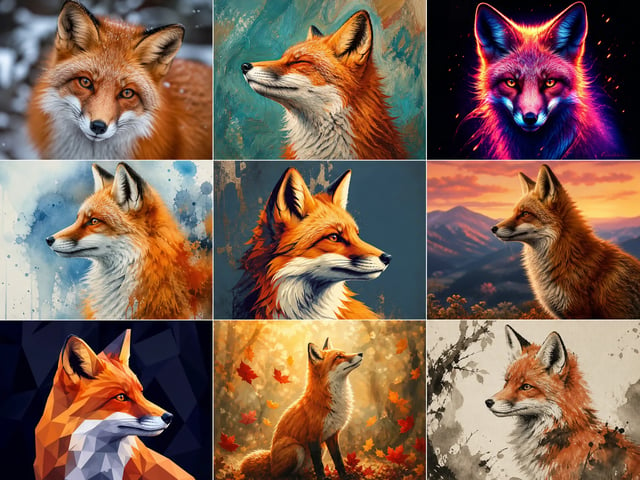
Results come back quickly, which is the point — run a take, adjust the prompt, and run another without the wait that makes iterating feel expensive. Each one is saved to your private SupaImagine library, organized and reopenable, long after the tab is closed.

A nine-tile grid of fast Grok Imagine style variations of one subject

How to Create With Grok Imagine, Step by Step

1

Prompt or upload

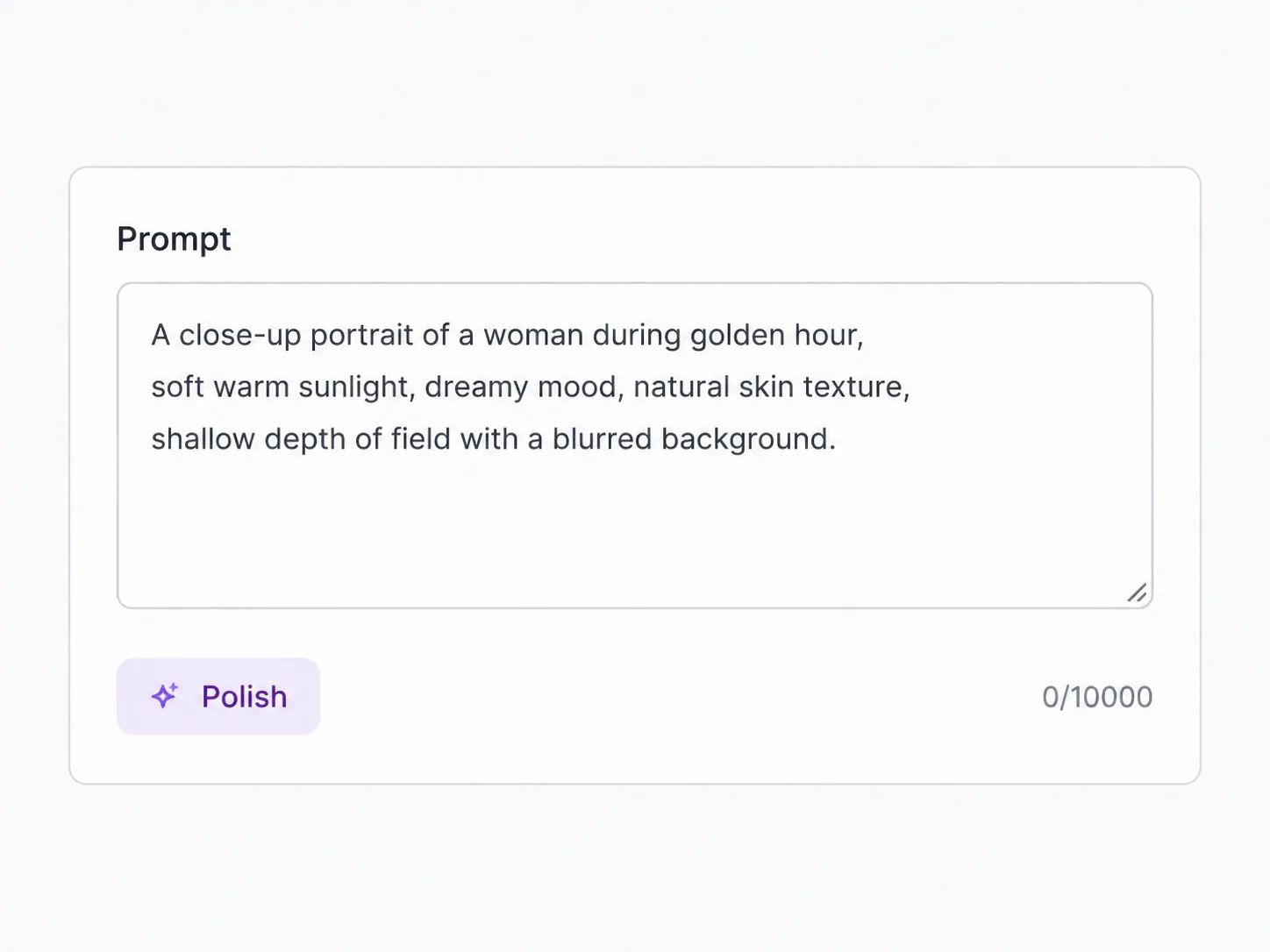
Type what you want to create, or drop in one image to edit — or a few to combine into a single picture.

2

Say what you want

Describe the image, the edit, or how the uploads should come together, in plain language — no masks, selections, or layers.

3

Set the frame and run

Pick a ratio — square, portrait, or widescreen — and generate. Turnaround is fast, so another take costs little.

4

Keep what works

Download what you like; every version stays in your library, and any run that fails refunds its credits automatically.

Who Reaches for Grok Imagine, and What They Make

E-commerce sellers

Set a product into a fresh lifestyle backdrop by combining the two shots, then spin ratio variants for each listing and channel.

Content creators

Merge a subject into a new scene, restyle it to match a series, and keep a steady feed going without opening a separate editor between posts.

Marketers

Composite brand elements into ad creative, then generate sized cuts for each placement straight from one prompt.

Concept & moodboards

Blend a handful of reference images into a single visual to pitch a direction before anyone commits to a full shoot.

Profile & avatars

Drop a headshot into a new setting or restyle it, keeping the likeness while the background and mood change.

Grok Imagine, Answered

What is Grok Imagine, and who makes it?

Grok Imagine is xAI's image model — the one behind image generation in Grok. On SupaImagine you run it in the browser to create images from a prompt, edit a photo you upload, or combine several pictures into one, alongside other top models in the same workspace.

Can Grok Imagine blend several photos into one image?

Yes. Switch to image-to-image, add more than one picture, and describe how they fit together — merging subjects, moving a product onto a new backdrop, or carrying a style across. Grok Imagine composes them into a single result instead of you stacking layers by hand.

If I upload a photo, can Grok Imagine change it with a prompt?

It can. Drop the image in, describe the edit in plain words — recolor, replace a background, add or remove an object — and it applies the change while leaving the rest of the picture as it was. Text-to-image is there too when you'd rather start from scratch.

Where does Grok Imagine fit next to the other models here?

It's the versatile, fast pick — strong when a job mixes generating, editing, and combining in one place. For the lowest-cost quick edits reach for Nano Banana, for photoreal print-scale work Nano Banana Pro, and for readable in-image text GPT Image 2. They all share the SupaImagine generator, so switching is one click.

Does combining images cost more than a single generation?

No — it's a flat 5 credits per image whether you generate one, edit one, or merge several into a single result, with no surcharge for extra inputs. New accounts get 10 starter credits to try it, and paid plans top up your balance; the pricing page lists every package.

Can I use Grok Imagine composites in client and ad work?

On a paid plan, yes — what you generate, edit, or combine is licensed for commercial use like ads, listings, and client work. Images made on the free starter credits are for trying the model and aren't cleared for commercial use.

Generate, edit, and combine — start with Grok Imagine

Make, change, and merge images in the browser at 5 credits each — every composite drops into your SupaImagine library to reopen.