Clearer faces — not a larger blurry file
Upload a yellowed, scratched, or soft photo and run AI photo restore. The preset repairs damage so you can see the face again. This is restore, not a 2x–8x enlarge.

When enlarge still leaves scratches and yellow fade in the face.
Old photo restoration here is one upload and one fixed repair pass. Use AI photo restore when the scan has scratches, creases, dust, or faded color and you want those marks quieter. It is not the Image Upscaler path: that page makes the file larger. This page tries to make the still readable.
Before & after
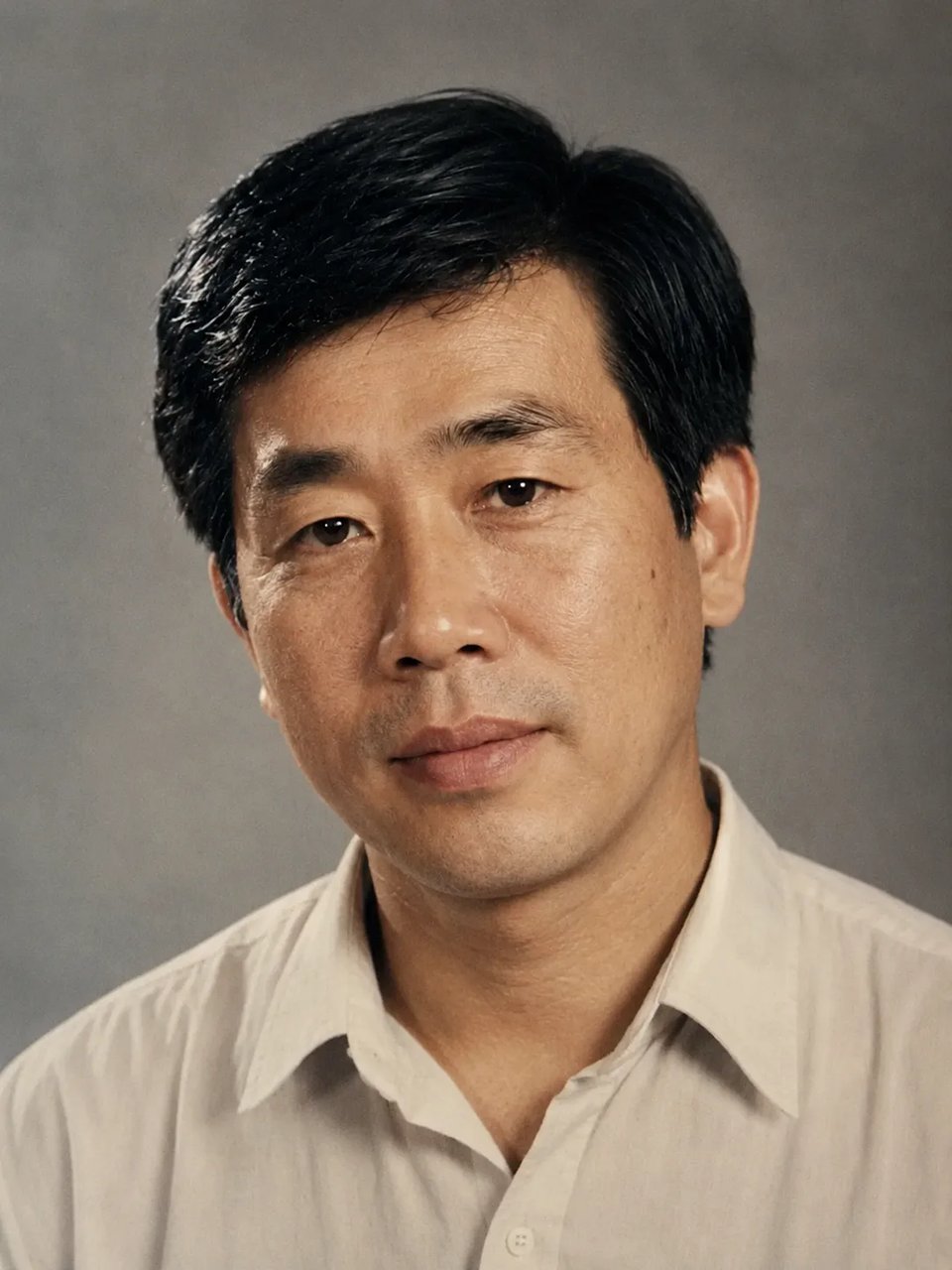
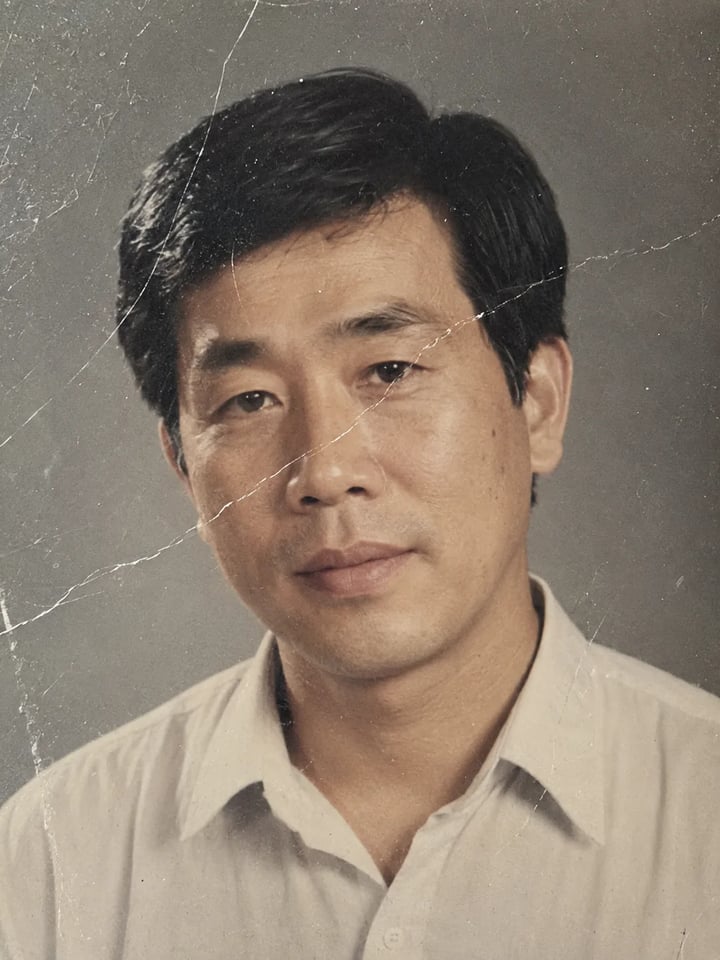
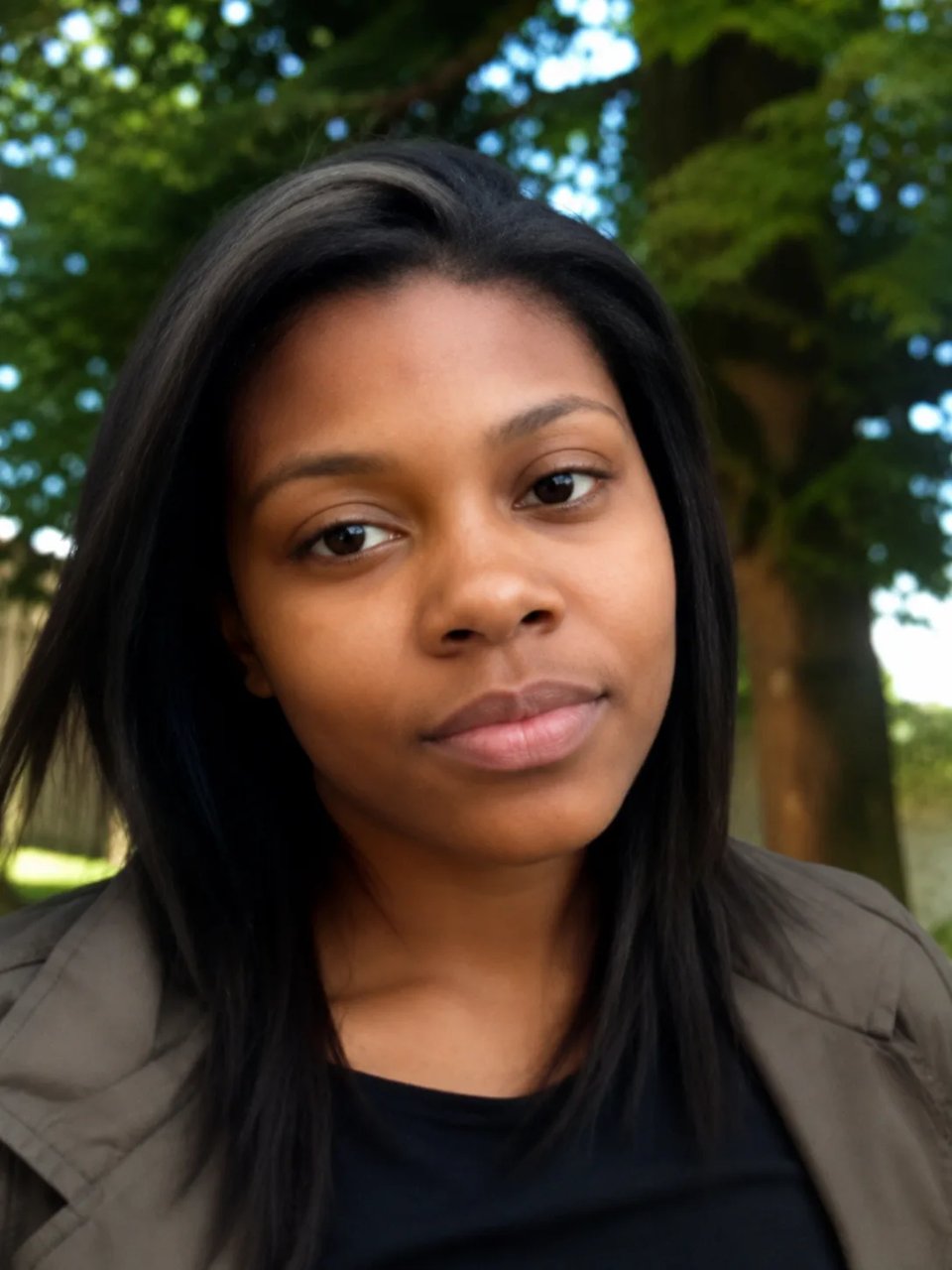
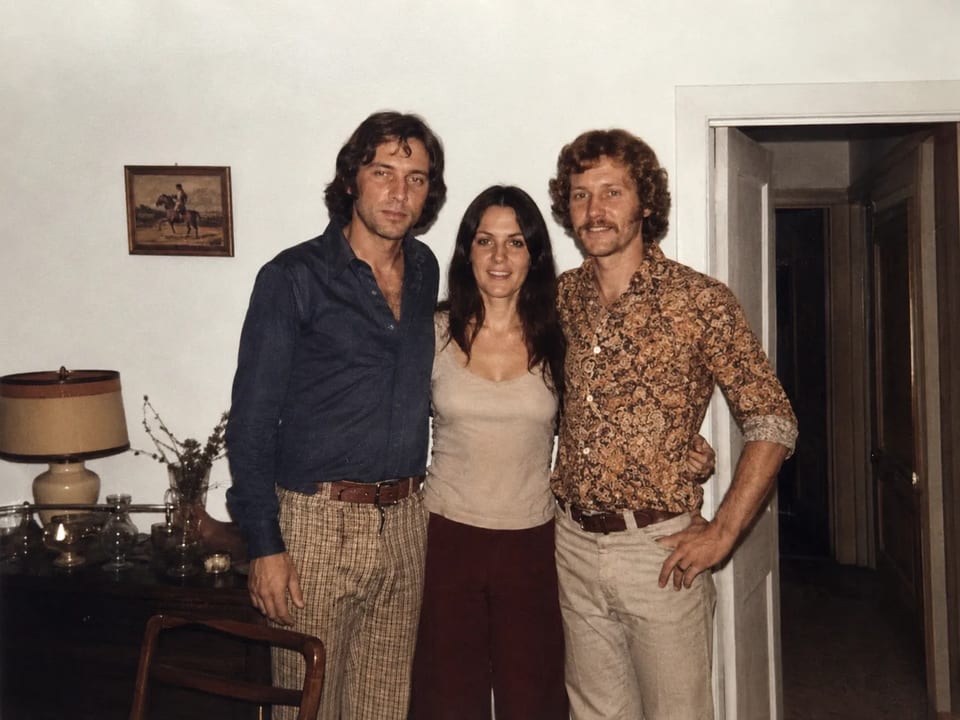
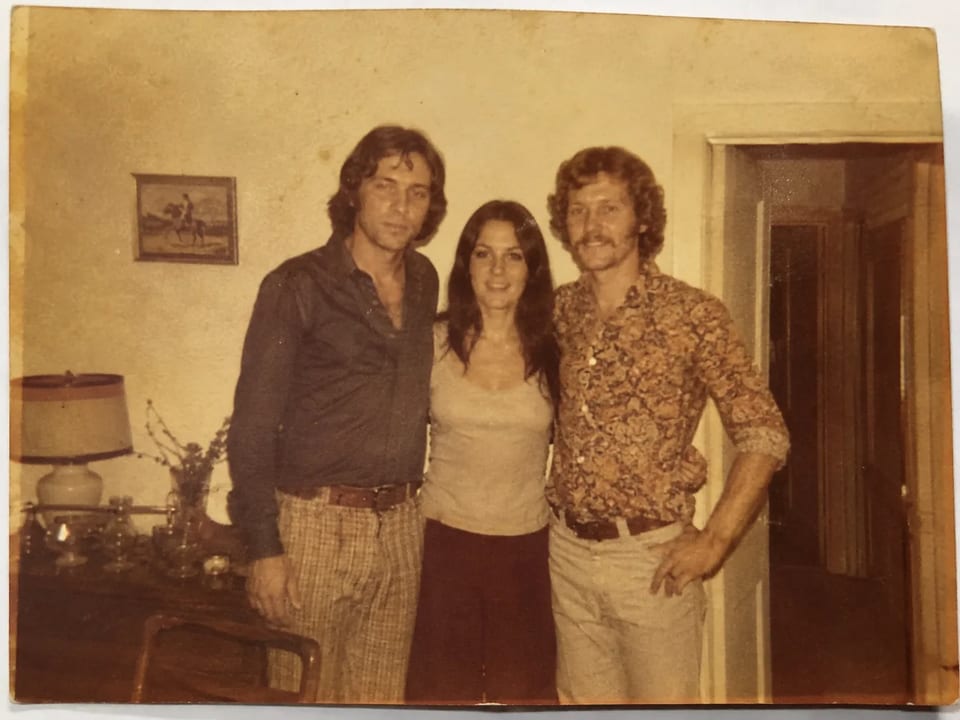
Three real repair jobs: faded print, scratched scan, soft portrait. Same people on the result.
Faded yellow print → steadier color
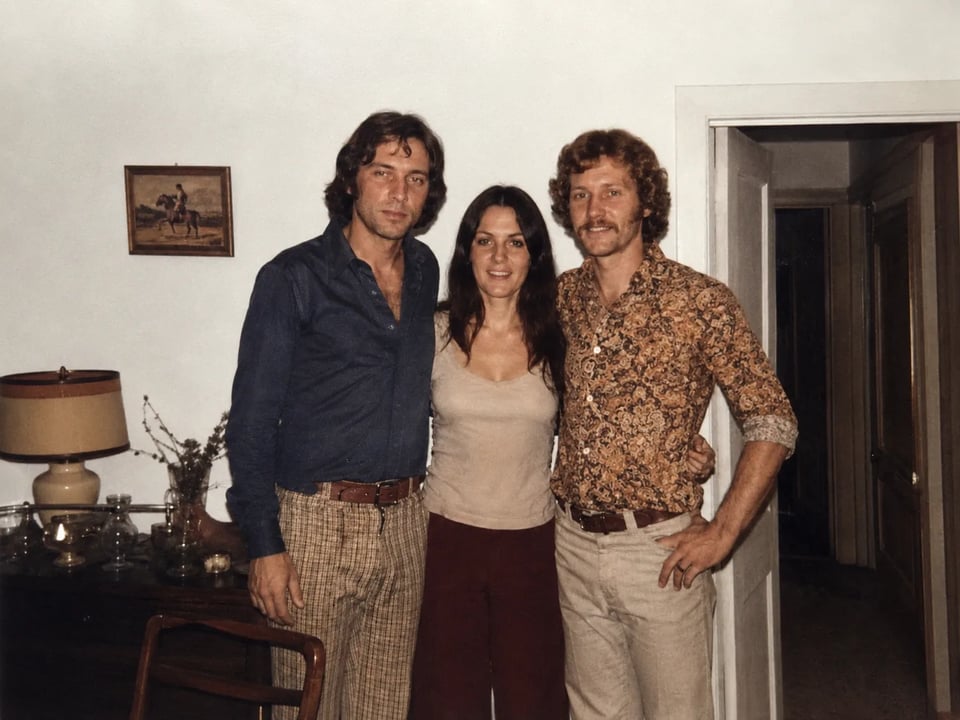
Before
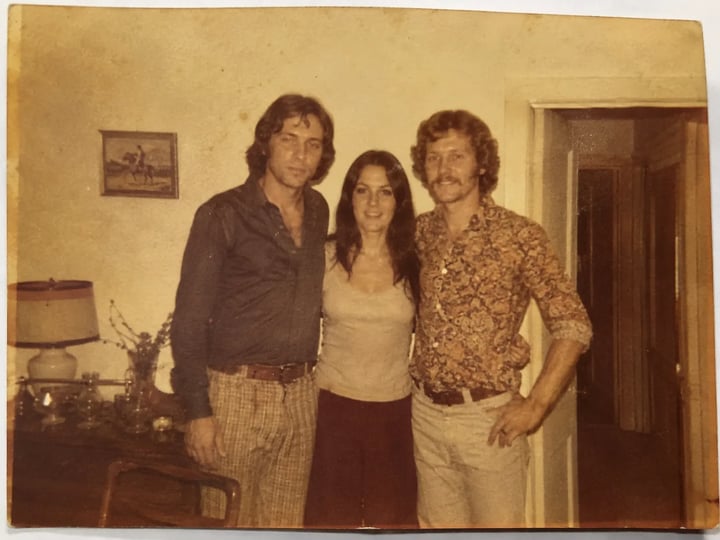
Preset
Damage first. Identity stays. Enlarge is a different tool.
Hairline scratches, dust specks, and crease lines are the first job of AI photo restore. The preset treats those as print damage, not as part of the face, so the scan can read as a photograph again.

Yellowed or faded color is pulled back toward a natural balance that still matches the original scene. Old photo restoration here does not invent a new era or a studio lighting setup that was never in the print.

A soft or low-detail face can come back just enough to be readable. This is still AI photo restore, not a beauty filter — the prompt asks to recover existing features, not a younger or different person.

Restore old photo online should not swap in a stranger. The preset locks pose, clothing, and who is in the shot. Results can still shift a little — this is not a promise of perfect identity like a forensic lab.

Upload the damaged still, run AI photo restore, save the clearer version.
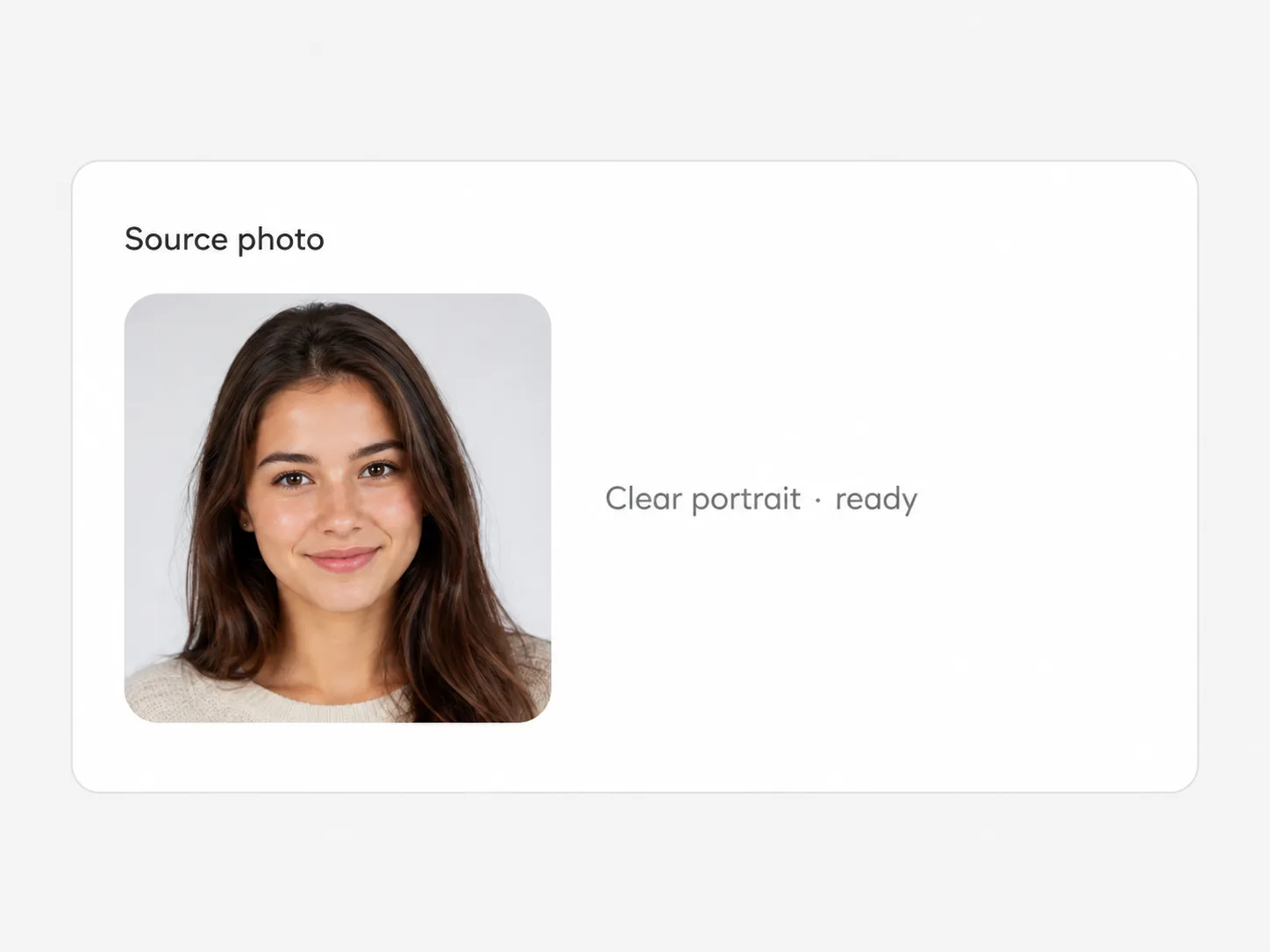
A scan or phone photo of the original works. Deep tears and faces that are almost gone leave less for the preset to recover.
There is no scratch-vs-fade picker in v1. One archival pass handles scratches, fade, and softness. Generate a second version if you want another take.
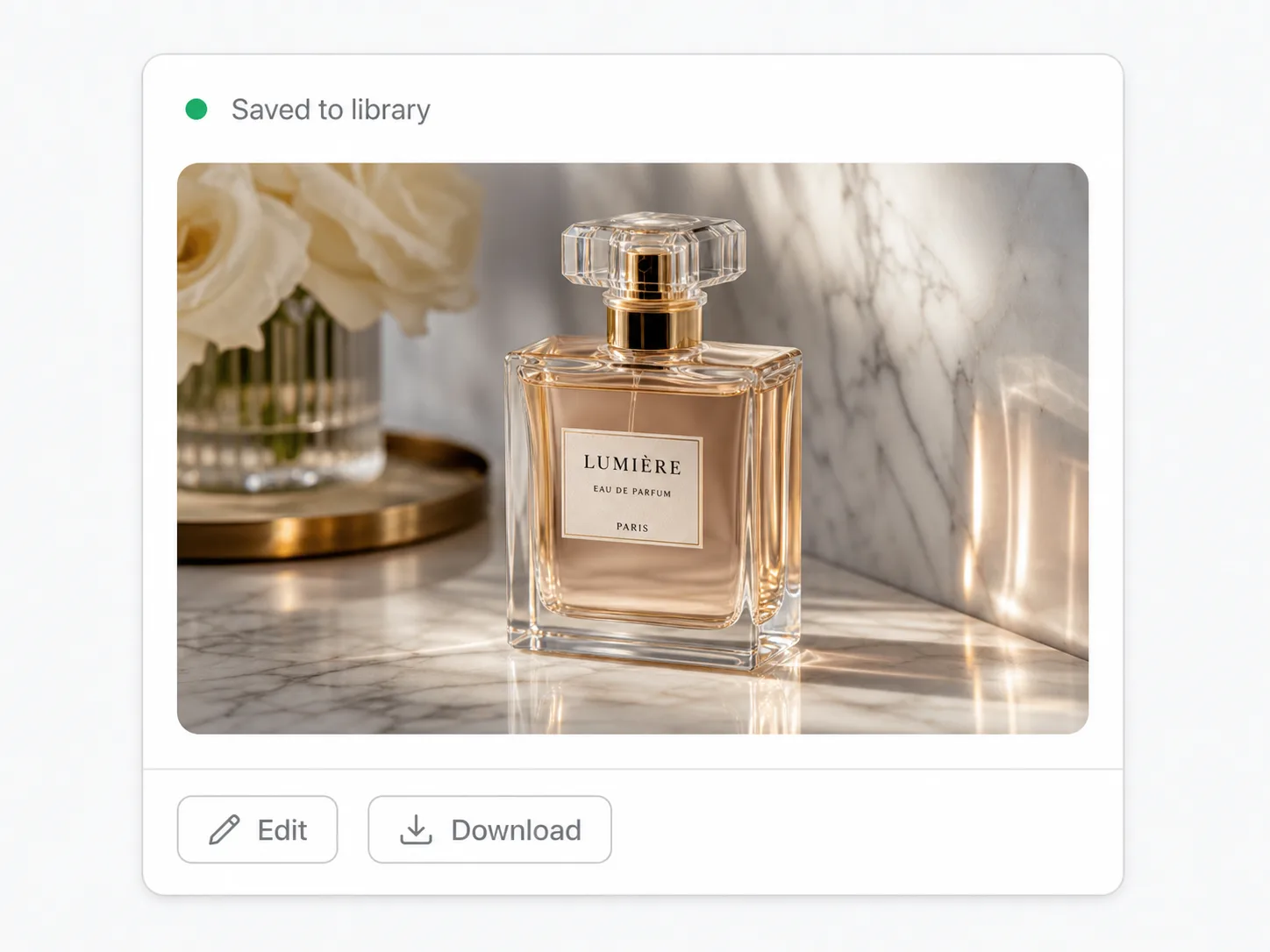
Save the still, or send it to Image Upscaler if you later need more pixels. Restore first; enlarge second.
Family files, soft portraits, and scans you cannot shoot again.

Pull a yellowed group photo back so faces are readable before you decide to reprint.

Unblur old portrait files you still need for a resume or social photo without swapping the face.

Fix scratched photo scans with crease lines and dust when the original print cannot be reshot.
AI enhance old photo files of a discontinued item so the listing still shows a usable still.
A repaired still of the photo you uploaded: fewer scratches, less yellow fade, and a clearer face when the source still has one. Composition and people stay the same. It is not a larger file by default.
No. AI photo restore repairs damage. The Image Upscaler page enlarges 2x, 4x, or 8x. If a print is scratched, enlarge usually keeps the scratch — restore first.
Yes. Sign up, then spend signup credits on this effect. A default 1K run costs 6 credits and fits the 10-credit signup balance. You need an account; later runs use your remaining balance.
The preset is written to keep identity, age cues, pose, and clothes. Results can still drift a little. Do not treat this as a guaranteed forensic match.
That is the main job. Hairline scratches, dust, fold marks, and scan artifacts are what the prompt targets. Deep missing pieces may not fully come back.
Open the generator, upload the scan or phone photo, and run the preset. Download the version you like, or keep editing in the same image workspace.
Soft faces often get clearer. A file with almost no facial detail cannot invent a true face. If the result looks too smoothed, run again or keep the closer version.
You need rights to the photo you upload. Commercial use needs a paid plan and follows site terms. Family reprints of your own scans are the usual case.
Related edits
Enlarge, extend the edges, or cut the background — different tools, same workspace.
Other one-upload looks in the same image workspace.

Upload a portrait and grow realistic wings behind the shoulders — not a flat sticker

Eyewear frames, lens tint, and reflections blended into the portrait — not a floating sticker

Clean sides, layered top volume, soft fringe or middle part — preview before the chair

Cowboy hat, denim or leather, ranch light — your face stays the anchor

Original floral and mandala lines that follow palm and wrist curves — not tile stickers

Deep shadows, bright highlights, canvas texture — subject still readable as yours

Side-profile silhouette, decorative oval frame, warm parchment ground — park-memento energy

Rich gray tones, clear subjects — upload any color photo

Classic sepia tone — not cool gray, not a yellow wash over color

Fine grain, real colors — upload any photo

Natural tone and shine on your real face — hair color only, not a new identity

Clean even length, natural scalp texture, face fully yours

Mid-length natural dreads on your real face — not a new identity
For fun only — not a real-child prediction
Upload the faded or scratched still, see the face more clearly, then download.