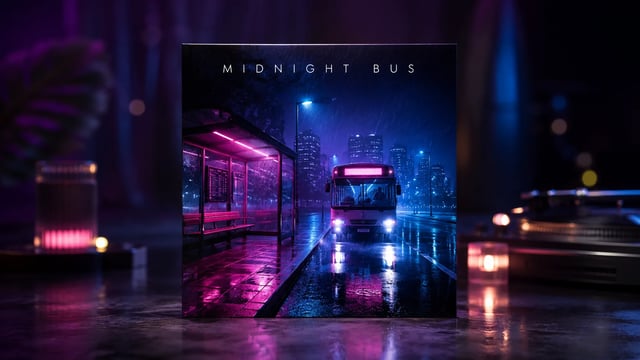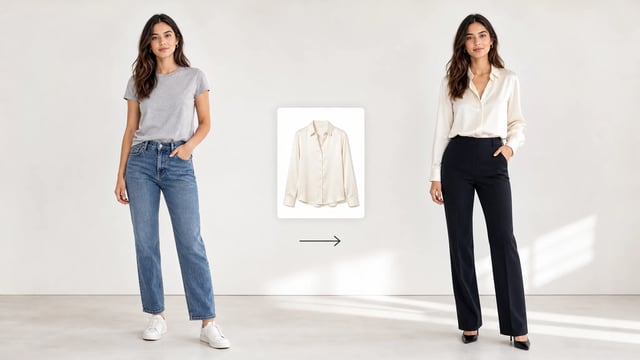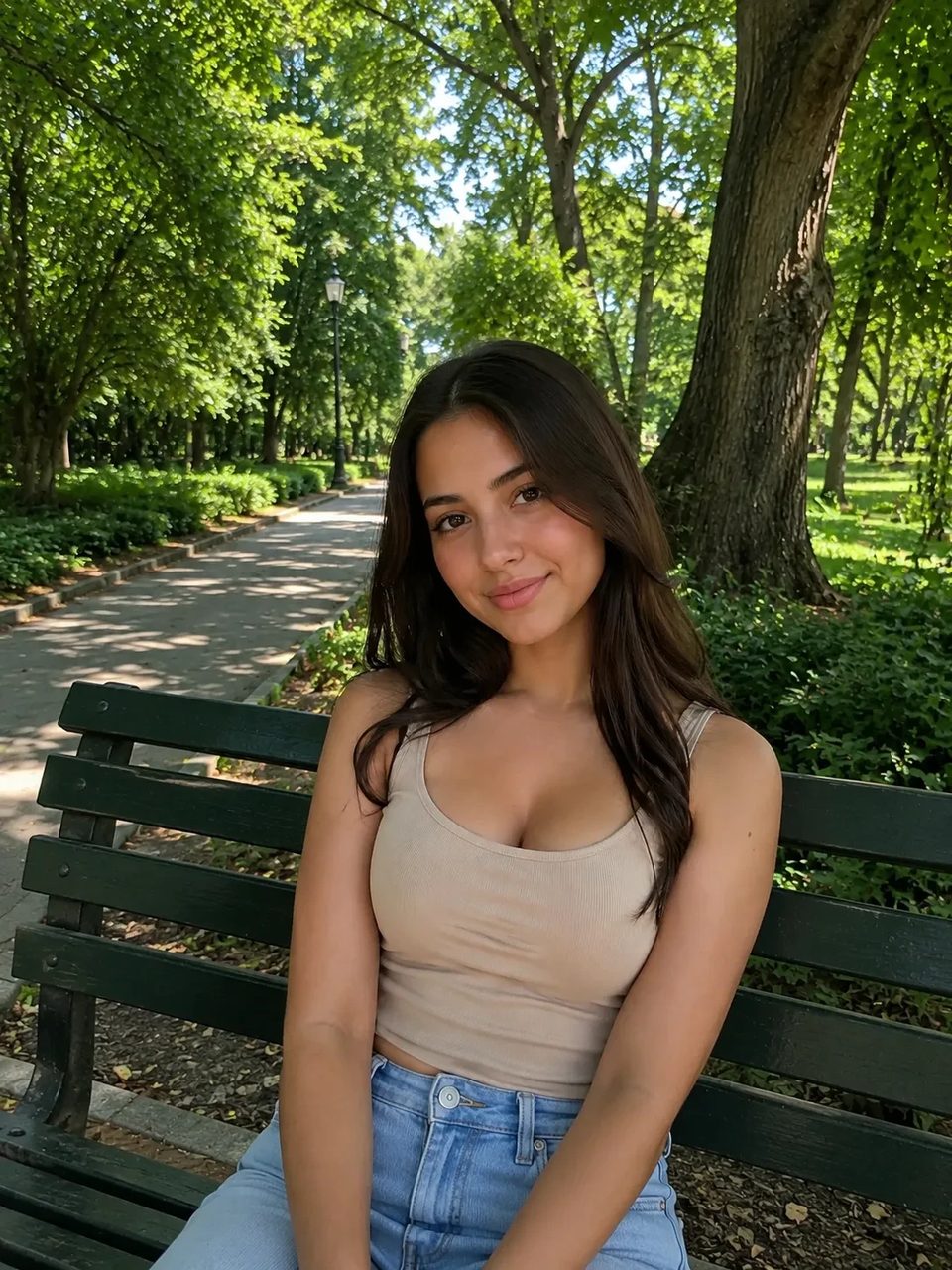

Tight crops become banners, stories, and wide layouts without a reshoot
Upload a tight photo and extend image with AI beyond the original edges. Choose the aspect ratio your layout needs; the main subject stays the anchor while new scene area fills the rest — then keep editing on SupaImagine.

Keep the approved subject. Add the missing sky, floor, or side space the layout needs.
The photo is right but the crop is not: too tall for a banner, too tight for a story, or missing room for a headline. AI image extender grows the scene past the original edges so you can uncrop image area without stretching pixels or rebuilding the subject from scratch.
Upload, pick the ratio, review the new edges.
Start with a photo or generated still where the subject is already good but the crop is too tight.
Pick the layout you need — banner, story, square, or another ratio the page or ad slot requires.
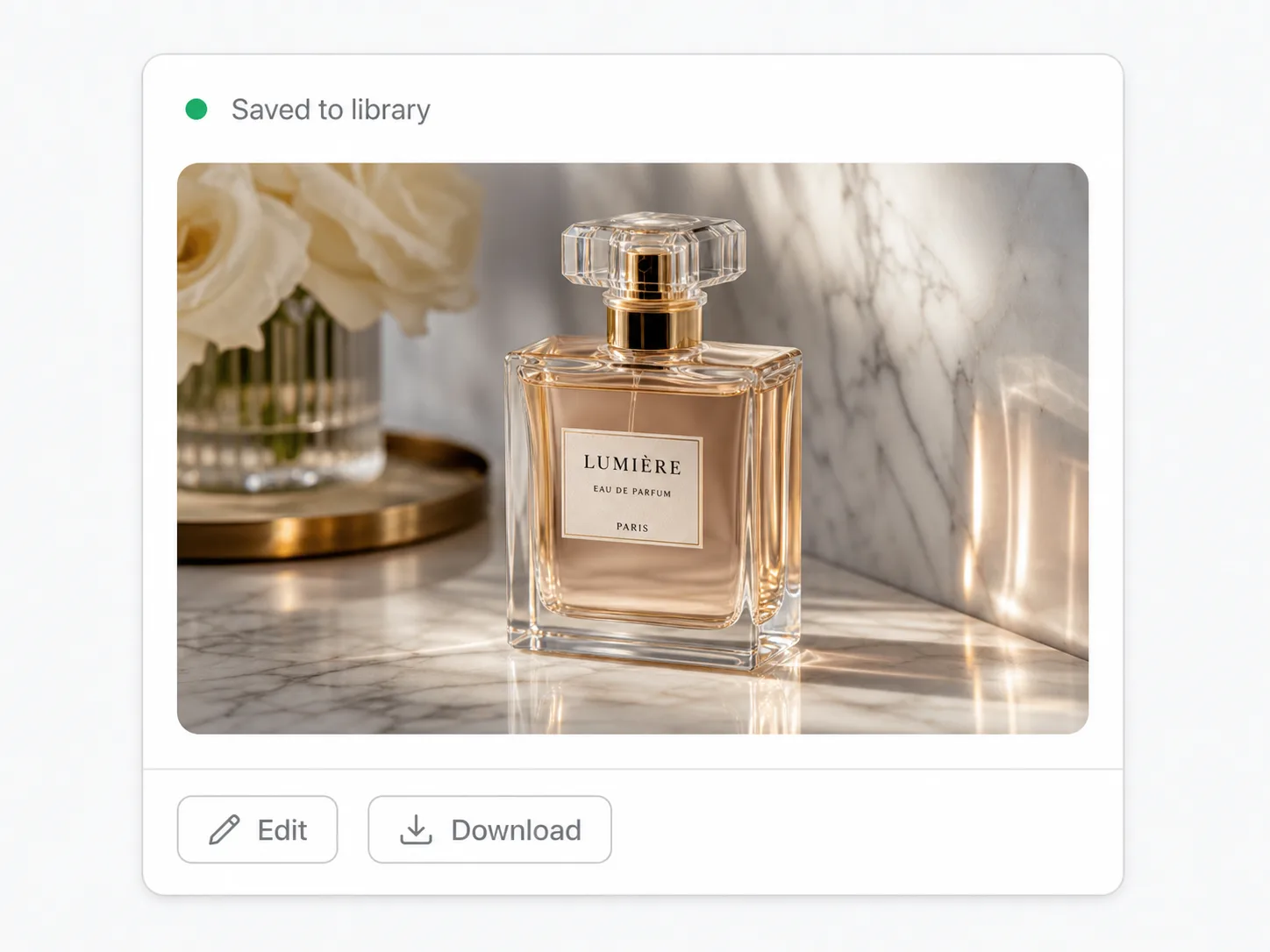
Check hairlines, product edges, and new background continuity, then download or keep editing on SupaImagine.
What lands
Wider ratios for real layouts — not a full retouch suite.
Grow side and sky area so a vertical product or person shot can sit in a landscape hero without squashing the subject.
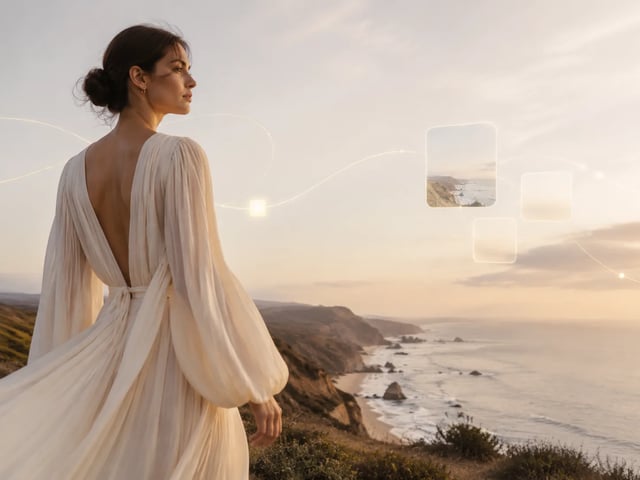
Add empty scene room for headlines and badges while the person or product stays the clear focus.

Reuse one approved still across 1:1, 16:9, 9:16, and other ratios by extending the edges instead of reshooting.

The tool continues floor, wall, sky, and background patterns so the new edges feel like the same place — then inspect before you ship.
Who needs more room
When the subject is approved and the canvas is not.
Turn a tighter source into a wider hero with space around the main subject.
Refit one still for story, feed, and landscape placements.
Add breathing room so slides do not crop faces or products.
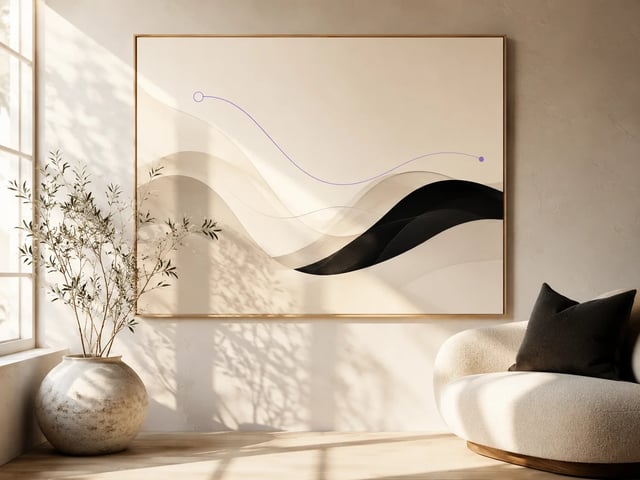
Expand lifestyle shots for banners and retail screens without a new shoot.
You upload one image, choose a new aspect ratio, and the tool grows the scene past the original edges so the subject can sit in a wider or taller layout.
No. It outpaints new scene area around the source instead of stretching the photo to force a ratio.
Match the destination: 16:9 for many heroes and slides, 9:16 for stories, square for feeds, or another ratio your layout system already uses.
The subject is the anchor, but tiny edge changes can appear near the old crop line. Always review faces, logos, and product silhouettes before you ship.
Yes. One extension costs 2 credits, so signup credits cover multiple first runs. You need an account to spend them.
Clear subjects with some readable background texture extend more cleanly than heavy motion blur, extreme crops that cut limbs, or busy multi-subject chaos.
Yes. Download the wider still or stay on SupaImagine for upscale, cutout, text tools, or generation.
Commercial use is available on paid plans. Confirm your plan before client or paid campaign use.
Extend, cutout, upscale, and other one-click jobs on the same image stack.
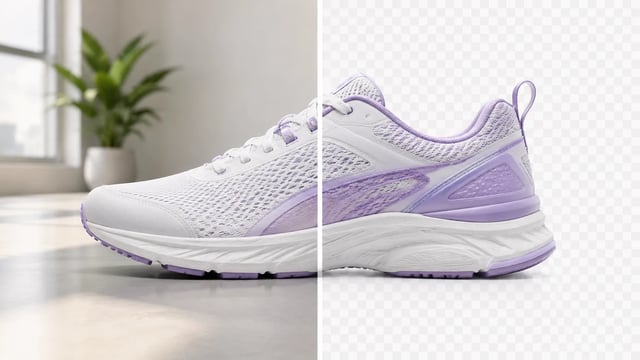
Product, portrait, or graphic — subject clean, ready for the next layout

Wordmarks, icons, and monograms — isolate the logo, clear the backdrop

Turn a phone product photo into listing-ready packshots
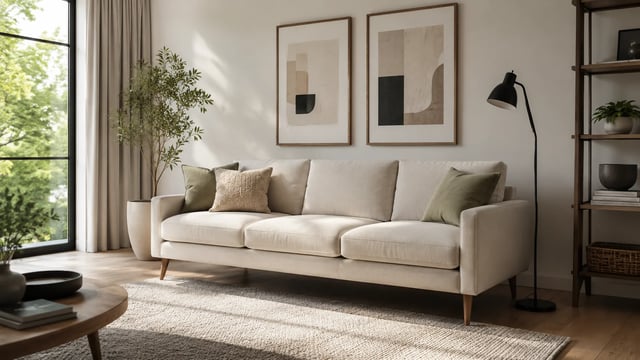
Room photo + product shot → in-room preview
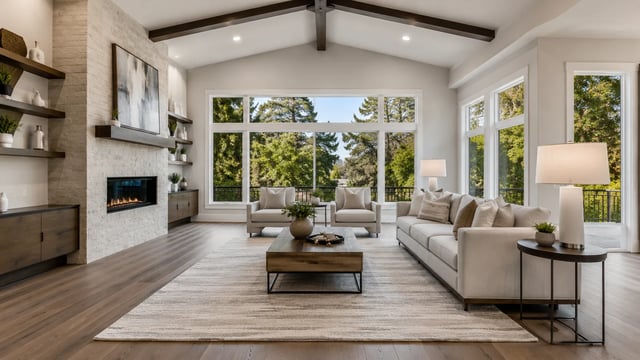
Empty room in → furnished listing still out

Upload person A, then person B — both faces stay the point
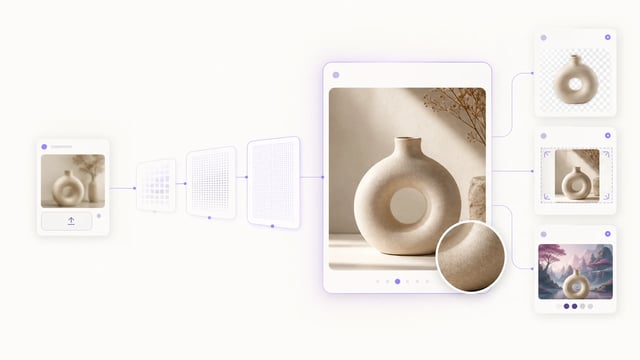
Small crops, soft exports, and AI drafts — bigger files you can actually place

Clearer faces — not a larger blurry file

Posters, product labels, social graphics, and quick visual notes from one upload
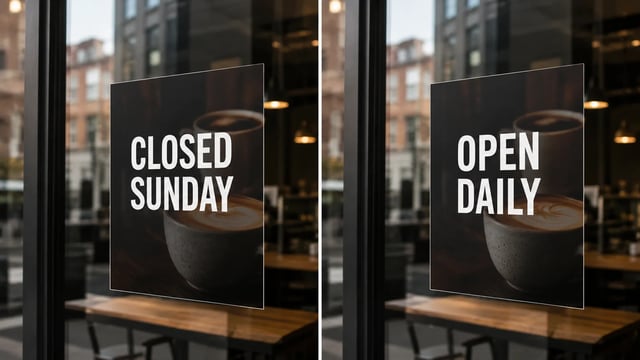
Posters, menus, labels, and screenshots — rewrite in place without rebuilding the graphic
Upload the source, pick the ratio, and inspect the extended scene before you ship it.