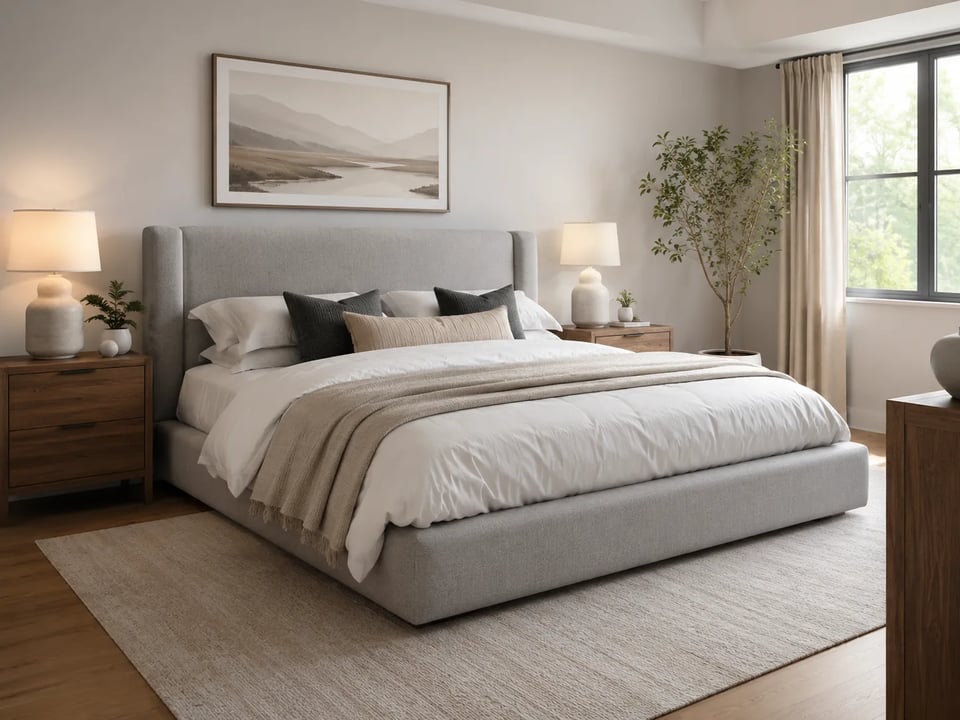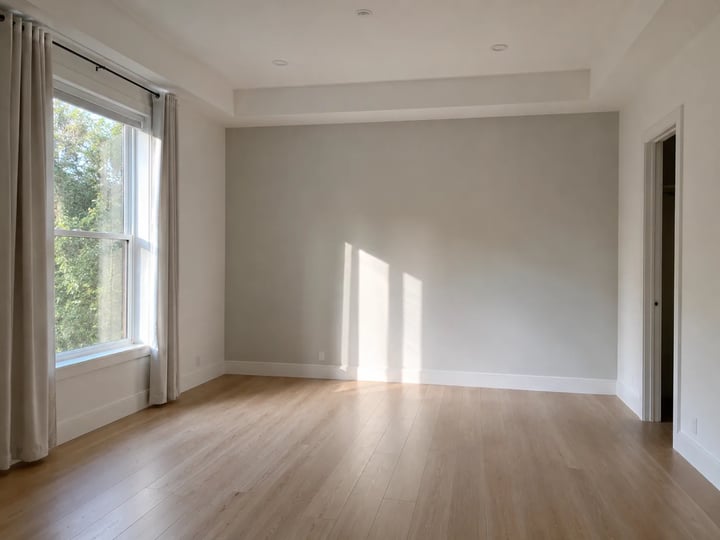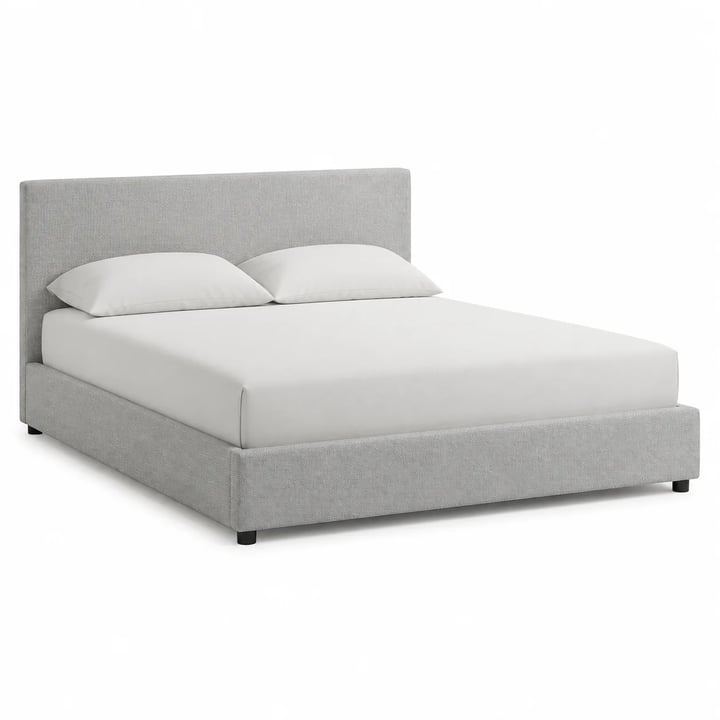
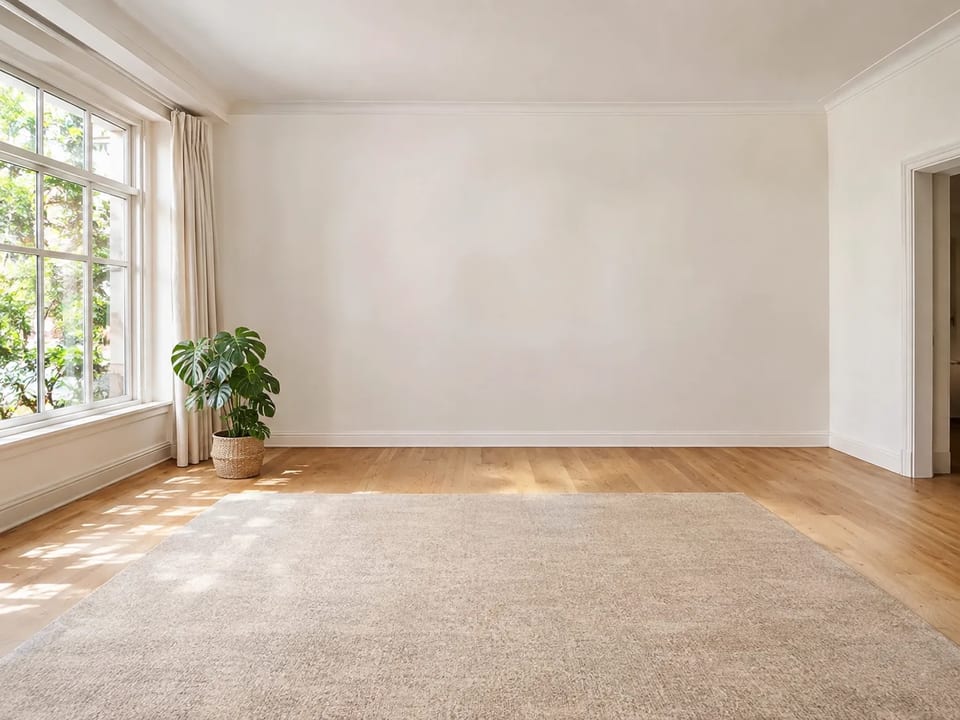
Room photo + product shot → in-room preview
Use this AI furniture visualizer when you have a room photo and a furniture product image and need to know if the piece looks right in place. Upload both, generate a photoreal preview, and check scale, style, and lighting before you buy or pitch a client — generative preview, not a survey drawing.
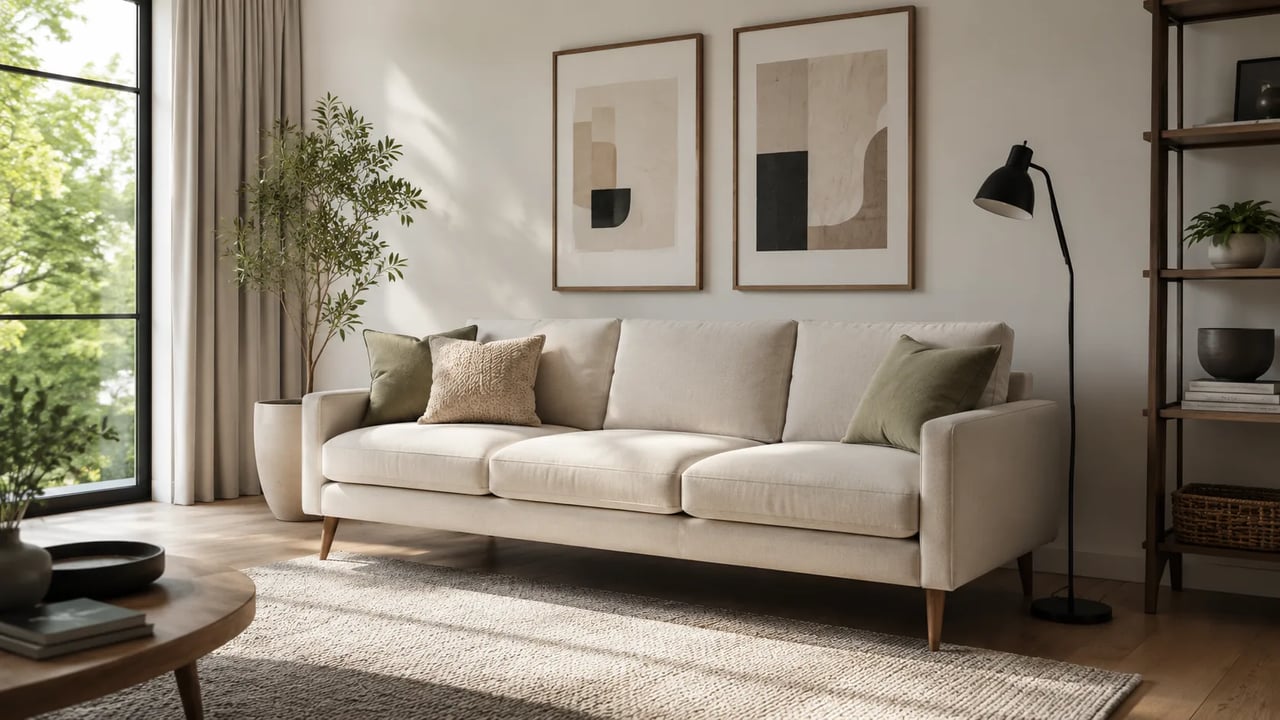
Place a specific SKU into your space — not a full empty-room restyle.
An AI furniture visualizer is for shoppers, retailers, and soft-furnishing advisors who need a fast in-room look at one product. Upload a room photo and a furniture catalog or product shot, then get a generative preview that tries to match scale, light, and contact shadows. If you want a whole empty listing staged with many pieces, that is a different virtual-staging job. This page owns place-furniture-in-room AI previews for a single SKU so you can decide if it looks right before you buy.
Room + product → preview
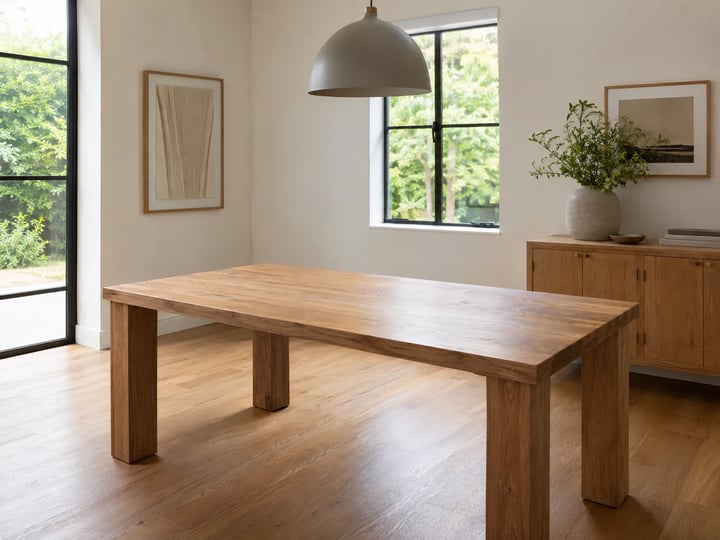
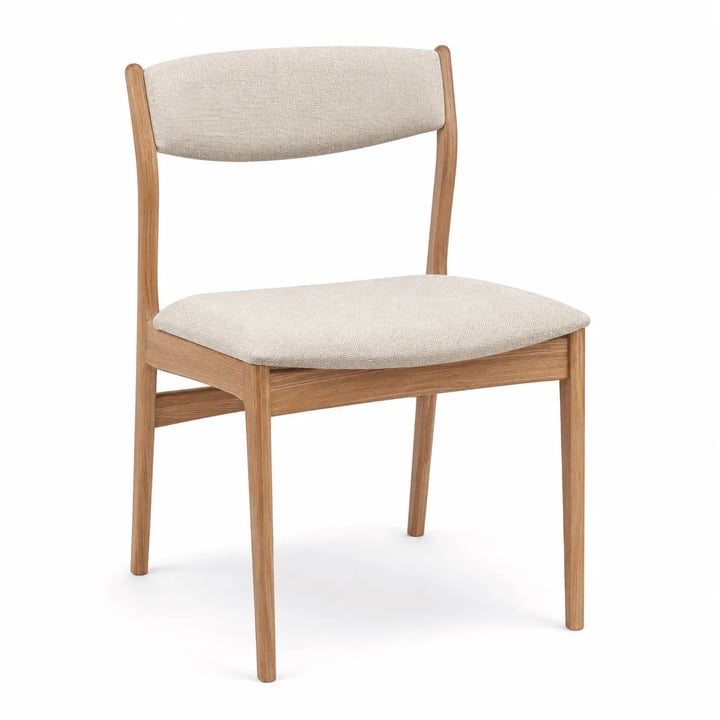
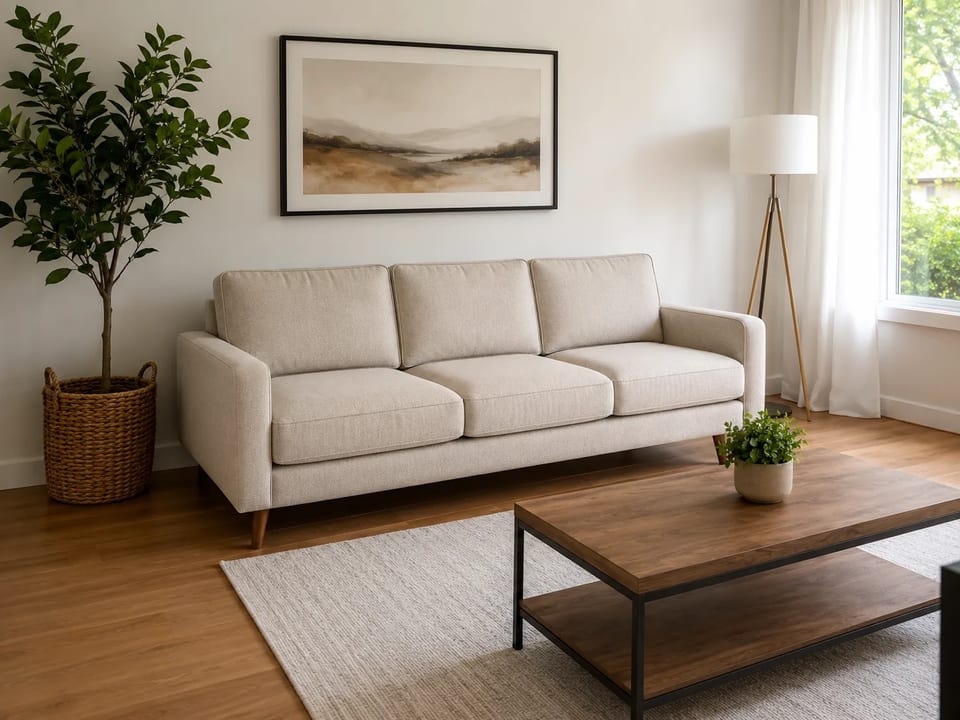
Each case starts from a room photo and a furniture reference. Tap a case to load the dual-upload path.
Living room + sofa preview
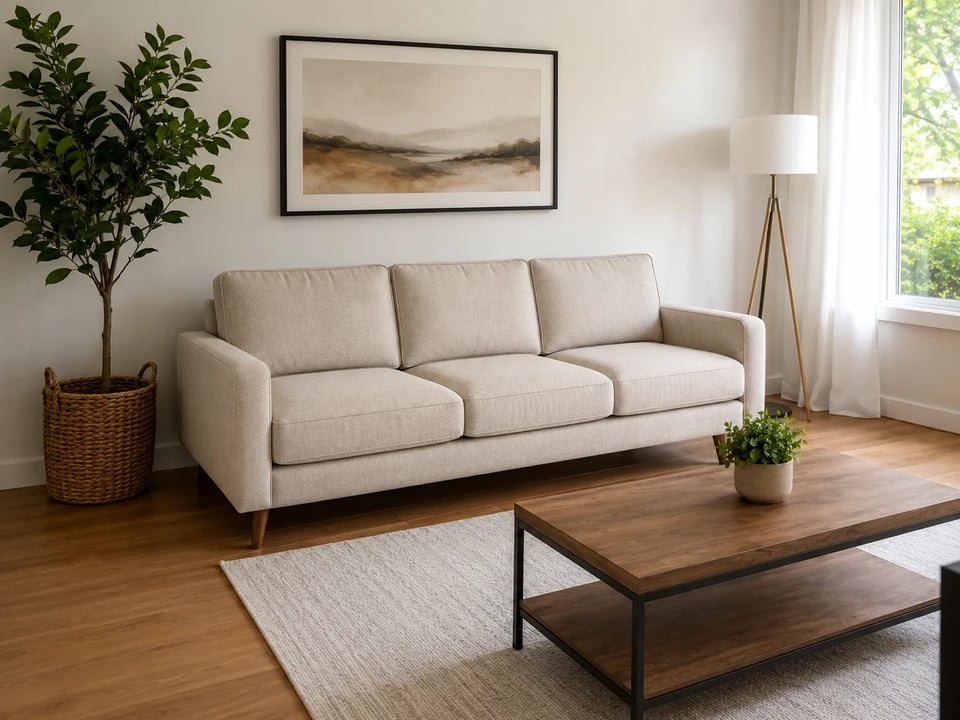
Room + sofa
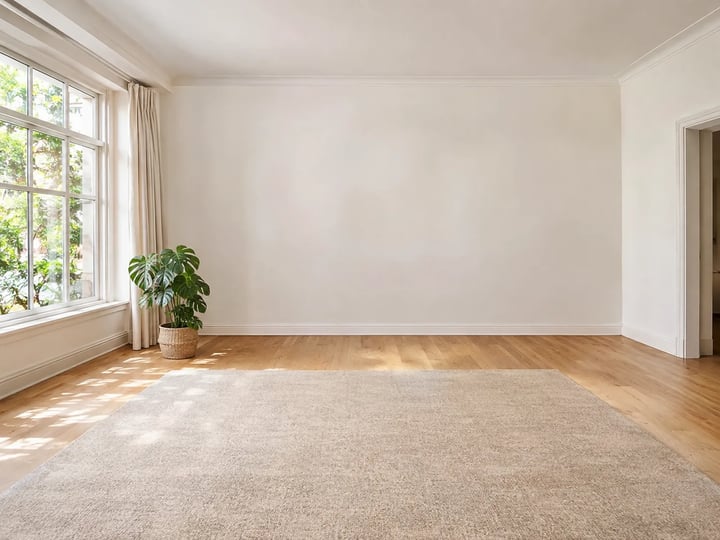
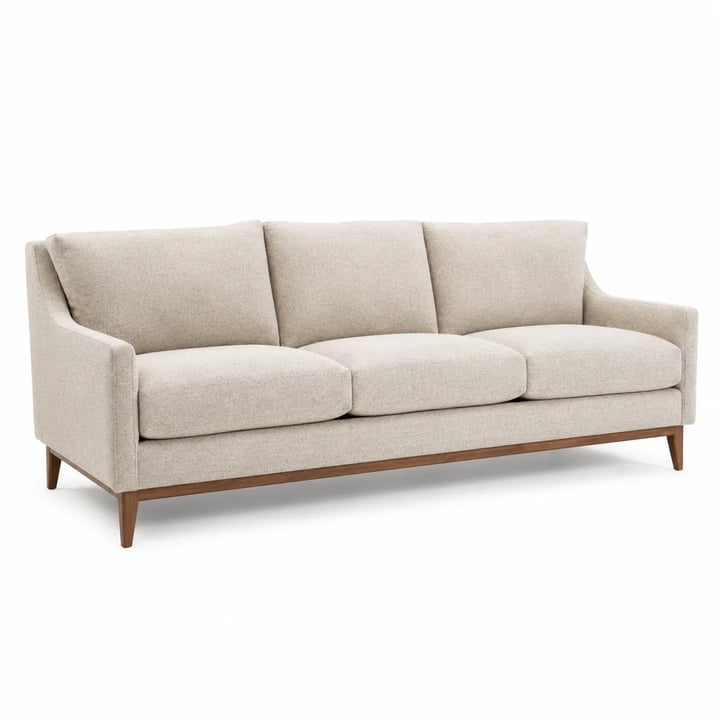
Placement
What you get
In-room previews for a specific product — not empty-room virtual staging and not a CAD survey.
Upload the space you already have — living room, bedroom, or dining nook — as image one. The AI furniture visualizer keeps architecture, windows, flooring, and camera angle so the preview feels like your room, not a random stock set. That is the place-furniture-in-room AI job shoppers actually need before checkout.
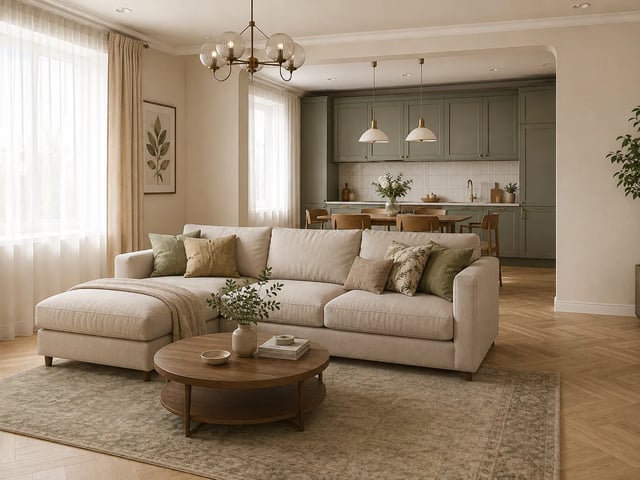
Image two is the furniture product or catalog reference. The furniture visualizer online path pushes the model to hold overall shape, legs, upholstery, wood tone, and color as closely as the reference allows. Low-res or partial product shots still drift — zoom the result before you treat it as a purchase guarantee.
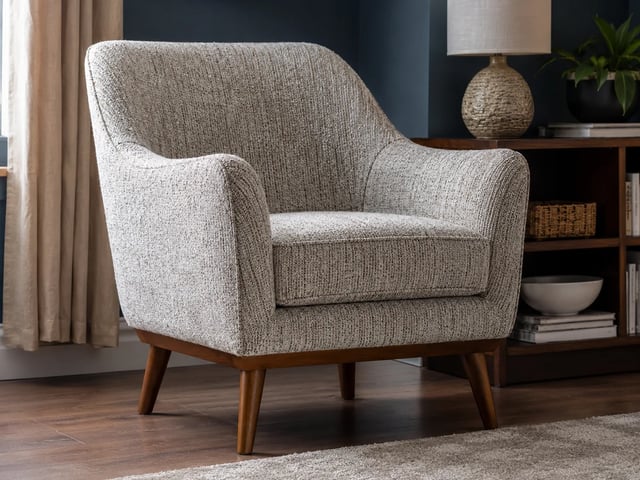
A useful visualize-furniture-in-room result must sit on the floor with believable contact shadows and ambient light, not float like a sticker. Optional notes can ask for left wall placement or softer daylight while the system still prioritizes room and product identity over wild restyling.
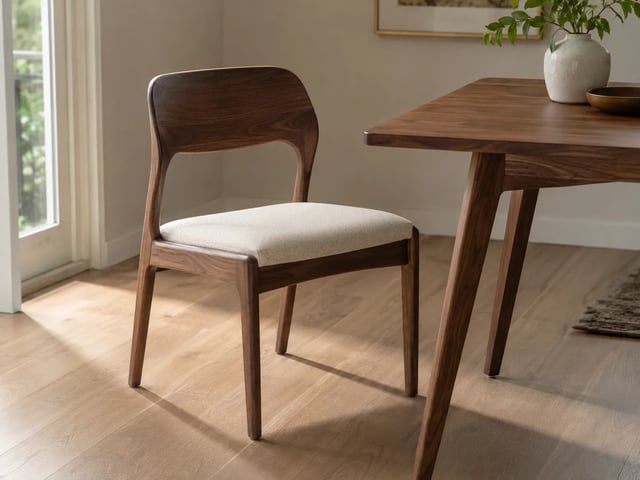
This AI furniture visualizer is a generative preview for style and fit, not a centimeter survey, zero-hallucination SKU engine, or storefront plugin. Use it to decide if a piece looks right in your space, then confirm real dimensions and materials with the seller or a professional when accuracy matters.
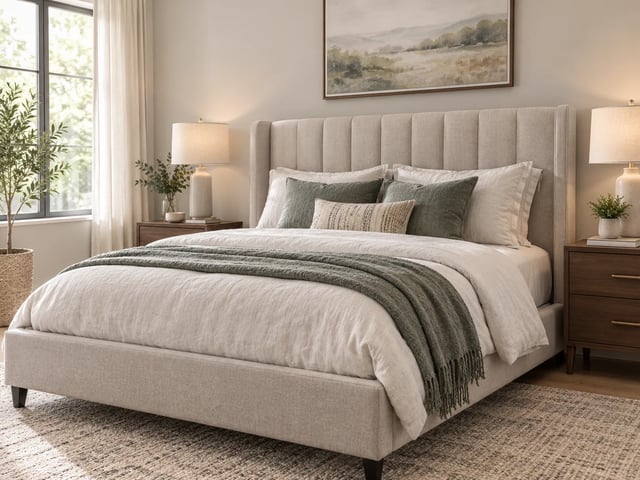
Room first, product second, optional note, then generate.

Use a clear wide shot of the wall or corner where the piece will live. Good daylight helps the AI furniture visualizer read floor and depth.
Add the catalog or product shot as the second image. Prefer a full product view so fabric, legs, and silhouette stay readable.

Review placement, shadows, and product identity. Re-run with a short placement note if the piece should sit elsewhere in the room.
For people who need to visualize furniture in a real room before money or a client meeting — not full empty-home staging.
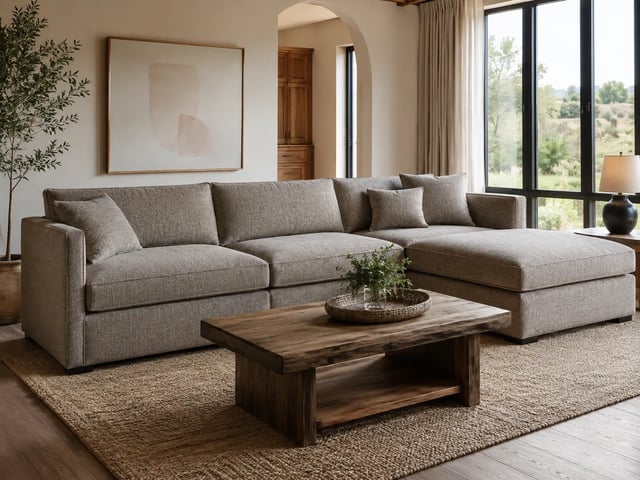
Place a shortlist of sofas or chairs into a photo of your living room so you can buy with fewer returns.
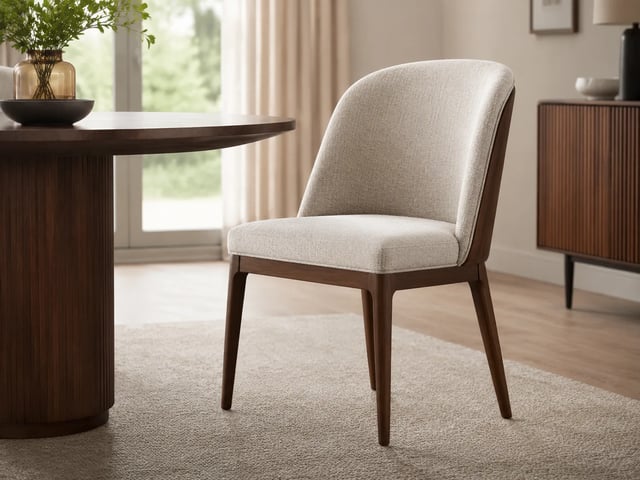
Show a SKU in a sample room context on product pages when pure packshots feel too abstract.
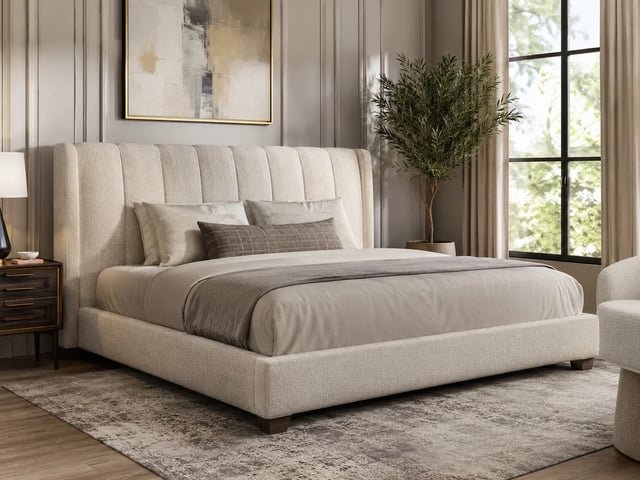
Build quick before/after client proposals that place a specific piece without a full CGI project.
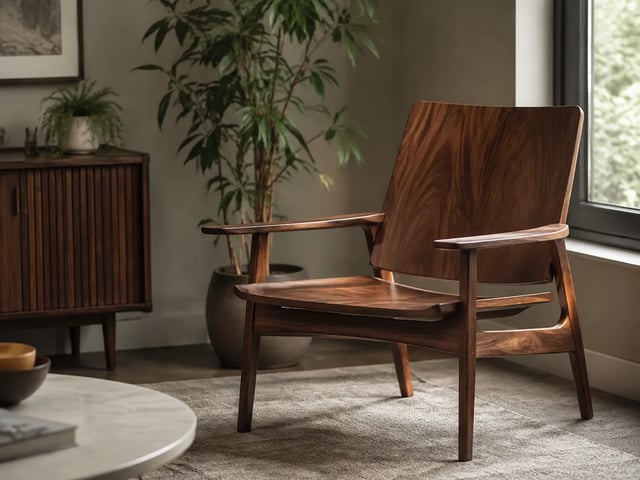
Try alternate finishes or similar SKUs in the same room photo to compare how each piece reads in your light.
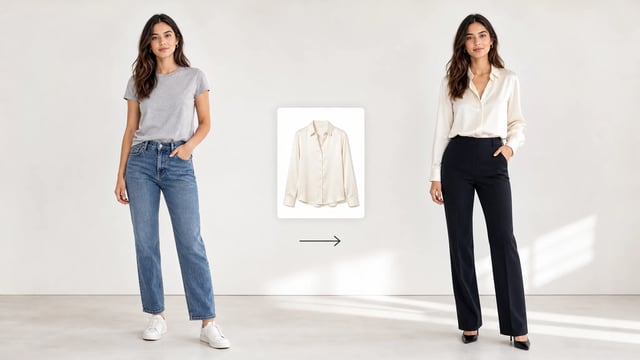
Packshots, cutouts, clothes try-on, and more on the same stack.
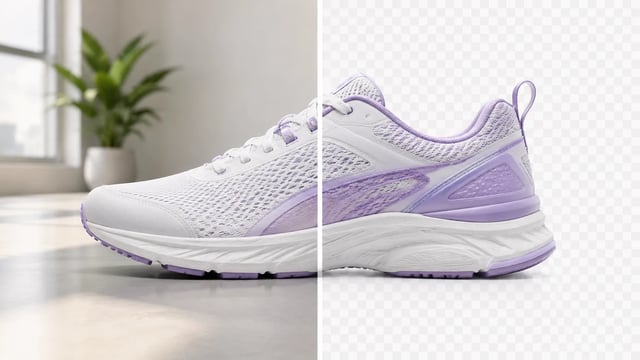
Product, portrait, or graphic — subject clean, ready for the next layout

Wordmarks, icons, and monograms — isolate the logo, clear the backdrop

Turn a phone product photo into listing-ready packshots

Empty room in → furnished listing still out

Upload person A, then person B — both faces stay the point

Tight crops become banners, stories, and wide layouts without a reshoot
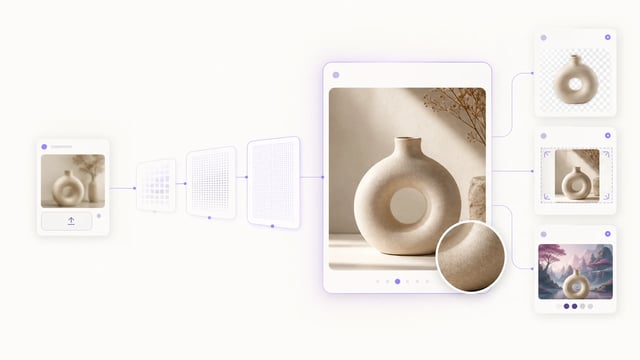
Small crops, soft exports, and AI drafts — bigger files you can actually place

Clearer faces — not a larger blurry file

Posters, product labels, social graphics, and quick visual notes from one upload

Posters, menus, labels, and screenshots — rewrite in place without rebuilding the graphic
An AI furniture visualizer places a furniture product image into a real room photo so you can check style and scale fit. It is a generative preview for buy-or-not decisions, not a construction drawing.
Upload exactly two images in order: first the room, second the furniture or SKU photo. Optional notes can steer placement. Then generate and review the in-room preview.
Virtual staging usually fills empty listings with many pieces. This furniture visualizer online path locks a specific product into your existing room photo instead of restyling the whole space.
No. Honest v1 does not claim survey-grade dimensions. Use the preview for look and relative scale, then confirm real product measurements with the seller.
Yes. A clear phone room shot and a clear product shot are the intended inputs. Better light and full product silhouette still produce stronger previews.
Yes. Signup credits cover a default 1K run on this GPT Image 2 path. You need an account to spend them.
The tool is instructed to keep shape, finish, and color as close as the reference allows. Partial or blurry product photos can still drift — always zoom the result before you buy.
Commercial use follows your SupaImagine plan terms on paid plans. Signup credits are for trying the AI furniture visualizer; check pricing for ongoing client or listing work.
Upload your room and product photos, place the piece, and download an in-room preview.