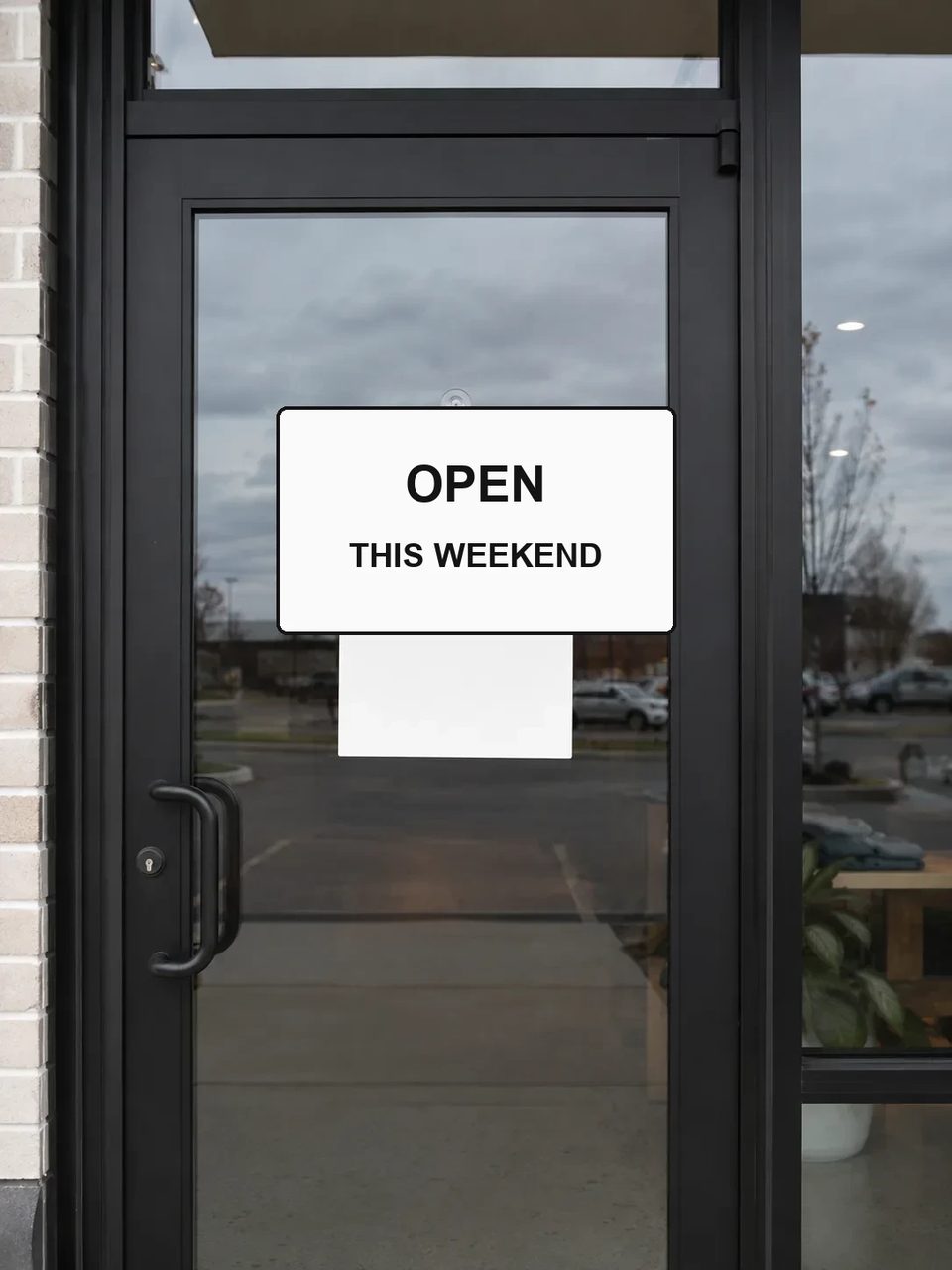
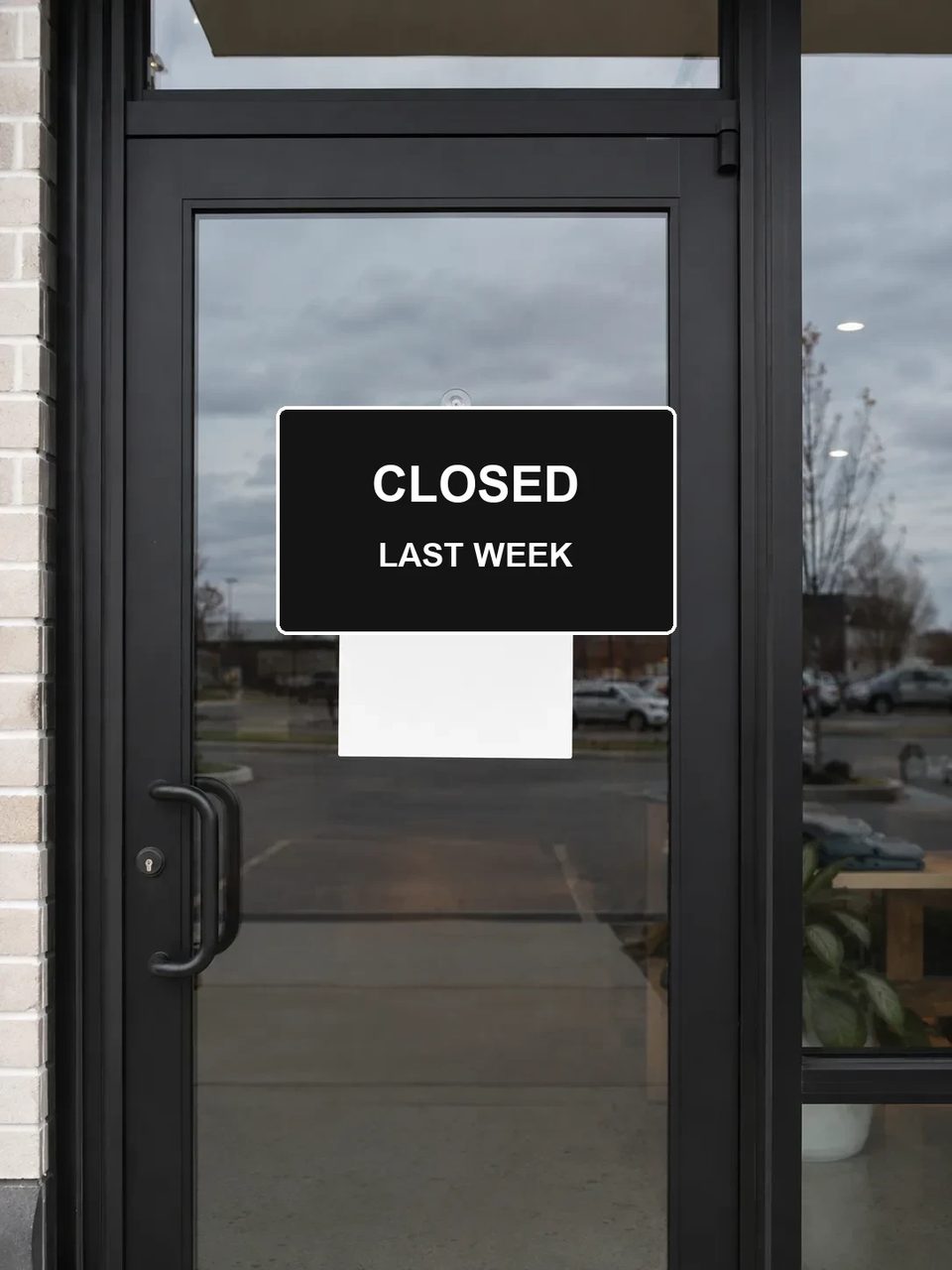
Posters, menus, labels, and screenshots — rewrite in place without rebuilding the graphic
Upload a poster, menu, label, or screenshot and edit text in image with AI. Name the old words and the new ones; the image text editor rewrites copy in place so you keep the layout, then download or keep editing.
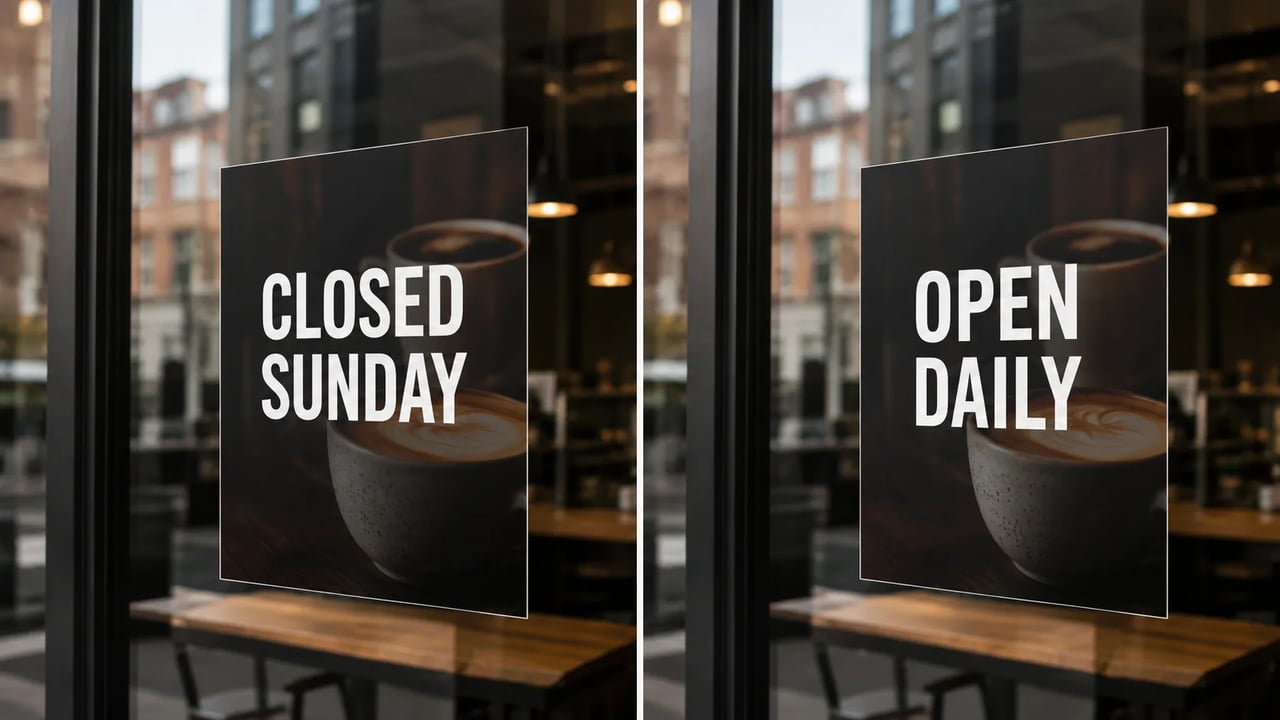
When only the words are wrong and the design already works.
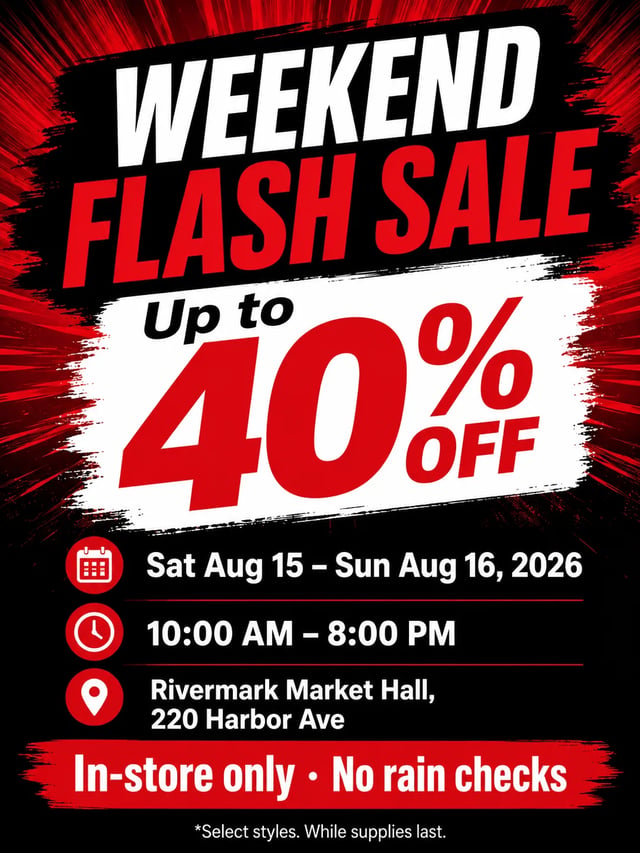
The poster looks fine except the date. The menu price is old. The product label still says last season’s name. Instead of redrawing everything, use the AI image text editor to replace text in image while the rest of the scene stays put — then check spelling before you ship.
Upload, name the swap, check the letters.
Start with a clear poster, menu, label, or screenshot where the words you want to change are readable.
Write exactly what to replace and what to put instead. Mention style cues if the look must stay bold, white, or small.
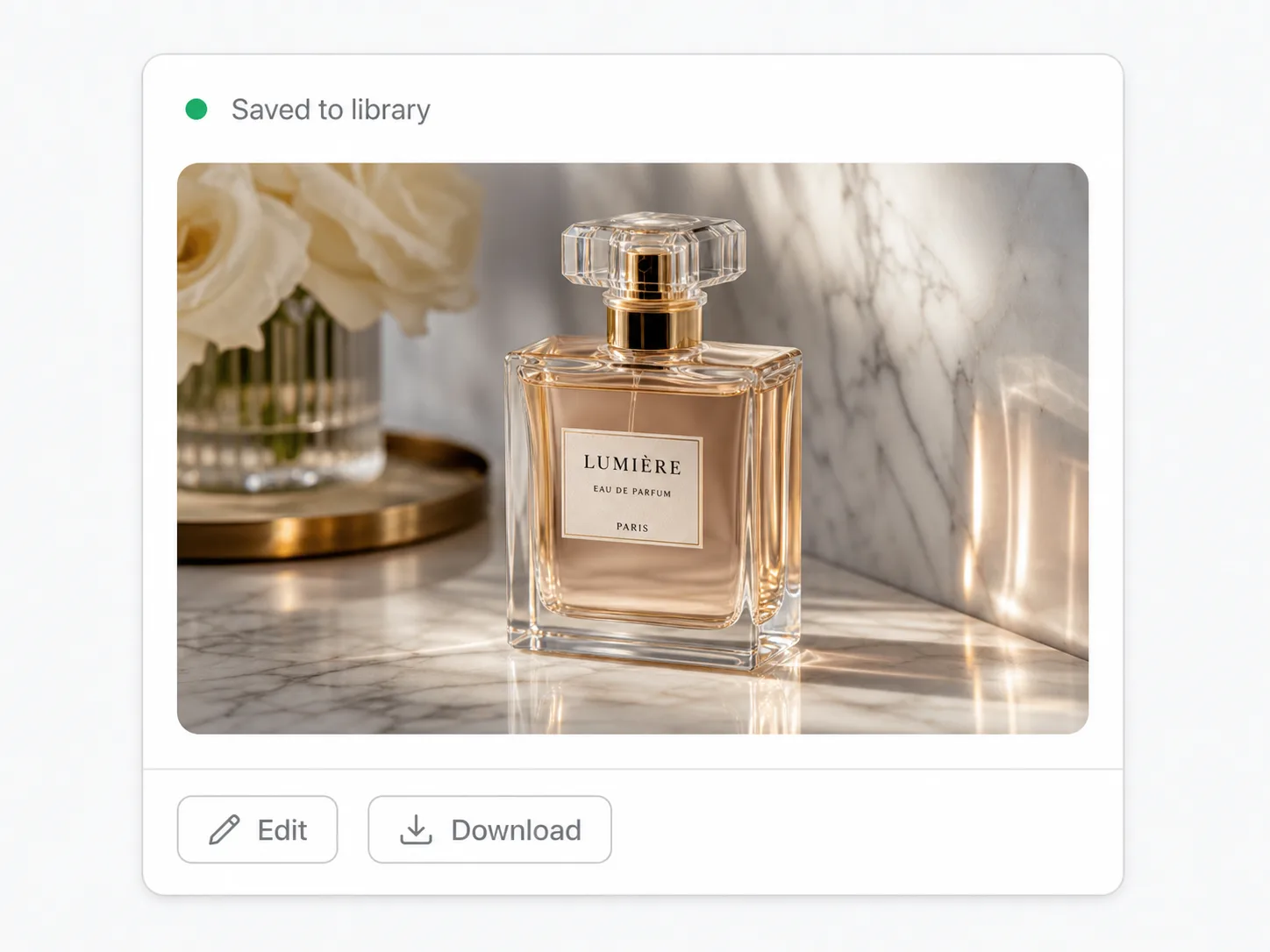
Review letters and leftover old glyphs. Run again with a tighter prompt if a character is wrong.
What lands
In-place word swaps on real production assets — not a full design file.
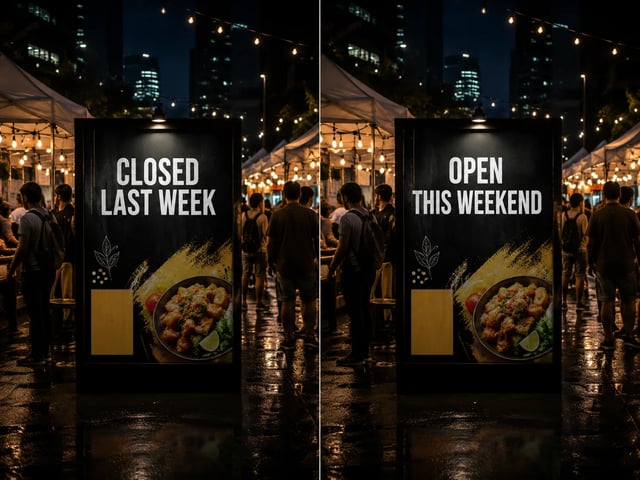
Swap headlines, event dates, and offer lines while keeping the surrounding art and layout.
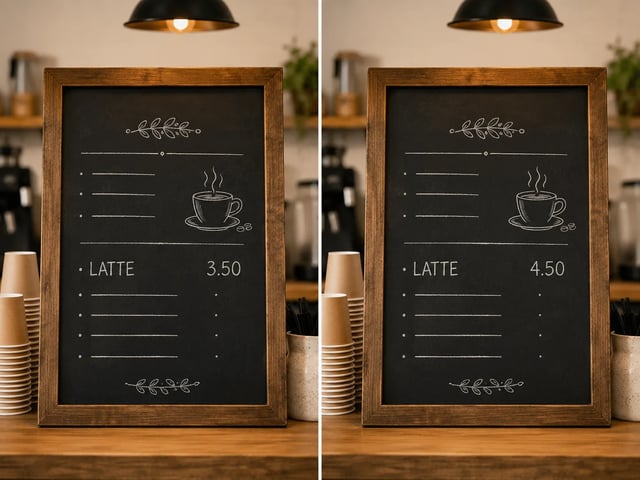
Change a price or item name on a board photo without rebuilding the whole chalkboard look.
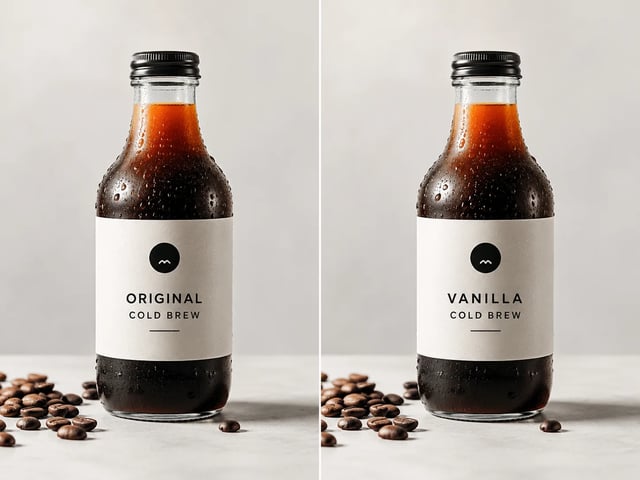
Rewrite flavor names, sizes, or claim lines on packaging stills for catalog and mock use.
Fix a wrong string in a product screenshot or mock before the next design handoff.
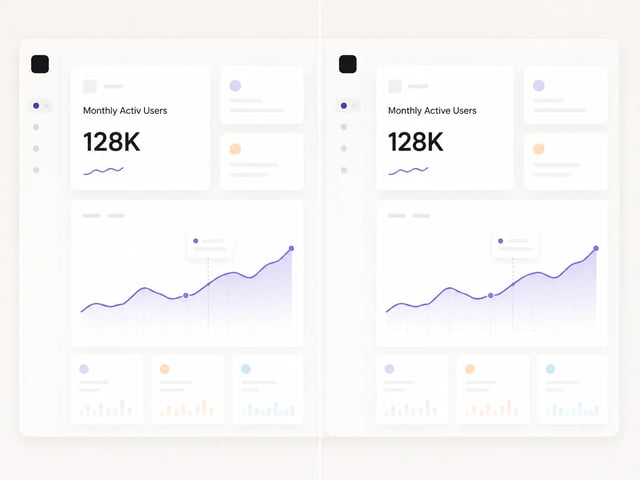
Design stays. Copy moves with the image text editor.
Refresh a campaign poster date, offer line, or city name without waiting on a full design revision.
Update menu prices and daily specials on photos you already use in listings and social.
Rename flavors, sizes, or promo badges on packaging shots before a drop.
Fix a typo on a keynote screenshot or one-pager graphic the night before a pitch.
Edit text, add text, cutout, and other jobs on the same image stack.
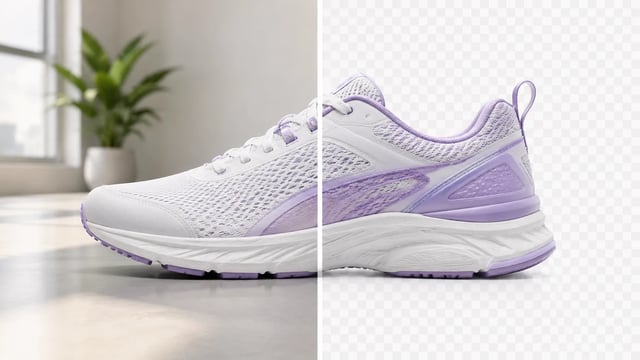
Product, portrait, or graphic — subject clean, ready for the next layout
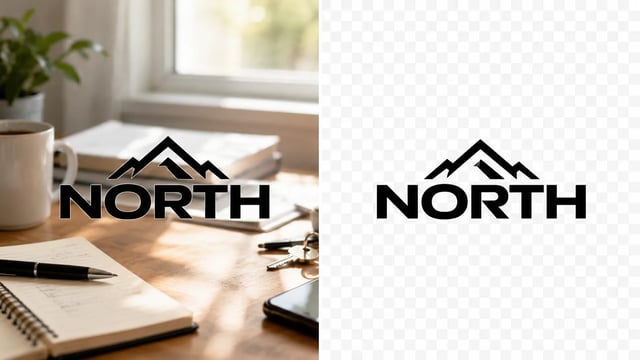
Wordmarks, icons, and monograms — isolate the logo, clear the backdrop

Turn a phone product photo into listing-ready packshots

Room photo + product shot → in-room preview

Empty room in → furnished listing still out
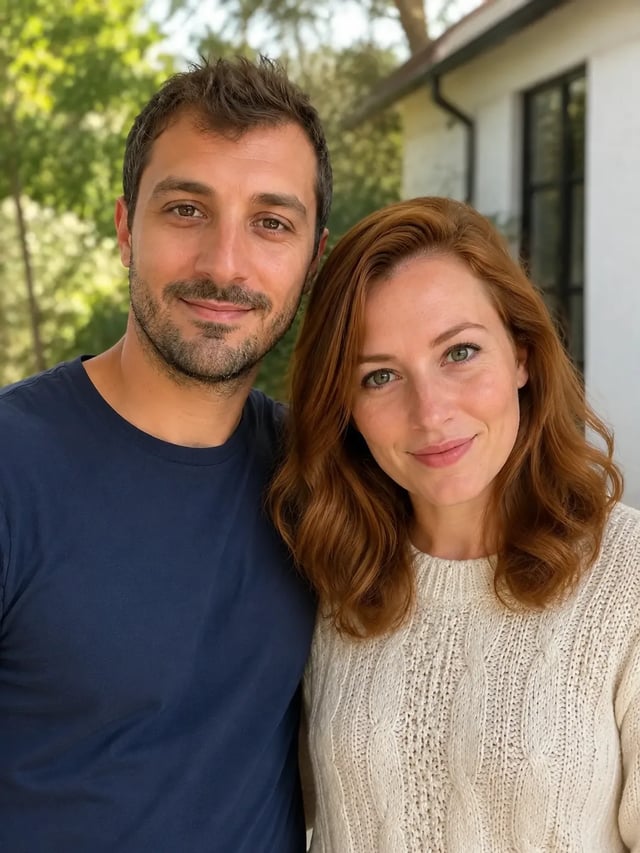
Upload person A, then person B — both faces stay the point

Tight crops become banners, stories, and wide layouts without a reshoot
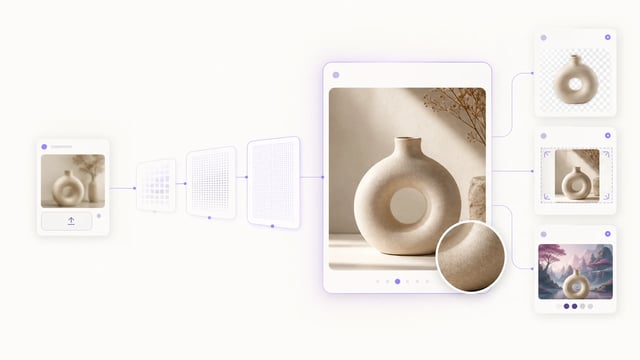
Small crops, soft exports, and AI drafts — bigger files you can actually place

Clearer faces — not a larger blurry file

Posters, product labels, social graphics, and quick visual notes from one upload
It rewrites words that already appear in a photo or graphic — dates, prices, titles, labels — while trying to keep the rest of the design in place.
This tool replaces existing text. Add Text to Photo starts from a photo that needs new captions or badges laid on. Use the tool that matches your stuck moment.
No font-file matching. The model approximates size, color, and style. Close is common; pixel-perfect brand type is not guaranteed.
Quote the old string and the new string clearly. Add placement or style notes only when needed — for example “same bold white headline on the storefront sign.”
No. Do not use this tool to alter official identity or financial documents. Stick to creative and marketing assets you own or may edit.
Re-run with a shorter, more explicit swap. Zoom the result and check spelling every time — AI text edits can miss a character.
Yes. Signup credits cover a default-tier run on this GPT Image 2 path. You need an account to spend them.
Commercial use is available on paid plans. Confirm your plan before client work or paid campaigns.
Upload a poster, menu, label, or screenshot. Name the old words and the new ones — then download a clean replacement.