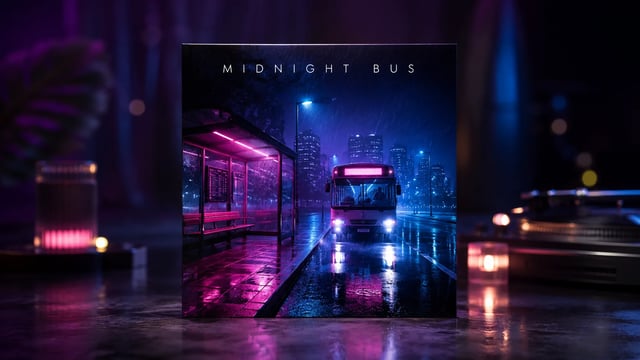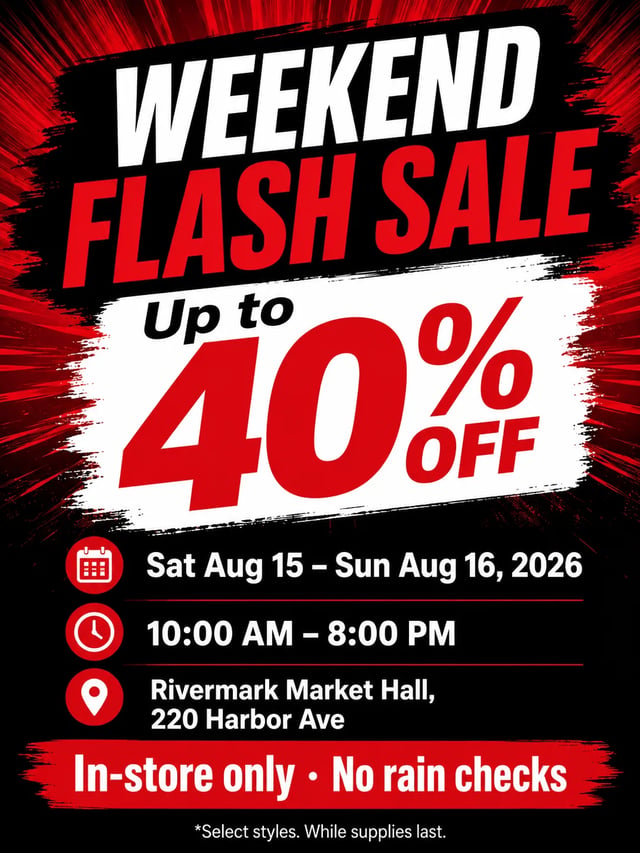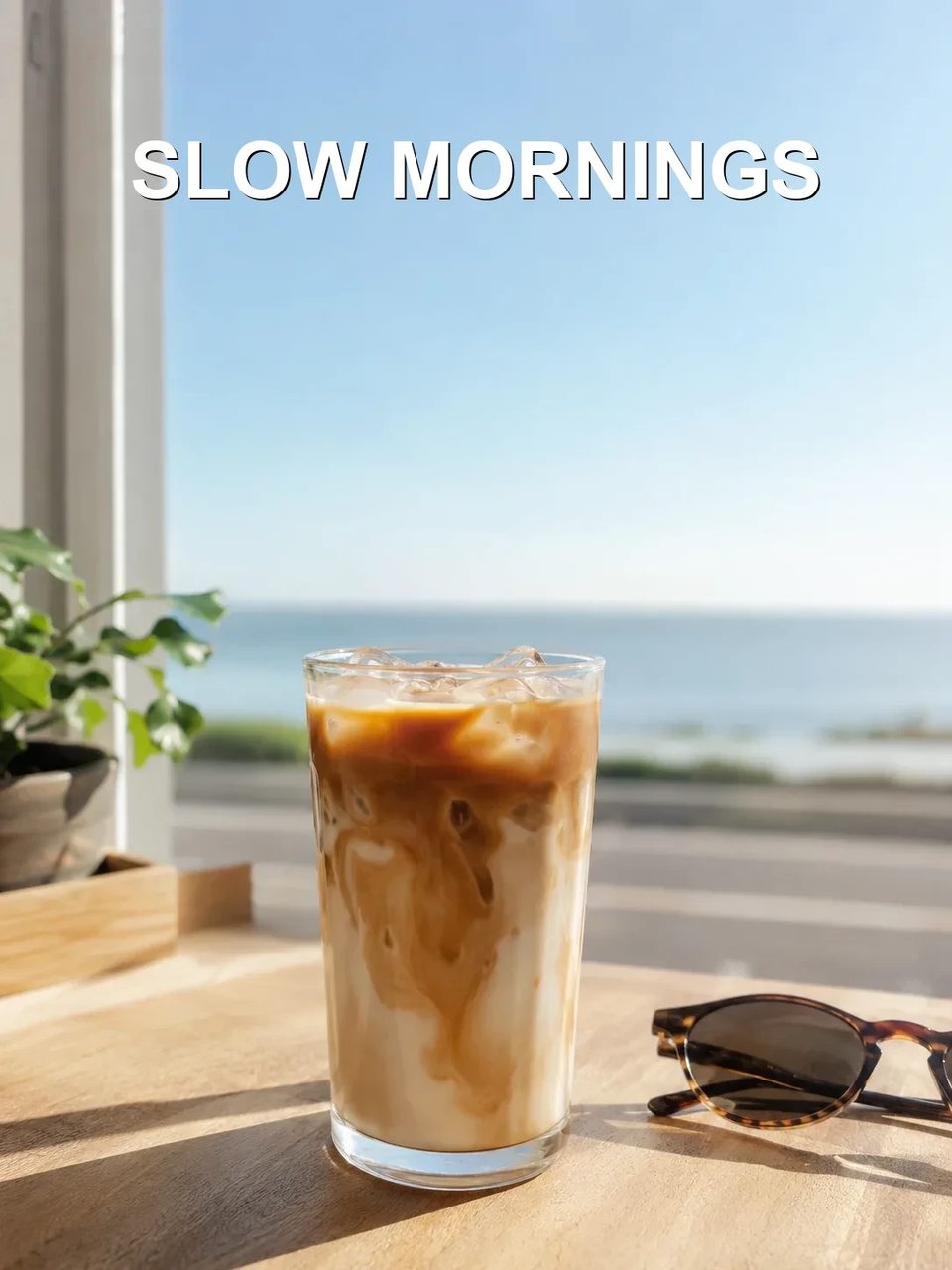
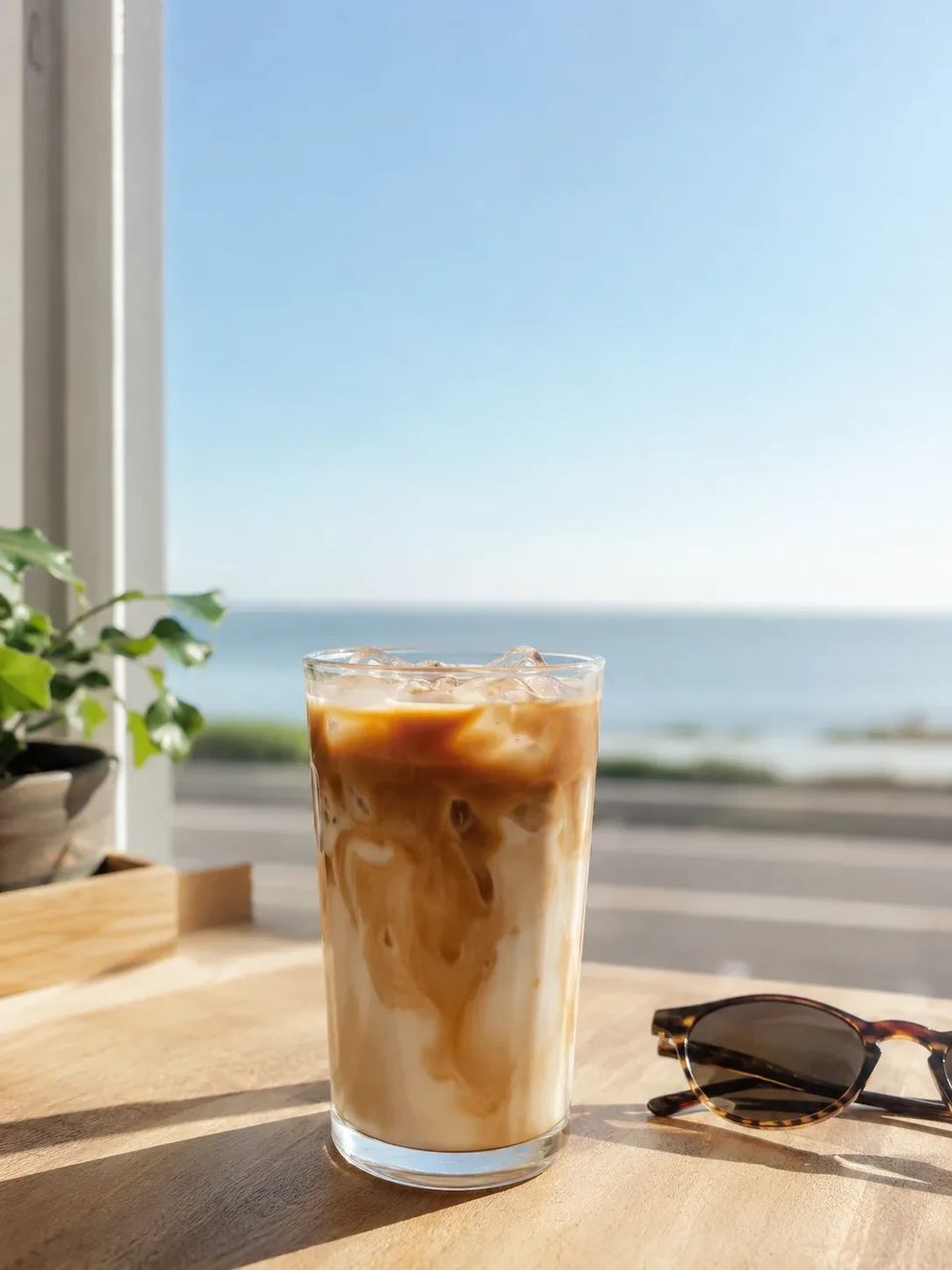
Posters, product labels, social graphics, and quick visual notes from one upload
Upload a photo and add text to photo with AI. Spell the exact words, placement, and mood you want; the AI text overlay bakes readable type into the image for posters, captions, product labels, and social graphics — then stay on SupaImagine if you need another pass.

When the photo is ready and only the words are missing.
You already have the product shot, lifestyle still, or meme base. You need readable words on top — a launch line, a price badge, a short caption — without opening a full design file. Use add text to image here so the AI places the overlay, then revise the prompt if a letter is off.
Upload, write the words, check the letters.
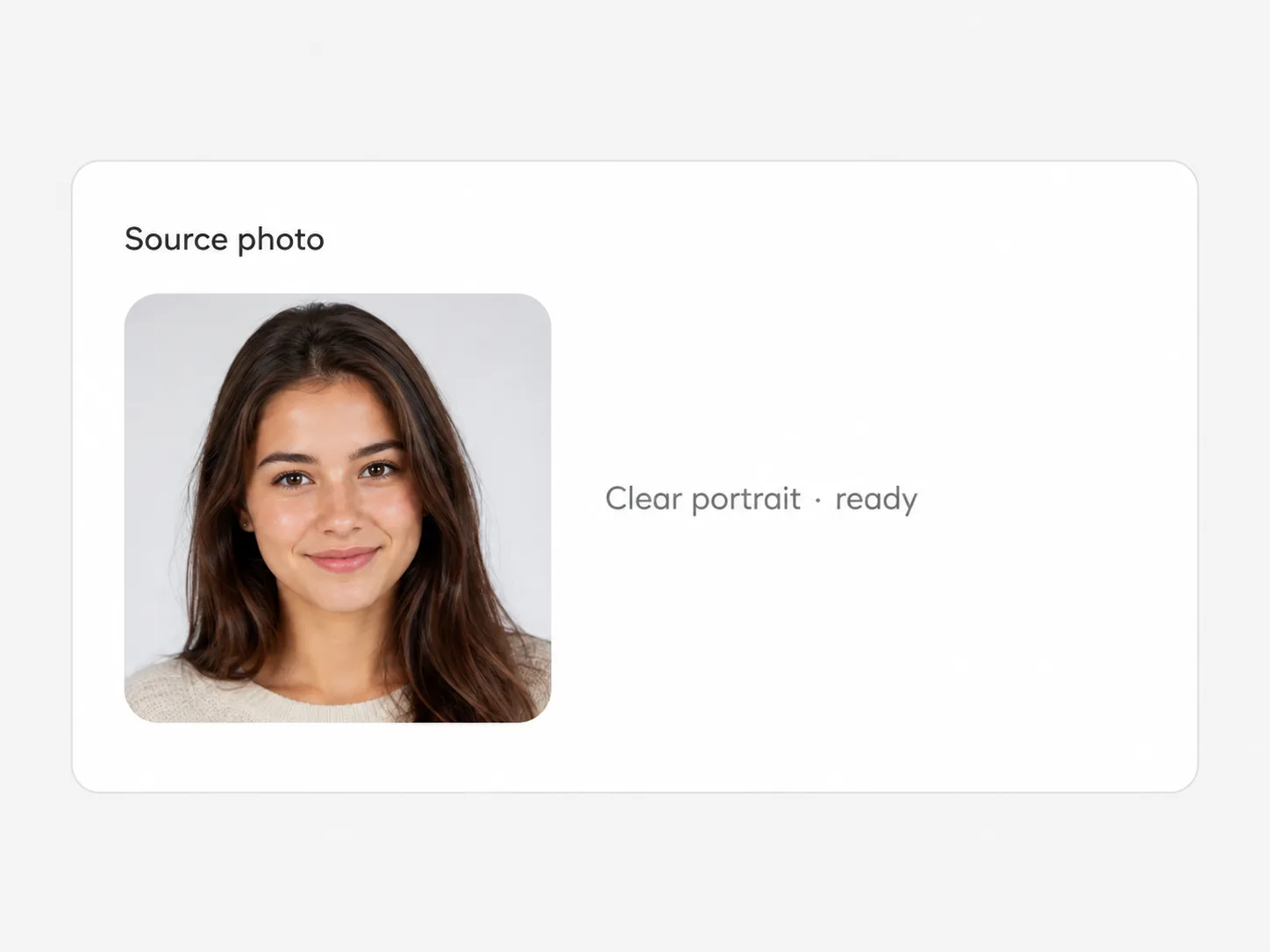
Start with a clear still where there is room for type — product, lifestyle, or simple graphic background.
Quote the words, say where they go, and note size or mood (bold white top caption, small bottom badge, and so on).
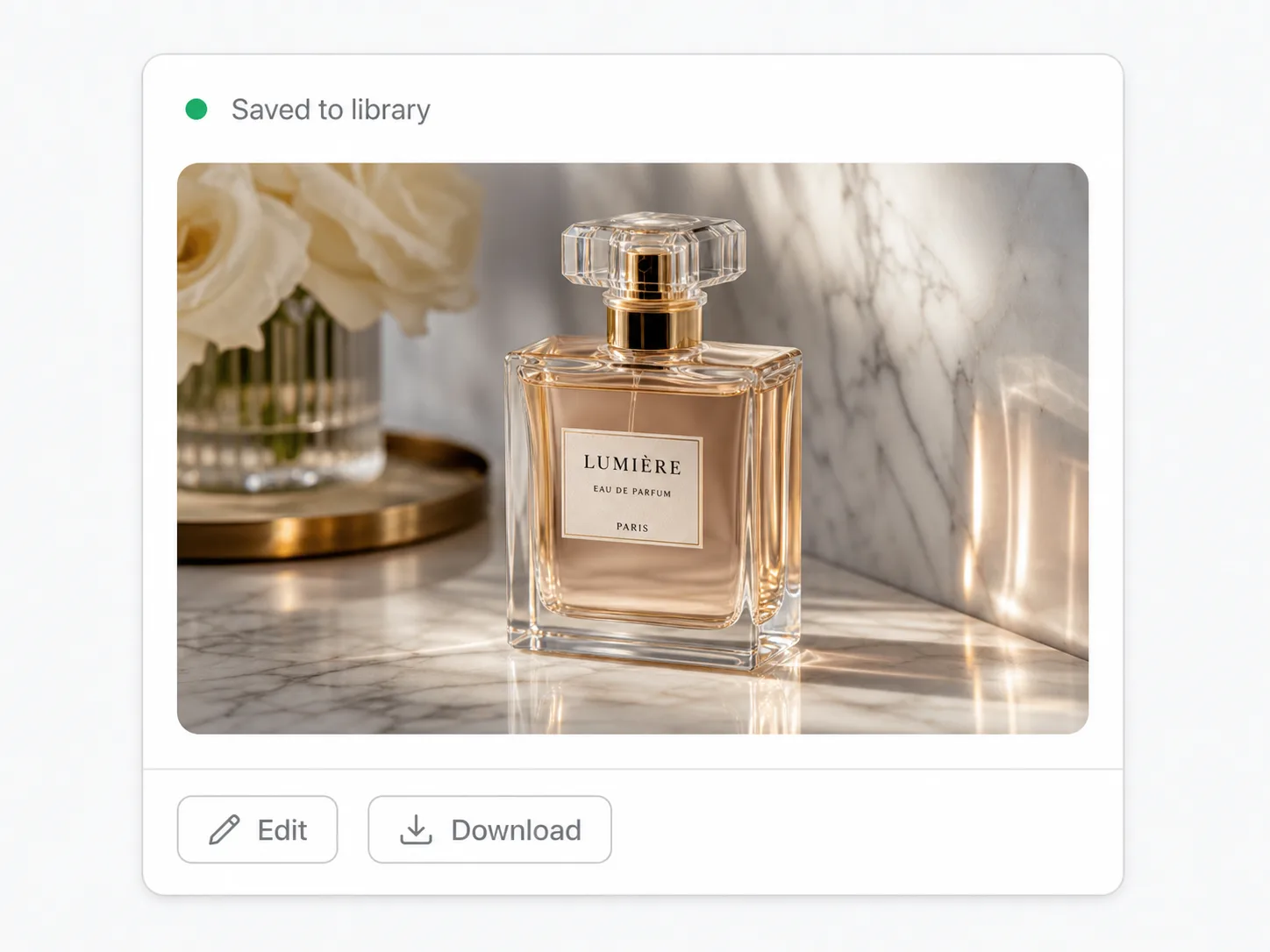
Check spelling and contrast. Re-run with a tighter prompt if letters are soft or placement is wrong.
What lands
Readable words baked into the photo — not a separate type layer file.
Name the SKU, size, or offer line on the product photo itself.
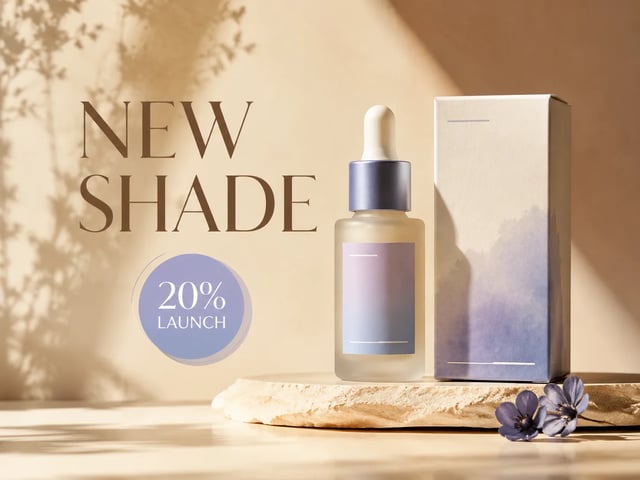
Drop a short launch line or caption onto a still for feed and story slots.
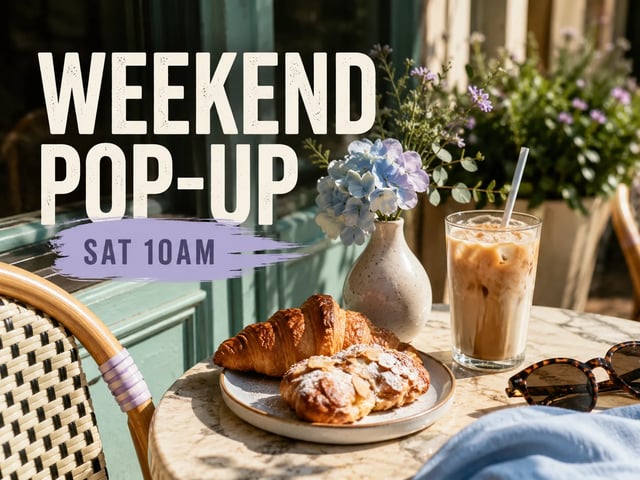
Bold readable lettering when the joke or note only works on the image.
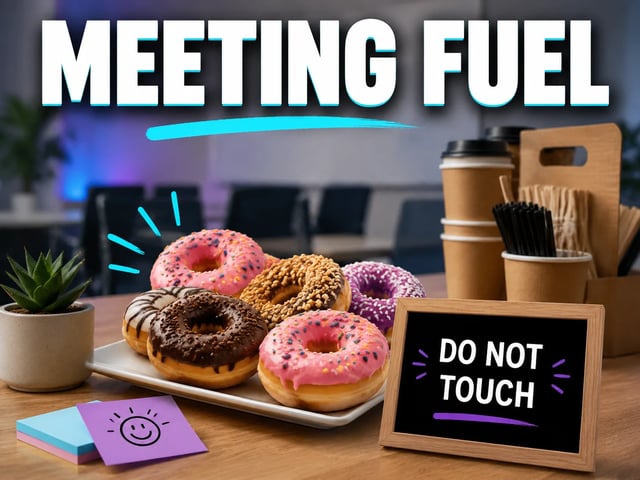
The image is ready. The words are not.
Add product names, launch notes, discount badges, or flavor labels to existing product photos before a campaign goes live.
Turn a strong still into a post with a headline already baked into the image.
Label cover images and section art with readable titles that survive small previews.
Place punchy caption text without fighting a multi-layer design file.
Add text, edit text, cutout, and other jobs on the same image stack.
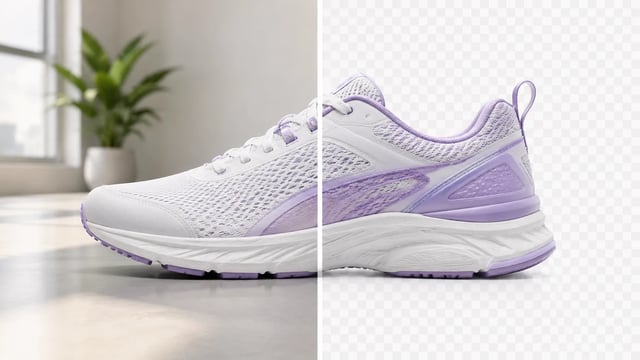
Product, portrait, or graphic — subject clean, ready for the next layout
Wordmarks, icons, and monograms — isolate the logo, clear the backdrop
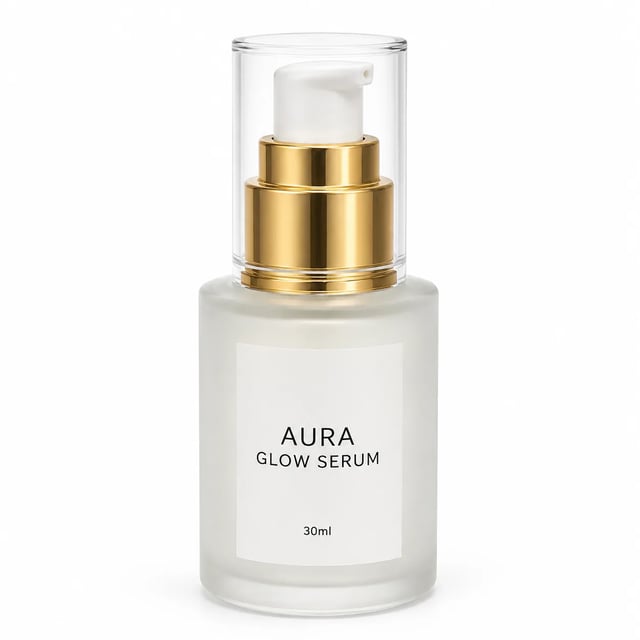
Turn a phone product photo into listing-ready packshots
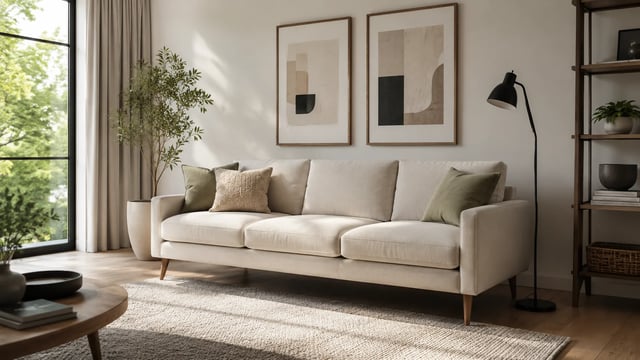
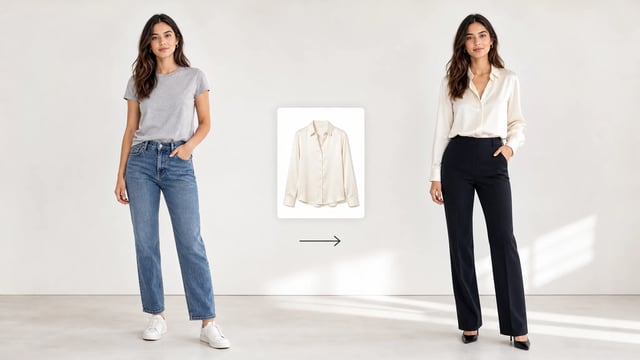
Room photo + product shot → in-room preview
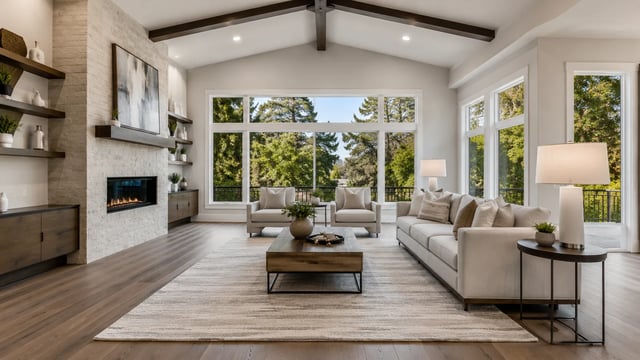
Empty room in → furnished listing still out
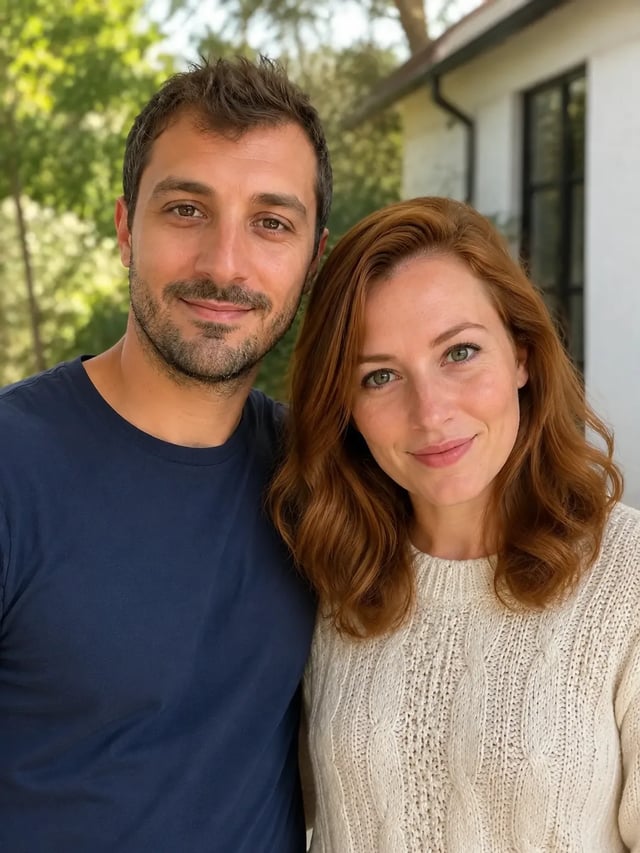
Upload person A, then person B — both faces stay the point

Tight crops become banners, stories, and wide layouts without a reshoot
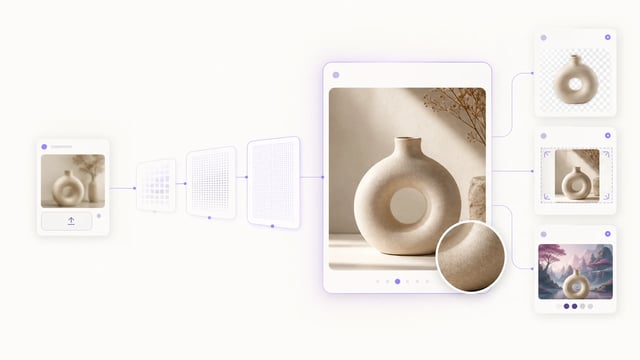
Small crops, soft exports, and AI drafts — bigger files you can actually place

Clearer faces — not a larger blurry file
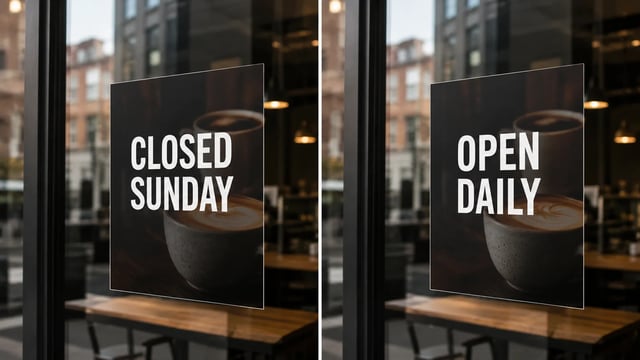
Posters, menus, labels, and screenshots — rewrite in place without rebuilding the graphic
Yes. Upload a still, describe the words and placement, and generate an AI text overlay baked into the image.
No. Type is painted into the pixels. You do not get an editable font layer to drag later — revise by regenerating with a clearer prompt.
Ask for high contrast (for example bold white on a dark area), name exact placement, and keep lines short. Busy backgrounds need stronger contrast cues.
Quote the string in the prompt, re-run, and always zoom the result. Treat spelling check as a required step, not optional.
Use Image Text Editor when words already exist and need replacing. Use this page when the photo needs new captions or badges.
Yes. Signup credits cover a default-tier run. You need an account to spend them.
Yes when the run offers multiple outputs — use them to compare placement and pick the clearest caption.
Commercial use is available on paid plans. Confirm your plan before client or paid campaign use.
Spell the words you want, generate an AI text overlay, and keep editing on SupaImagine if needed.